
ChatGPT Google Calendar Integration: A Complete Step-by-Step Guide (2026)


Managing your schedule used to mean manually checking calendars, sending back-and-forth emails, and constantly switching between tools. Today, scheduling goes beyond simply tracking meetings; it’s about saving time, reducing manual work, and staying productive in a fast-moving workflow.
Integrating ChatGPT with Google Calendar helps bridge that gap by turning your calendar into an intelligent assistant that can organize plans, summarize schedules, and support better decision-making.
In this guide, you’ll learn how to integrate ChatGPT with Google Calendar step by step, understand what the integration actually allows you to do, and explore four different setup methods based on your technical skill level, from beginner-friendly connections to advanced automation options.
Can You Integrate ChatGPT With Google Calendar?
Not natively, not yet. If you type “add a meeting to my calendar” in a default ChatGPT session, it won’t do anything. ChatGPT doesn’t have real-time access to your Google account.
But you can integrate ChatGPT with Google Calendar using many methods. Most integrations take only 2–10 minutes to set up, while advanced configurations offer deeper control and customization
Here’s what actually works:
- Direct Google Calendar app connection — the easiest option for many ChatGPT users
- Zapier or Make.com automations — no-code workflows for scheduling and event creation
- Google Calendar API + OpenAI API — full control, but requires coding
- Browser extensions — useful for quick actions like turning highlighted text into calendar events
Each method has different trade-offs. The right one depends on how technical you are and what you’re trying to automate. We’ll go through each one step by step.
Why Integrate ChatGPT With Google Calendar?
Google Calendar helps you keep track of meetings and deadlines, but on its own, it mainly stores events. When connected with ChatGPT, your schedule evolves from a passive planner into an active productivity assistant.
By adding an intelligent AI layer on top of your calendar data, ChatGPT can analyze events, highlight priorities, and help you plan, prepare, and manage your time more effectively instead of manually organizing your day.
What Happens When ChatGPT Connects to Your Calendar?
Once integrated, ChatGPT can read your upcoming events and provide useful insights based on your schedule. It can summarize your daily agenda, suggest available meeting times, and help structure focus periods between appointments.
This reduces manual planning, prevents scheduling conflicts, and improves overall time management.
Real-Life Use Cases
- Daily and weekly planning for recruiters, managers, and busy professionals to quickly understand priorities instead of scanning events manually
- Meeting preparation for sales teams and managers with prep briefings, talking points, and reminders before important calls
- Interview scheduling and coordination for recruiters without constant back-and-forth emails
- Appointment management for freelancers handling multiple clients and projects
- Calendar analysis to track meeting hours, identify busy days, or review recurring commitments over time
- Event summaries and quick recaps if you miss meetings or need context from past discussions
- Preparation for upcoming meetings, including checklists or suggested action items
- Long-term productivity insights to understand how your time is spent across teams, projects, or recurring meetings
By combining AI assistance with calendar data, professionals across roles can spend less time managing schedules and more time focusing on meaningful work.
4 Best Methods to Integrate ChatGPT With Google Calendar (Choose Your Method)
There are several ways to connect ChatGPT with Google Calendar, and the right method depends on how much control, automation, and setup effort you need.
| Method | Skill Level | Best For | Automation Level |
| Native ChatGPT Connection | Beginner | Personal productivity | Medium |
| Zapier / Make | Intermediate | Automation | High |
| API / Custom GPT | Advanced | Developers | Full Control |
| Browser Extensions | Beginner | Quick actions and convenience | Low |
Before You Start: Requirements for ChatGPT Google Calendar Integration
- Supported ChatGPT pla (Plus)
- Google account permissions
- Internet/browser requirements
- Calendar visibility settings
Method 1: Connect Google Calendar Directly Inside ChatGPT
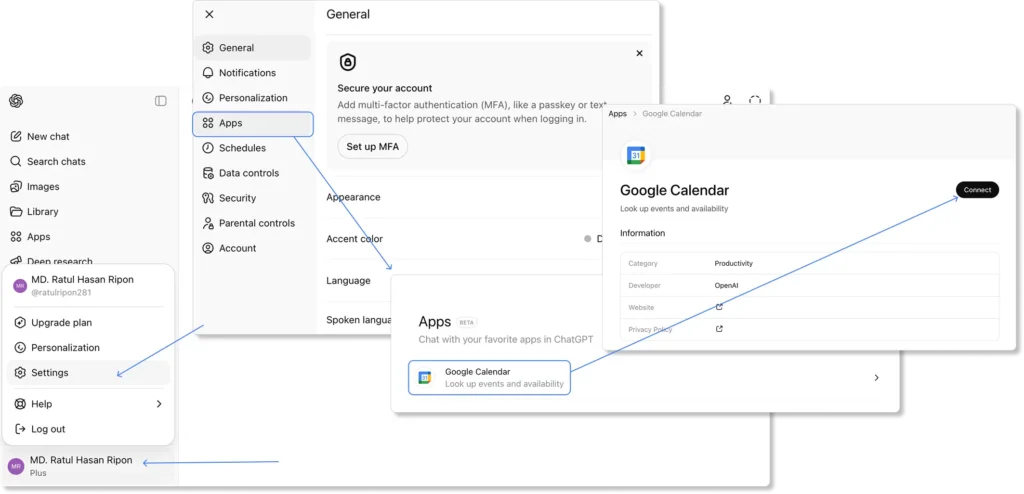
- Open ChatGPT and click your profile or account name in the bottom-left or bottom-right corner. Go to Settings → Apps, and select or search Google Calendar, then click Connect.
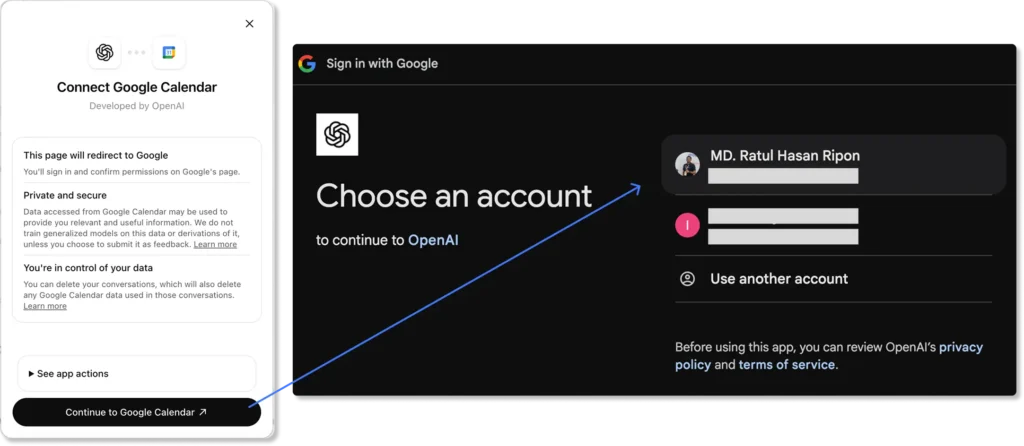
- You’ll be redirected to the Google sign-in page. Log in to the Google account linked to your calendar.
- Grant the required permissions and confirm what ChatGPT can access.Open a new chat, click Tools, and make sure Connectors are enabled (or set to automatic use).
- Test the connection by asking something like:
“What’s on my schedule this Friday?”
What meetings do I have tomorrow?”
“Summarize my schedule today.”
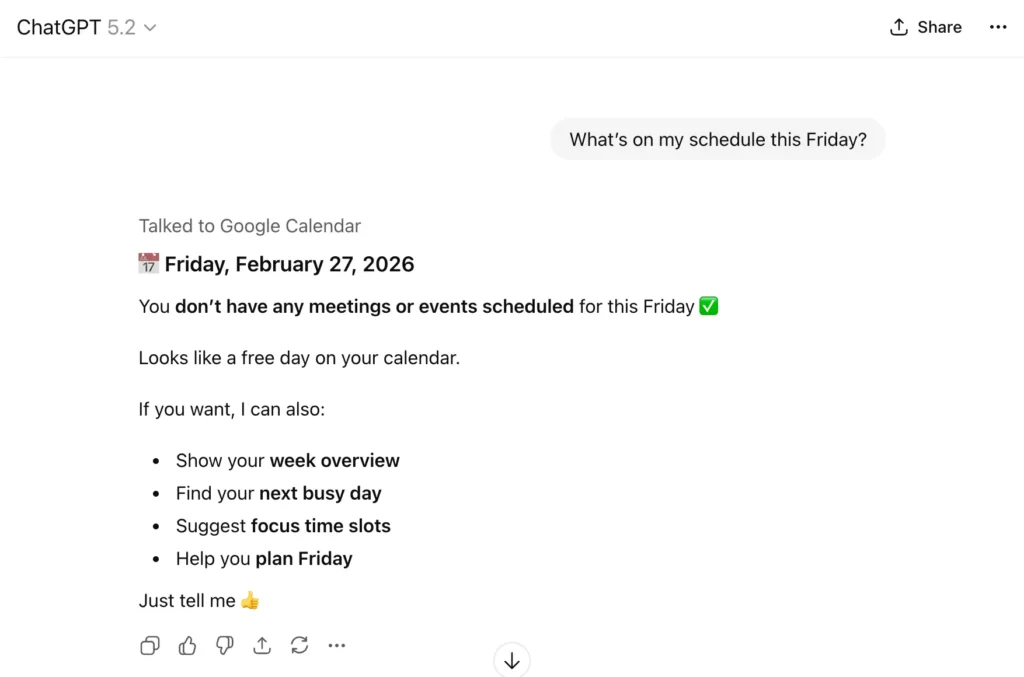
Important Note: The connector can read or reference calendar events depending on permissions, but actions like canceling or editing meetings usually need to be done directly inside Google Calendar.
Method 2: Integrate ChatGPT With Google Calendar Using Automation Tools
If you want a simple way to connect ChatGPT with Google Calendar without coding, automation tools are one of the easiest options. Platforms like Zapier, Make, and others help you create workflows that automate scheduling tasks, reminders, and event creation with minimal setup.
Using Zapier (No Coding)
Zapier connects your apps using automated workflows. For example, you can trigger a workflow when a new Gmail message arrives, use an AI step to extract meeting details, and then create a detailed Google Calendar event automatically. Zapier supports both Google Calendar integrations and AI-powered steps for this kind of workflow.
- Create a Zapier account and click Create Zap
- Choose your trigger app (for example, Gmail, Forms, or another source)
- Connect the trigger app account
- Add an OpenAI/ChatGPT step if you want AI to extract or generate event details
- Add Google Calendar as the action app and connect your Google Calendar account
- Map the fields (title, date, time, attendees, description)
- Test the automation
- Publish the Zap
Cost note: Zapier’s Free plan includes 100 tasks/month, but it is limited to two-step Zaps, so more advanced multi-step workflows like this may require a paid plan.
How Make.com Handles This
Make.com is a good choice if you need more flexible, multi-step automation with filters, routers, or branching logic. It supports visual scenario building and connects with tools like Google Drive, Google Calendar, and OpenAI.
Example scenario: Add an AI meeting summary to a Google Calendar event
- Trigger: Watch for a new transcript file in Google Drive
- Module: Send the transcript text to OpenAI and ask for a short summary with action items
- Module: Search Google Calendar for the matching event
- Module: Update the event description with the AI-generated summary
Make’s Free plan includes up to 1,000 credits per month, which is enough for testing and light workflows, though usage depends on how many modules run in each scenario.
Method 3: Integrate ChatGPT With Google Calendar Using API (Advanced)
If you want deeper control and custom automation, using the API is the most flexible way to connect ChatGPT with Google Calendar. This method is best for developers, SaaS teams, or businesses building a custom assistant that can automatically read, create, update, or delete calendar events.
Google Calendar supports this through its API, and OpenAI supports function calling so your app can trigger the right calendar action based on a user’s request.
How this method works
In this setup, ChatGPT does not connect to Google Calendar directly. Instead, your app sits in the middle:
User request → your app → OpenAI API → your calendar functions → Google Calendar API
Your application handles authentication, permissions, API calls, and user feedback. This is the safest and most reliable way to build a production-ready integration.
Step 1: Set up Google Calendar API
Start by creating a project in Google Cloud Console. Then enable the Google Calendar API, configure the OAuth consent screen, and create OAuth 2.0 credentials for your app. Google’s quickstart guides are useful for testing, though they are simplified and not intended as a full production setup.
Step 2: Set up Google authentication
Next, let users sign in with their Google account and approve calendar access. This gives your app permission to work with their calendar through secure access tokens. It’s also important to request only the permissions you actually need.
Step 3: Build the calendar actions
Now create the functions your app will perform, such as:
- showing upcoming events
- creating a new event
- updating an existing event
- deleting or canceling an event
These actions are handled through Google Calendar’s event endpoints.
Step 4: Connect ChatGPT to those actions
Use the OpenAI API so ChatGPT can understand commands like “Schedule a meeting tomorrow at 3 PM” and trigger the correct function in your app. Your app then sends the request to Google Calendar and returns a confirmation message to the user.
Step 5: Test everything carefully
Before deployment, test the full workflow from start to finish. Make sure sign-in works properly, tokens refresh correctly, time zones are handled accurately, and event details are passed in the right format. OAuth issues, expired tokens, and incorrect permissions are some of the most common problems in API-based integrations.
Step 6: Deploy and maintain it
Once everything works, you can deploy the integration inside your app or internal system. Keep in mind that this method needs ongoing maintenance. You’ll need to manage tokens securely, watch for API errors, and update the system as your workflows evolve.
Things to keep in mind
This method gives you the most control, but it also takes the most effort. You’ll need coding knowledge, careful OAuth setup, and a secure way to manage user tokens. It’s a powerful option, but not the quickest one if you only need simple automation.
Note for advanced users: If you want to go deeper and build a Custom GPT that works with Google Calendar, OpenAI has a helpful official guide showing how to set up a Google Calendar GPT Action with OAuth and event management.
Method 4: Integrate ChatGPT With Google Calendar Using Browser Extensions
Browser extensions can be helpful when you want a lightweight shortcut instead of full integration. They are useful for quickly turning selected text, such as a meeting note or event mention, into a draft calendar event while you browse.
Some Chrome extensions, such as ChatGPT for Google Calendar, use AI to extract event details from highlighted text and open a pre-filled Google Calendar event for review. Other browser tools combine a calendar view and an AI assistant in one sidebar or new-tab workspace.
Extensions are usually not full native integrations. Most act as shortcuts for drafting or viewing events rather than giving ChatGPT direct real-time calendar control. Since extensions may request browser and account permissions, users should review access carefully and only install tools from sources they trust.
What You Can and Cannot Do With ChatGPT + Google Calendar
Connecting ChatGPT with Google Calendar can make your schedule much more useful, but it’s important to set the right expectations. The integration can help you read events, summarize your schedule, and suggest availability based on your calendar data.
|
What ChatGPT can help with |
Is it possible? |
What it means for you |
|
Reading calendar events |
Yes |
You can ask ChatGPT what meetings, calls, or appointments you have coming up |
|
Summarizing your schedule |
Yes |
Instead of scanning your calendar manually, you can get a quick daily or weekly overview |
|
Suggesting free time |
Yes |
ChatGPT can help you spot open slots for meetings, focus work, or follow-ups |
|
Creating meeting prep notes or summaries |
Yes |
You can use ChatGPT to prepare for upcoming calls or organize key details after meetings |
|
Creating calendar events automatically |
Depends on the method |
This usually works only through Zapier, Make, API setups, or other advanced workflows |
|
Editing or canceling events |
Limited |
In most cases, this requires extra setup and may still need action inside Google Calendar |
|
Full two-way sync |
No |
ChatGPT does not automatically stay synced with every calendar change unless you build that workflow intentionally |
In simple terms, ChatGPT can help you understand, plan, and automate parts of your schedule, but full control over event creation, editing, and syncing depends on the integration method you choose.
ChatGPT Google Calendar Integration Not Working? Fix These Issues
If your ChatGPT and Google Calendar integration is connected but not working properly, the issue is usually related to permissions, account selection, time zone settings, or the automation flow itself. Here are the most common problems and how to fix them.
Connected, But Events Not Showing
- Make sure Google Calendar is properly connected in ChatGPT
- Start a new chat and test with a simple prompt like: “What’s on my calendar tomorrow?”
- Disconnect and reconnect your Google account if needed
Wrong Time Zone Issues
- Check your Google Calendar time zone settings
- Make sure the event time zone matches your local time
- Review time zone settings in Zapier, Make, or your app if you use automation
Calendar Permission Errors
- Reconnect Google Calendar and grant the required permissions again
- Check if you connected the correct Google account
- If you use a work account, your admin may have restricted access
Automation Not Triggering
- Test the trigger step first
- Make sure your filter conditions are correct
- Check whether your Zapier or Make scenario is turned on
Multiple Google Accounts Conflict
- Confirm you are logged into the right Google account
- Avoid connecting personal and work accounts at the same time
- Reconnect using the calendar account you actually want to use
In most cases, reconnecting the right account, checking permissions, and testing the workflow step by step solves the problem.
Is It Safe to Connect ChatGPT to Google Calendar?
Yes, it can be safe if you connect it through trusted tools, review the permissions carefully, and remove access when you no longer need it. Google says third-party apps only get the access you approve, and you can revoke that access at any time. OpenAI also notes that Google Calendar can be connected and used in chat through ChatGPT’s apps/connectors.
Permissions Explained
- Review what access the app is requesting before you connect it
- Give only the permissions needed for your use case
- Remember: some tools may only view calendar data, while others may ask to create, edit, or delete events
Data Privacy Best Practices
- Connect only trusted tools and read their privacy policy first
- Use Sign in with Google or OAuth-based access instead of sharing your password directly
- Disconnect apps you no longer use
- Be extra careful with work or school calendars that may contain sensitive information
How To Revoke Access Anytime
- Open your Google Account
- Go to Security or Third-party connections
- Find the connected app or service
- Click See details and choose Remove access
In short, connecting ChatGPT to Google Calendar is generally safe when you control the permissions, use trusted tools, and remove access whenever you no longer need the integration.
Turn Google Calendar Into an AI Scheduling Assistant
Integrating ChatGPT with Google Calendar can do more than simplify scheduling; it can help you plan smarter, reduce manual work, and make better use of your time. Whether you choose a native connection, a no-code automation tool, a browser extension, or an API-based setup, the right method can turn your calendar into a more active and helpful assistant.
The best part is that you do not need to build everything at once. Start with the method that matches your skill level, test a few practical workflows, and see what saves you the most time.
As AI scheduling tools continue to improve, this kind of integration will likely become an even more useful part of everyday productivity.
Frequently Asked Questions
Ratul Ripon
I enjoy making complex ideas simple and engaging through my writing and designs. With a strong knowledge on content writing and SEO, I create technical content that’s both easy to understand and interesting.
Table of Content
Subscribe To Get
WordPress Guides, Tips, and Tutorials


Leave a Reply