
How Therapists Can Set Up Weekly Recurring Appointments in WordPress: A Step-by-Step in 2026


If you’re a therapist, your schedule probably looks the same every week. The same clients, the same time slots, the same rhythm. But if you’re still booking each session manually, it adds up fast. You end up sending reminders, confirming availability, and recreating the same appointment over and over again.
That’s where recurring appointments for therapists make a real difference.
Instead of booking one session at a time, you can let clients reserve a weekly time slot in a single step. The system automatically schedules future sessions, sends reminders, and keeps your calendar organized.
In this guide, you’ll learn how to create recurring therapy sessions inside WordPress step by step, while keeping your booking process simple and privacy-conscious.
TLDR;
To set up recurring appointments for therapists in WordPress, create a therapy event in FluentBooking, configure your availability, booking limits, and reminders, then enable Recurring Event in the settings. After that, connect your calendar and publish your booking page so clients can reserve weekly sessions in one flow.
Why Recurring Appointments Matter for Therapists
Recurring appointments are not just a convenience. For therapy practices, they play a key role in maintaining consistency, reducing workload, and creating a smoother experience for both you and your clients.
- Therapy Usually Follows a Weekly Rhythm: Most therapy sessions follow a consistent schedule. Clients often meet on the same day and time each week, so recurring booking helps maintain that structure without requiring them to rebook every session.
- It Reduces Repetitive Admin Work: Manually scheduling every session takes time and energy. Recurring appointments remove that repetition by automatically creating future sessions once a client books.
- It Helps Reduce Missed Sessions: When sessions are pre-scheduled, clients are less likely to forget or delay booking. With reminders in place, attendance becomes more consistent over time.
- It Keeps Your Calendar Predictable: Recurring bookings help you plan your week better. You always know which time slots are reserved for regular clients and which ones are open for new appointments.
- It Improves the Overall Client Experience: Clients don’t need to go through the same booking process every week. A simple, one-time booking makes the experience smoother and removes unnecessary friction.
How Therapists Can Set Up Weekly Recurring Appointments in WordPress Step-by-Step
Managing weekly therapy sessions manually can be time-consuming. Using a WordPress booking system, you can automate recurring appointments, reminders, and calendar syncing so you can focus on your clients instead of your schedule.
In this guide, we’ll demonstrate the process using FluentBooking as one example of a WordPress appointment booking plugin, but the steps may be applied to other similar booking tools as well.
What You’ll Need
- WordPress site
- FluentBooking plugin (free + pro)
- Google Calendar or Outlook (optional but recommended)
Install and Activate FluentBooking
- Go to your WordPress dashboard
- Navigate to Plugins → Add New
- Search for “FluentBooking” and install it
- Activate the plugin
- Complete the initial setup wizard (takes about 2 minutes)
Create Your Booking Calendar
- Go to the plugin → Calendars
- Click Add New Calendar (One-on-one meeting)
- Name: e.g., “Weekly Therapy Session.”
- Description: Brief info for clients
- Location: In-person address, or virtual meeting link.
- Save the calendar
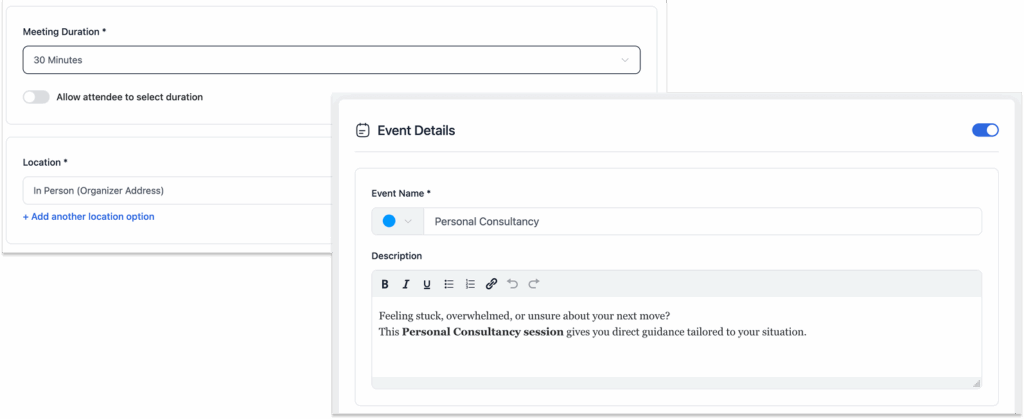
Set Up Your Availability
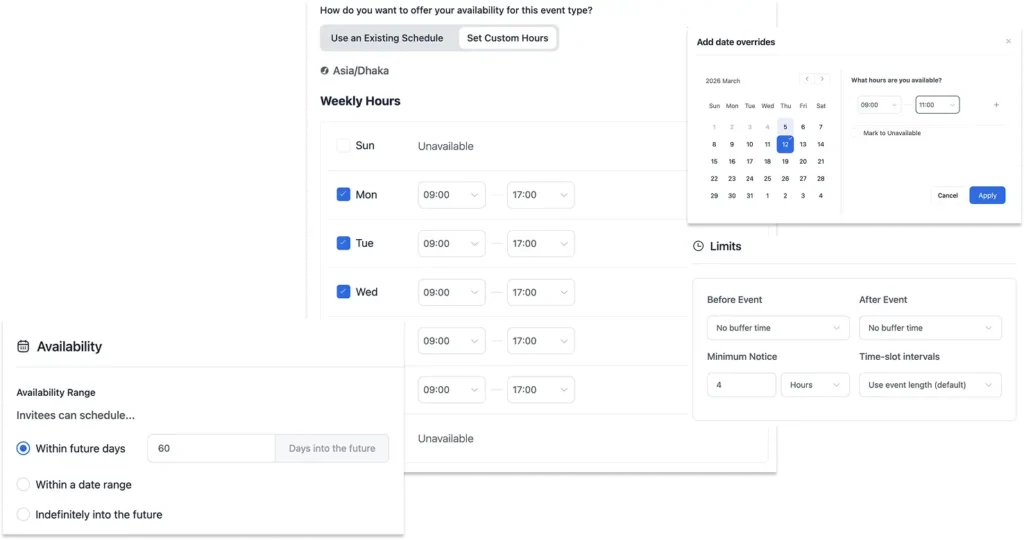
- Inside your calendar, go to the Availability tab
- Choose which days you’re available
- Set your working hours (e.g., Mon–Fri, 9 am–5 pm)
- Set your session duration (typically 50 or 60 minutes for therapy)
- Add buffer time between sessions (15–30 minutes recommended — gives you time to write notes)
- Set a minimum notice period (e.g., 24 hours — prevents last-minute bookings)
Enable Recurring Appointments
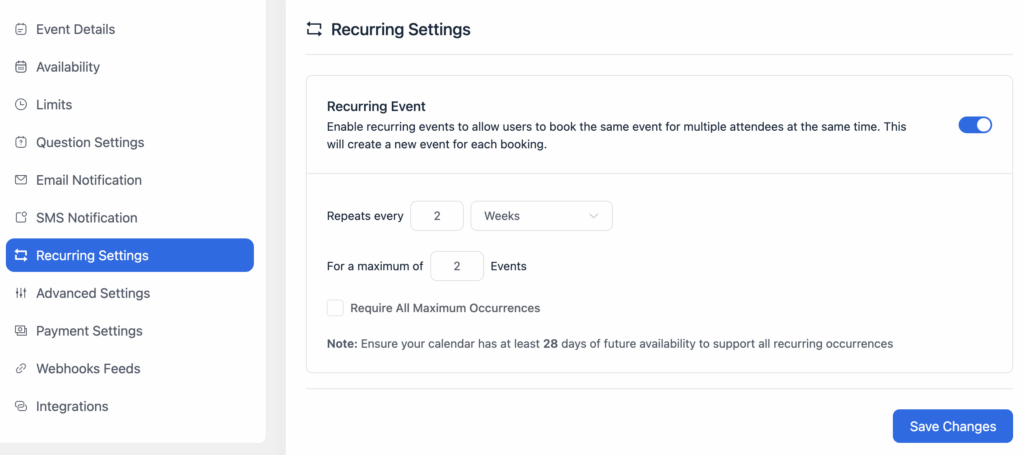
- Scroll to the Recurring Appointment settings
- Enable recurring bookings, then configure,
- Frequency: Weekly
- Number of sessions: e.g., 8 weeks, 12 weeks, or ongoing
- Same time slot: Lock the time so clients book the same slot every week, and save.
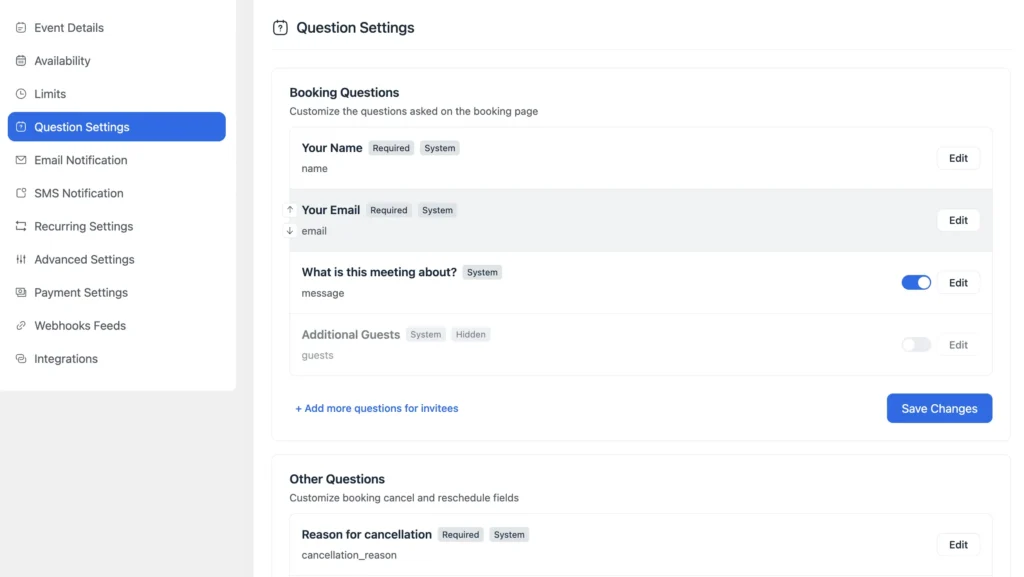
Customize Your Booking Form
- Go to the Question settings tab
- Add fields relevant for therapy intake: Full name, Email, and phone
- “Reason for seeking therapy” (paragraph field)
- Emergency contact (optional)
- Insurance information (optional)
- Add a consent checkbox (“I agree to the cancellation policy”)
- Save your form
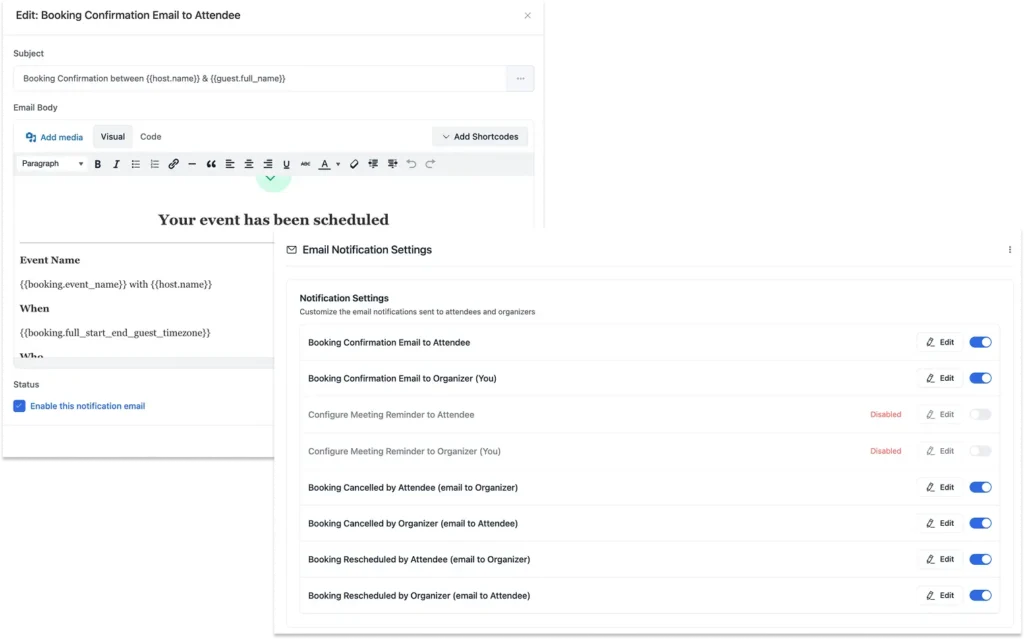
Set Up Automated Reminders
This is where you stop chasing clients for confirmations.
- Go to Email Notifications in your calendar settings tab to set up
- Confirmation email — sent immediately after booking
- Reminder email — 24 hours before each session
- Reminder SMS — 2 hours before (requires SMS integration)
- Customize the message templates with the client’s name, date, time, and location/link
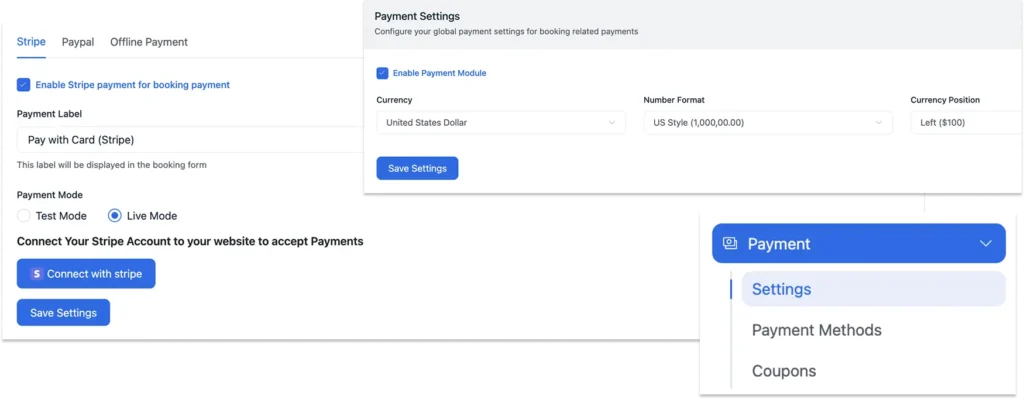
Set Up Payments Method
If you charge clients per session or offer prepaid therapy packages, you can configure the payment module to accept payments online.
- Go to Settings → Payment in your booking system
- Check Enable Payment Module
- Set your currency, number format, and any tax settings
- Choose payment methods: Stripe/PayPal/Offline payment (manual)
- Save your settings so clients can pay for single sessions or full recurring packages at checkout
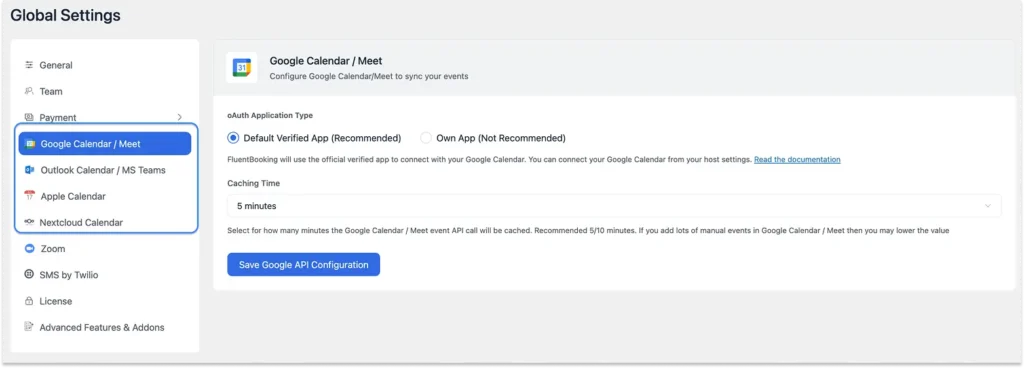
Connect Your Calendar (Avoid Double Bookings)
- Go to FluentBooking → Global settings
- Connect Google Calendar or Outlook
- FluentBooking blocks time when your personal calendar has events
- New bookings appear automatically in your calendar
Add Zoom or Google Meet(Optional)
- Go to Integrations → Zoom
- Connect your Zoom account
- Enable “Auto-generate Zoom link for each booking.”
The unique meeting link will be included in every confirmation and reminder email automatically
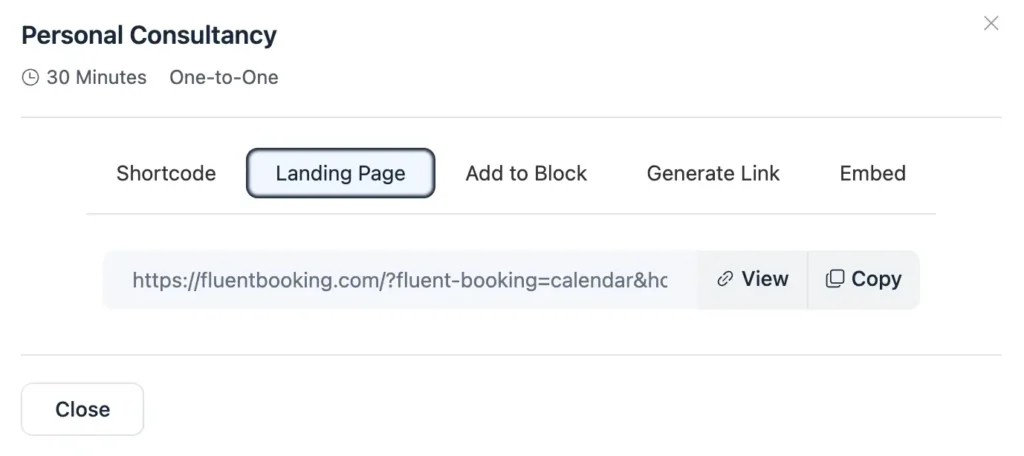
Publish Your Booking Page
- Go to FluentBooking → Booking Pages
- Copy your booking page URL or embed the booking widget on any page:
- Use the shortcode
- Or use the Gutenberg block
- Add it to your website’s Contact or Book a Session page
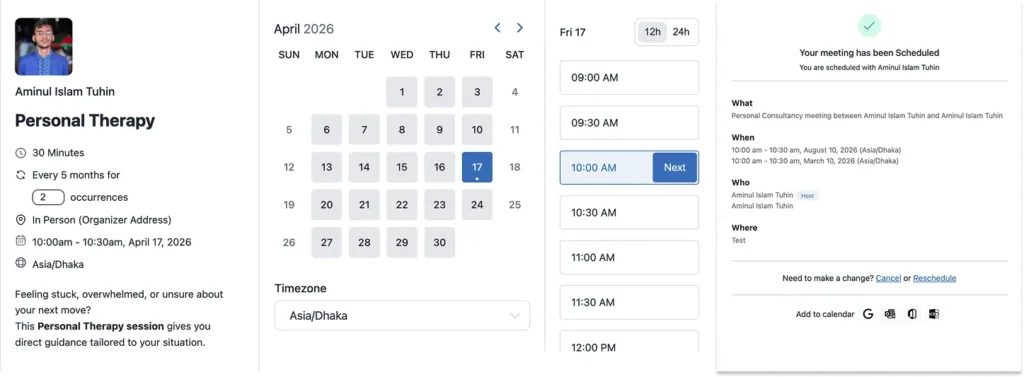
Test the Full Flow
- Before sending clients to book:
- Open your booking page in a private browser
- Book a recurring test appointment
- Check that you received confirmation emails
- Verify it appeared in your connected calendar
- Confirm that the recurring sessions are all blocked correctly
Privacy Considerations for Online Therapy Booking
When setting up online booking for therapy, privacy should always come first. Using a WordPress-based solution gives you more control over how client data is handled compared to relying entirely on third-party platforms.
- Keep Booking Forms Minimal: Collect only the information needed to schedule the session, such as name, email, and appointment type. Keeping forms simple reduces risk and makes the booking process more comfortable for clients.
- Avoid Collecting Sensitive Clinical Information: Your booking form should not replace a secure intake process. Avoid asking for diagnosis details, trauma history, medication info, or personal case notes. Keep those conversations in a more controlled and secure setting.
- Keep Data on Your Own Website: With a self-hosted WordPress setup, your booking data stays on your own website instead of being stored on an external platform. This gives you more control over how information is managed and who can access it.
- Maintain Full Control Over Client Data: You decide how booking data is stored, accessed, and used. Unlike third-party tools, you’re not dependent on external policies or systems to manage sensitive client information.
- Limit Access and Use Secure Practices: Restrict dashboard access to authorized staff only and ensure your website uses HTTPS. These simple steps help protect client data and keep your booking system secure.
Best Practices for Therapists Using Recurring Booking
Recurring booking can save time and improve client experience, but following some simple practices ensures it works smoothly and maintains privacy.
- Keep Booking Forms Simple: Only ask for the essential information needed to schedule sessions. Avoid turning the booking form into a full intake questionnaire.
- Add Buffer Time Between Sessions: Include short breaks between appointments to allow for notes, transitions, or sessions running slightly over time.
- Separate Scheduling from Intake: Use your booking system solely for scheduling. Collect detailed clinical or personal information through secure, separate intake forms.
- Regularly Review Availability: Ensure your recurring availability covers the full series of sessions. Adjust for holidays, vacations, or other schedule changes to prevent conflicts.
- Use Automated Reminders: Set up reminders via email or messaging to reduce missed appointments and help clients stay consistent.
- Maintain Data Access Control: Restrict access to your scheduling system to authorized staff only, ensuring client information remains confidential.
Ready to Stop Managing Recurring Appointments Manually?
Setting up recurring appointments can completely simplify your therapy practice. Automating scheduling, reminders, and calendar management reduces administrative work and creates a consistent routine for your clients.
Clients enjoy a smoother, more predictable booking experience, and you gain more time to focus on providing care. When planned thoughtfully, with attention to both convenience and privacy, recurring bookings make your practice more organized, professional, and client-friendly.
Ratul Ripon
I enjoy making complex ideas simple and engaging through my writing and designs. With a strong knowledge on content writing and SEO, I create technical content that’s both easy to understand and interesting.
Table of Content
Subscribe To Get
WordPress Guides, Tips, and Tutorials




Leave a Reply