

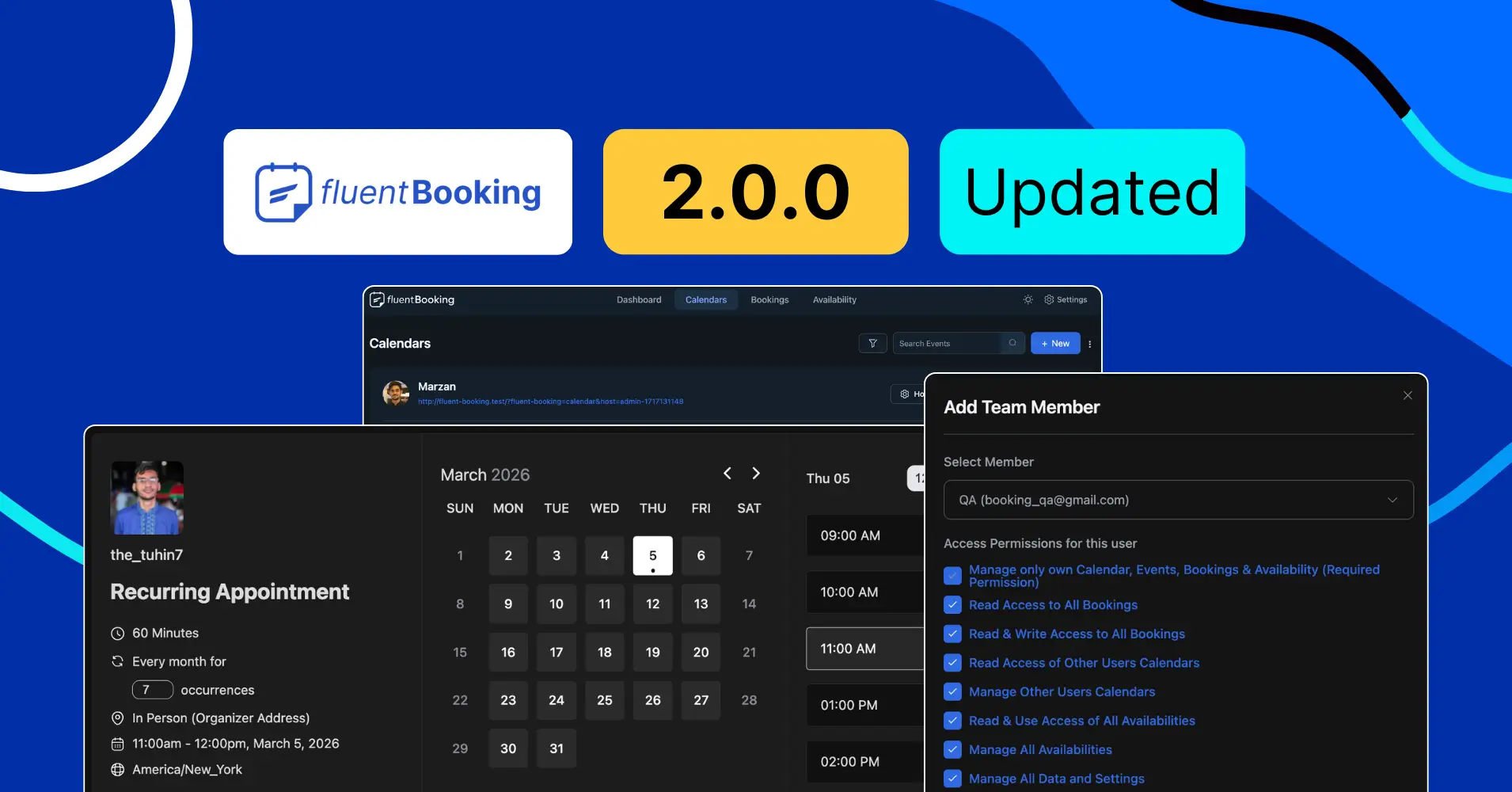
FluentBooking 2.0.0: The Year of Recurring Events with Dark Mode and Many More


Happy New Year and welcome to 2026!
We hope this year brings you good health, happy moments with your family, and great success in your work and business.
2026 is going to be a very exciting year for the FluentBooking family. We have many plans ahead, and we are working on things that will make your booking experience even better.
We are starting this new year with a bang. This release focuses on some of the most-awaited features that many of you have been asking for for a long time. We are truly excited to finally share them with you.
So let’s begin this journey together and move towards a wonderful 2026.
Recurring Event
We honestly cannot count how many people have been waiting for this. Recurring events have been one of the most requested features in FluentBooking for a long time.
The wait is finally over.
You can now create recurring events in FluentBooking and make scheduling easier for both you and your attendees. No more setting up the same meeting again and again. Just set it once and let it repeat. This feature gives you more flexibility and saves time for everyone involved.
Why Recurring Events Matter?
Recurring Events are perfect when the same meeting happens regularly.
Here are a few common ways to utilize this special addition:
- Weekly coaching or consulting sessions: Set one event and run it every week without extra setup.
- Online classes or training programs: Let students book a recurring schedule with confidence.
- Team meetings or internal check-ins: Keep things organized without manual work.
- Therapy or mentorship sessions: Offer a smooth and predictable booking experience for your clients.
Although these are some of the common use cases but the possibilities are limitless, to be honest.
How to Enable and Use Recurring Events in FluentBooking
Now it’s time to turn on recurring events and see how it works inside FluentBooking. Before we begin, there are a few important things to keep in mind.
Please note:
- Recurring events are available in the Pro version only. If you are using the free version, you will need to upgrade
- This feature works with One-on-One and Group Meeting types
- Your future availability must match the repeat rules. Otherwise, recurring bookings will not work properly
Once these are set, you are good to go.
Step 1: Open Your Calendar Settings
You can create a new One-on-One or Group Meeting calendar from scratch. Or you can edit an existing one. For this example, let’s update an existing calendar.
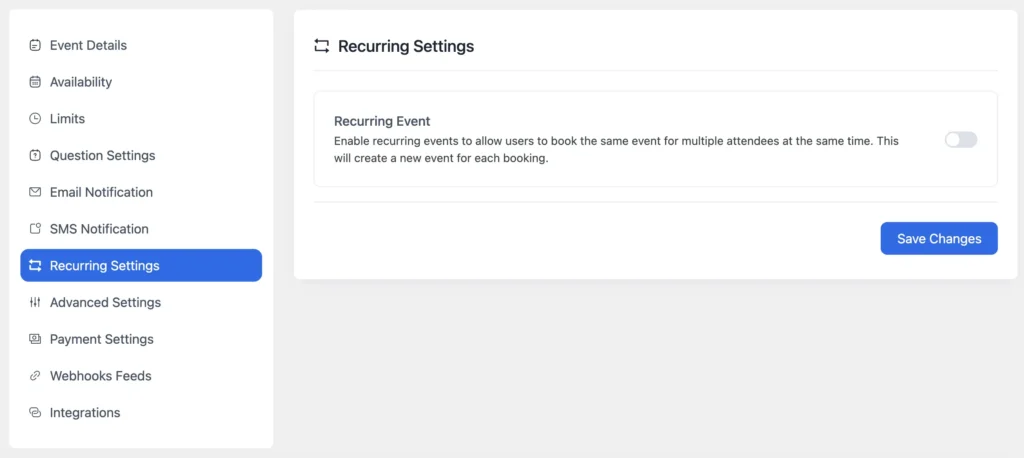
Go to Calendars and click Edit. You’ll see a new option called Recurring Settings. Click on it, then enable the Recurring Event option.
Step 2: Set the Repeat Rules
After enabling it, you need to define how the event will repeat. Here’s what you can set:
- Choose the repeat cycle (Days, weeks, months, or years)
- Set the maximum number of times the event can be booked
For example, you can set the event to repeat once every month and allow a maximum of 5 bookings. Based on these settings, FluentBooking will remind you to adjust your future availability if needed.
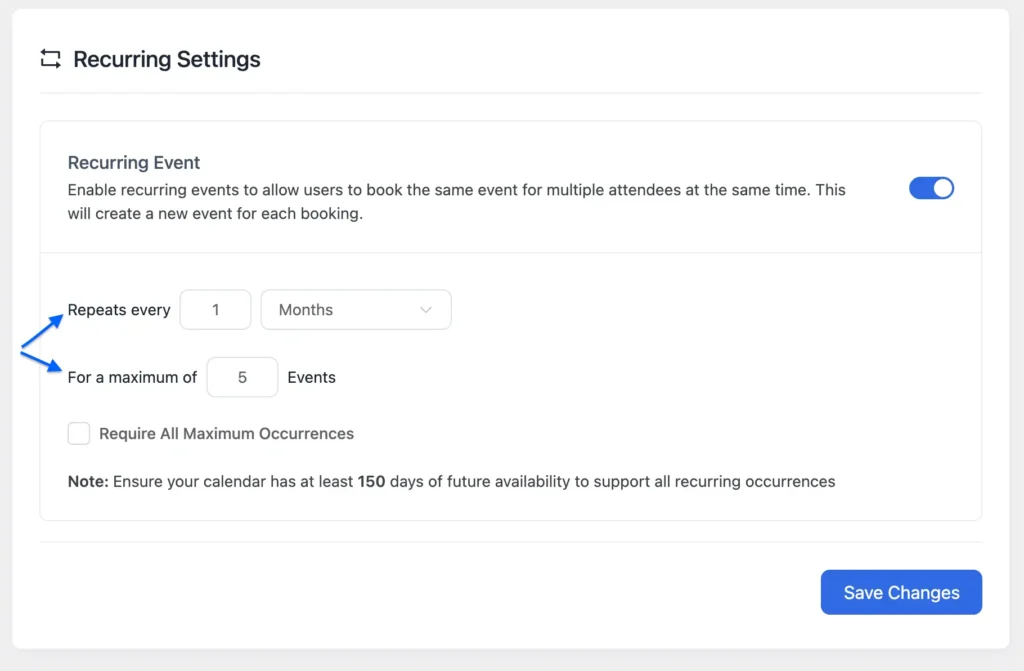
N.B. If your future availability does not match these conditions, the recurring event will not work as expected.
Step 3: Allow Booking All Occurrences at Once (Optional)
If you want attendees to book all recurring slots in one go, you can enable Requires All Maximum Occurrences.

This is useful when you want to:
- Sell all sessions together
- Reduce drop-offs
- Give priority to selected attendees
This setting is optional. You can turn it on or off based on your needs. For this example, we’ll keep it unchecked.
Step 4: See It in Action
Now, enable the landing page mode and open the booking calendar
On the booking page, attendees can choose how many times they want to book based on the selected interval. Once confirmed, FluentBooking will automatically schedule all the appointments on the correct dates.
Here’s a preview of the booking page:
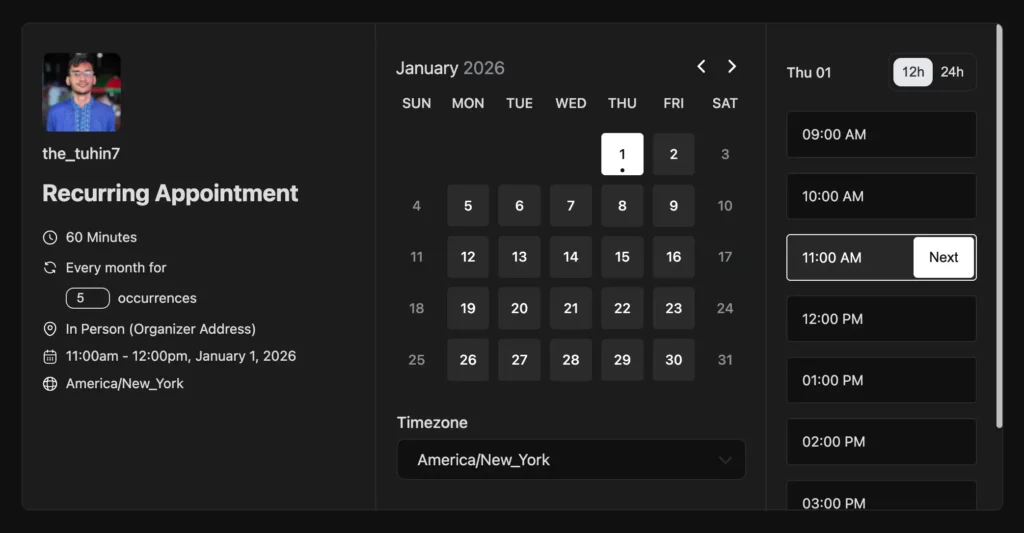
Here’s how it’ll look when the attendee schedules the recurring appointments:

So, this will save time, remove confusion, and give everyone a clear schedule from the start.
Ready to try Recurring Events? Give it a go and let us know how it works for you.
Dark Mode
Dark mode is one of the most exciting additions in this release.
Until now, you could enable dark mode only on the public booking and landing pages. The FluentBooking dashboard itself stayed in light mode.
That changes in this version.
You can now enable dark mode inside the FluentBooking backend and enjoy a more comfortable and focused working experience, especially during long working hours.
Why You’ll Love Backend Dark Mode?
From a user’s point of view, dark mode brings real benefits:
- Easier on the eyes during night or low-light work
- Less screen glare and visual strain
- A clean and modern look inside the dashboard
- Better focus when managing bookings for long hours
- A more pleasant overall experience while working
Enabling dark mode is quick and easy. There are no extra steps and no setup needed. Just look at the top bar of your FluentBooking dashboard. You will find the dark mode icon there. Click on it to switch dark mode on or off anytime you want.
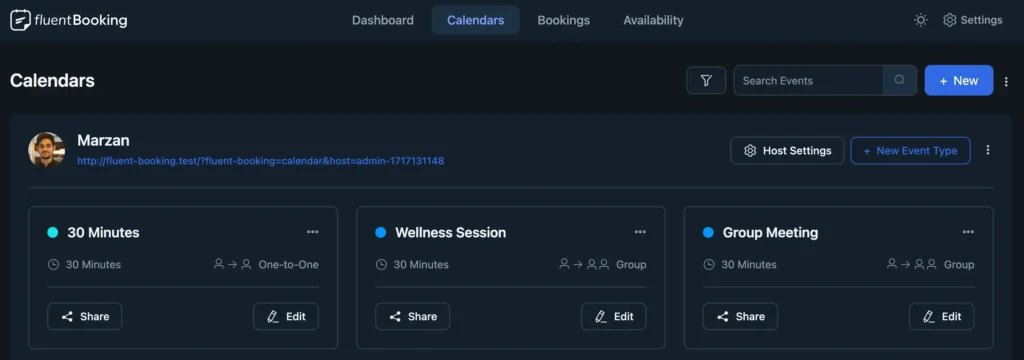
That’s it! We believe dark mode will make your time inside FluentBooking more comfortable and enjoyable, especially during long work sessions.
All Data Access User Capability
Managing a team just got easier. With the new All Data Access User Capability, you can now give full FluentBooking data and settings access to any team member without making them a WordPress admin.
This means your team can manage FluentBooking confidently while your WordPress admin access stays safe and limited.
Go to Settings > Team > Team Members. Select a team member and enable Manage All Data and Settings.
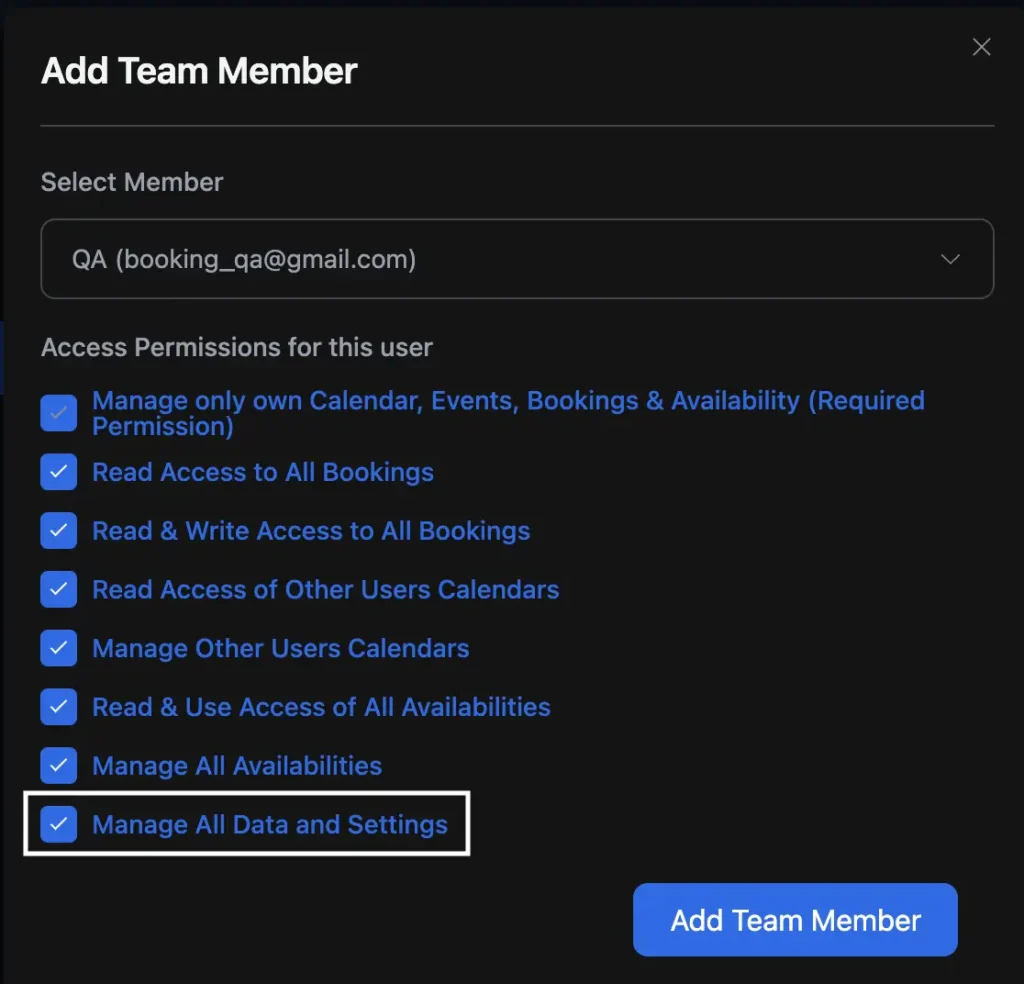
That’s it!
Your team member will now have full access to FluentBooking data and settings, without needing WordPress admin access.
Sell Bookings with 100% Free Coupon
Sometimes you want to run a special event. Or maybe you want to fill empty slots without charging your attendees.
Now you can do that easily. With the 100% Free Coupon option, you can turn paid bookings into free ones for a limited time. This is perfect for special events, giveaways, or clearing unused appointment slots.
The setup is the same as creating any other coupon. Just set the discount percentage to 100% and add a coupon code. Share the coupon code with your attendees. They can then book your paid events without paying anything.
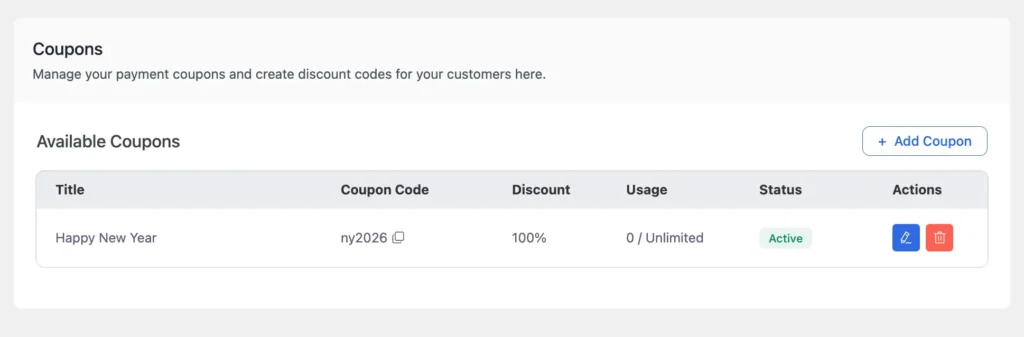
Simple, flexible, and very handy for special cases.
Improvements & Bug Fixes
We are always working to make FluentBooking better with every update.
In this release, we’ve further improved the UI and UX to make your experience smoother and more enjoyable.
We’ve also fixed a few bugs reported by some of our users. Here’s what’s been addressed:
- Fixed: Issue Selecting FluentCart Private Products.
- Fixed: Florida’s New Phone Area Code Validation Issue.
- Fixed: Custom Date Formatting Issue.
- Fixed: Order Item Details not Showing in Confirmation.
Are You Ready for the Blast?
Thank you to all our users for believing in FluentBooking. You are the reason for our success, and we are truly grateful for your support.
2026 is going to be an amazing year, and we’ll share more success and milestones together.
If FluentBooking has made a positive impact on your life or business, we would love it if you could leave a 5-star review on WordPress. Your feedback motivates us to work harder and improve every day.
Once again, Happy New Year! We wish you good health, happiness, and great success in 2026.
Shahjahan Jewel
Hello, this is Jewel, CEO & Head of Ideas at WPManageNinja. I am obsessed with WordPress since 2009. My aim is to be a user-centric developer first, and a serial entrepreneur second. You will find me discussing various tech issues and trying to come up with scalable solutions on different forums when I am not busy coding.
Table of Content
Subscribe To Get
WordPress Guides, Tips, and Tutorials
Add your first comment to this post