
How to Limit Booking Frequency and Manage Your Schedule (Step-by-step)


Here’s how to set booking frequency limits:
- Go to your scheduling dashboard and open the event or calendar you want to edit
- Find the Limits or Availability settings
- Set how many times the event can be booked (per day, week, or month)
- Add buffer time or booking rules if needed
- Save your changes so the limits apply
Your calendar is full, but you still feel behind. Back-to-back bookings leave no room to think, reset, or do your best work. What looks like high demand quickly turns into stress, rushed meetings, and burnout.
The problem isn’t too many clients. It’s a lack of control over how often people can book your time.
Limiting booking frequency is the fix. It means setting rules in your appointment scheduling software that control how often a single client can book within a defined time window
In this guide, you’ll learn exactly how to limit booking frequency, configure it in your scheduling tool, and build a schedule that works for you, not against you.
What Is Booking Frequency?
Booking frequency is how often people can schedule appointments with you within a set timeframe. It simply means putting a limit on your availability so your calendar doesn’t fill up too fast.
Without these limits, your schedule can quickly become overwhelming. But when you control booking frequency, you stay in charge of your time instead of reacting to constant bookings.
For example: 5 bookings per day, 20 bookings per week, 2 bookings per client per month
For appointment-based professionals, including doctors, dentists, therapists, hair salons, massage therapists, fitness coaches, and veterinary clinics, this feature is one of the most underutilized tools in modern scheduling software.
And yet, it can dramatically reduce scheduling chaos, protect your calendar, and ensure fairer access for all your clients.
Why Limiting Booking Frequency Matters for Your Service-Based Business
Before diving into the “how,” it’s worth understanding the “why.” Many professionals don’t think about booking frequency limits until a problem forces them to, and by then, they’ve already lost time, revenue, or client trust.
Here’s what unchecked booking behaviour actually costs you:
- Double-booking by habitual over-bookers. Some clients, well-meaning or not, book multiple slots “just in case,” fully intending to cancel the ones they don’t need. This blocks other clients from getting appointments and inflates your no-show rate.
- Unfair access to peak time slots. Without limits, the fastest or most tech-savvy clients monopolize your most desirable appointment windows, early mornings, lunch slots, and Friday afternoons, leaving other clients frustrated and underserved.
- Burnout from clients who need boundaries. In healthcare and wellness settings, especially, some patients or clients may seek appointments more frequently than is clinically appropriate or professionally sustainable. Frequency limits help you enforce boundaries without awkward manual conversations.
- Difficulty forecasting revenue. When clients can book freely and cancel freely, your weekly revenue becomes unpredictable. Frequency limits combined with cancellation policies create a more stable, foreseeable schedule.
- Improves meeting quality. A sensible frequency limit ensures each appointment has purpose, making your time together more focused, more results-driven, and more valuable for everyone involved.
How to Set Up Booking Frequency Limits: Step-by-Step
The exact steps vary depending on which scheduling software you use, but the core logic is consistent across platforms. Here’s a general framework:
Step 1: Identify Which Service(s) Need Limits
Not every service you offer requires a frequency limit. Start by auditing your booking history. Ask yourself:
- Which services are most frequently over-booked by the same clients?
- Which services have the highest no-show rate?
- Which services have the longest lead times for availability?
Focus your frequency limits on those services first. You can always expand later.
Step 2: Define Your Booking Frequency Limits by Industry
There’s no one-size-fits-all number. The right limit depends on the type of work you do and how much focus each meeting requires.
Here’s a practical guideline to help you decide:
| Industry | Service Type | Limit (Per Client) | Recommended Daily Bookings |
| Hair Salon | Balayage / Color | 1 every 6 weeks | 2–4 per day |
| Medical Clinic | Non-urgent follow-up | 1 per month | 8–12 per day |
| Personal Trainer | 1-on-1 session | 3 per week | 6–8 per day |
| Therapist | Standard session | 1 per week | 4–6 per day |
| Massage Therapy | 60-min deep tissue | 2 per week | 5–7 per day |
| Dental Clinic | Routine check-up | 1 every 6 months | 8–10 per day |
Adjust based on session length, energy required, and your daily capacity. Adjust based on session length, energy required, and your daily capacity.
Step 3: Configure It in Your Scheduling Software
Most modern scheduling platforms include booking frequency controls as a native feature. The exact location varies by tool, but the settings you’re looking for are generally the same across platforms.
For this walkthrough, we’ll use FluentBooking, a WordPress-based scheduling tool that gives you granular control over booking limits directly from your dashboard. If you use a different platform, the same logic applies; just look for equivalent settings in your tool.
Set Booking Frequency Limits
Go to FluentBooking> Calendar> select your calendar> Edit> Limits. This setting controls how many times an event can be booked within a specific timeframe.
You can set limits like:
- 5 bookings per day
- 20 bookings per week
- 40 bookings per month
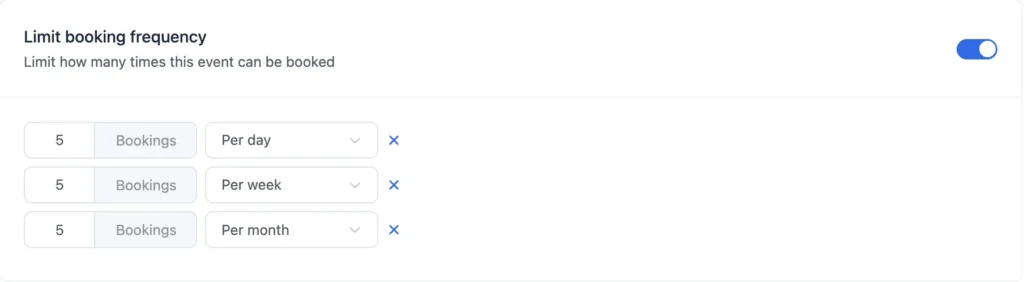
But the other platforms handle this similarly. Once the limit is reached, no more bookings will be accepted for that period.
This helps you avoid overbooking, maintain quality, and keep your schedule under control.
Limit Total Booking Duration
Instead of limiting the number of bookings, you can also limit the total time spent on a specific event. You can set limits like:
- 120 minutes per day
- 120 minutes per week
- 120 minutes per month
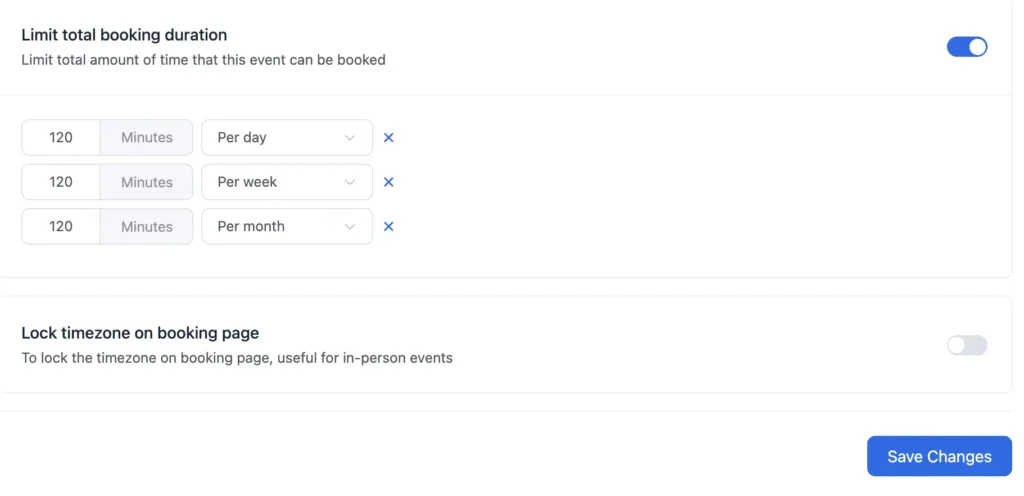
Once the time limit is reached, no additional bookings will be allowed for that period.
This is useful when you want to control your workload based on time, not just the number of appointments.
Set up Buffer Time
After limiting the booking frequency, you can set Buffer time in the same tab, which gives you space before and after meetings so you’re not jumping from one call to the next. It helps you prepare, reset, and deliver better sessions.
- You can set the before and after buffer time.
- Add minimum notice (minutes, hours, or days)
- Adjust time slot intervals.
- Click “Save Changes” to save all the settings.
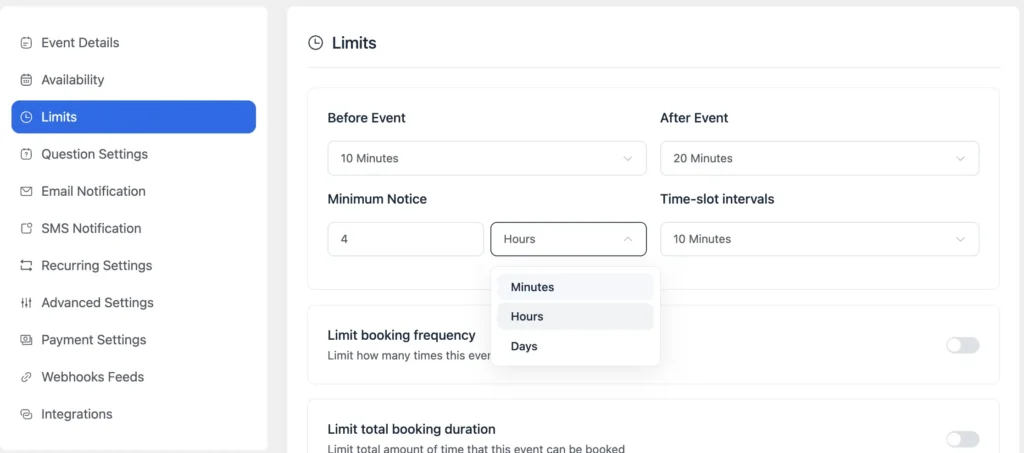
These settings help you create a more balanced and manageable schedule without manual effort.
Restrict Booking Days
Not every day needs to be open for bookings. By limiting specific days, you can protect your time for focused work, admin tasks, or rest.
You can choose exactly which days clients can book you in FluentBooking from the Availability tab of the calendar settings.
For example:
- Only allow bookings on Monday to Thursday
- Keep Fridays for deep work or planning
- Block weekends completely
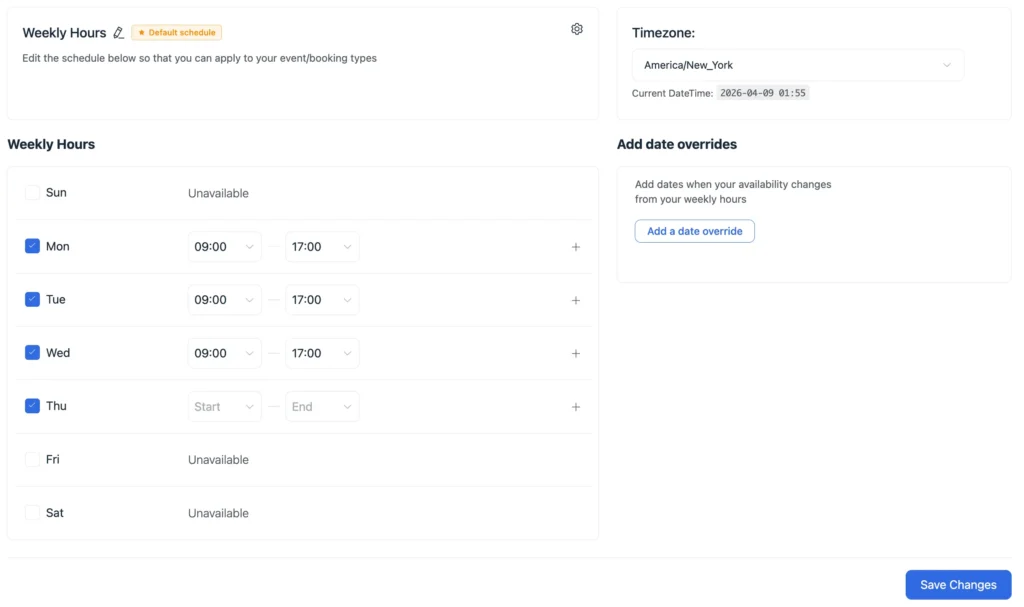
This simple setting helps you create a balanced schedule and avoid spreading your workload across the entire week.
Step 4: Communicate the Policy to Clients
A frequency limit that surprises a client at the point of booking creates friction and frustration. Get ahead of it:
- Add a brief note in your booking confirmation emails explaining how often the service can be booked
- Include frequency guidelines on your services page or booking page description
- For healthcare settings, discuss limits during the initial consultation or intake process
- Add an FAQ entry to your website: “How often can I book [service name]?”
Clear, proactive communication prevents the policy from feeling punitive. Frame it as a service quality measure; it protects the client’s experience, not just your calendar.
Step 5: Decide How to Handle Exceptions
No policy works perfectly for every client. You’ll need to decide:
- Will you offer manual overrides? Some platforms let staff bypass frequency limits for specific clients, useful for urgent needs or VIP clients.
- Will you create tiered access? Some businesses grant higher-frequency booking permissions to premium members or long-term clients.
- What’s your cancellation buffer? Should a cancelled appointment “free up” the client’s slot within the window, or does the cancellation still count against the limit? This prevents abuse where clients book, cancel, and re-book.
Setting clear rules for exceptions helps you stay flexible without losing control over your schedule.
Common Mistakes When Setting Booking Frequency Limits
Even with the right setup, small mistakes can create bigger problems. Here are the most common ones to avoid:
- Setting the Window Too Narrow: A “one booking per day” limit sounds useful, but it doesn’t solve long-term overbooking. Match your limit (daily, weekly, monthly) to the actual problem.
- Forgetting Existing Bookings: When you apply new limits, most tools don’t cancel existing appointments. They only block new ones. Always review current bookings before applying limits.
- Ignoring Multi-Person Bookings: In some cases, multiple people share the same email (families, households). If limits are tied to email, it may block different clients unintentionally.
- No Exception Process: Some clients will need urgent or special bookings. Without a clear override system, your team ends up doing manual fixes.
- Treating All Services the Same: Not all appointments require the same frequency. Set limits based on service type, not just per client.
Take Back Control of Your Calendar
More bookings don’t always mean better results. Without limits, your schedule fills up fast, your energy drops, and the quality of your work suffers.
The fix is simple. Set clear booking frequency limits that match your workload, your energy, and the type of service you offer.
When you control how often people can book, you create space to focus, deliver better experiences, and run your day on your terms.
Start small, adjust as you go, and build a schedule that actually works for you.
Frequently Asked Questions(FAQs)
Ratul Hasan Ripon
I enjoy making complex ideas simple and engaging through my writing and designs. With a strong knowledge on content writing and SEO, I create technical content that’s both easy to understand and interesting.
Table of Content
Subscribe To Get
WordPress Guides, Tips, and Tutorials





Leave a Reply