

BFCM Checklist for Service Providers (2026): Get Your Bookings Ready for Black Friday and Cyber Monday


Last Updated:
The BFCM season(Black Friday and Cyber Monday) isn’t only about overflowing carts and retail discounts. It’s also one of the biggest opportunities for service providers.
Whether you run a beauty studio, fitness coaching business, consulting service, home repair company, or photography brand, this season can bring a tidal wave of new clients eager to book your time.
But here’s the catch: without the right systems in place, that exciting rush can quickly spiral into scheduling chaos, missed opportunities, and burnout.
This guide will walk you through a complete Black Friday & Cyber Monday survival plan with step-by-step strategies and a checklist, and deliver an amazing client experience while staying calm, organized, and in control.
Why BFCM is a Capacity Problem for Service Businesses
US shoppers spent $11.8 billion online on Black Friday 2025 (up 9.1% on the year before) and $14.25 billion on Cyber Monday (up 7.1%). Across the five days from Thanksgiving to Cyber Monday, online spending reached $44.2 billion (Adobe, Dec 2025). Most of that buying happens on phones: 57.5% of Cyber Monday’s online sales came from mobile devices.
Two things follow for a service business. First, if your offer can only be claimed by phoning, emailing, or sending a DM, you lose the people buying on their phone in a spare five minutes. Second, what you sell over BFCM is future time. The sale happens over four days in November, but the appointments land in December and January. Without limits, a successful promotion can overbook your quietest staff member and lock regulars out of their usual slots.
The rest of this checklist is about letting demand in while keeping your calendar under control.
What BFCM Looks Like in Three Service Businesses
- Salons and spas: A typical offer is a discounted treatment or a fixed-price add-on, booked for December dates. The risk is a Saturday-before-Christmas pile-up. Set a separate BFCM event type with a daily booking cap and 15 minutes of after-event buffer for room or chair turnover.
- Coaches and consultants: A typical offer is a discounted first session or strategy call that fills January. The risk is people who book a discounted call and don’t turn up. Take payment at booking, and send a reminder with a reschedule link so people move their slot rather than missing it.
- Clinics: Offers usually cover elective or self-pay services, such as whitening consultations, massage therapy, or physiotherapy assessments. Check your professional body’s advertising rules before discounting care. The risk is promotional bookings eating into appointments for existing patients. Cap the offer per day, and keep it on its own event type so your regular appointment types stay untouched.
Two Weeks Before BFCM: Build the Offer Into Your Booking Page (Nov 13–20)
This is the stage most service providers skip. By the time the offer goes live, the booking page should already know what’s being sold, what it costs, and when the discount stops.
Create a Separate Event Type for the BFCM Offer
Don’t edit your regular service to run the promotion. Create a new event type for the BFCM offer, with its own name, duration, and description. Your normal booking page then keeps working as usual, and you can switch the offer off on December 1 without touching anything else.
Keep the booking form short. Ask only what you need to deliver the appointment, and drop anything you can collect later. If you’re unsure which fields earn their place, here’s how to ask only the questions you need.
Take Payment at the Time of Booking
A discounted slot that nobody pays for is the easiest booking for someone to abandon. Taking payment upfront protects the slot and the revenue, and it’s one of the most direct ways of cutting no-shows during busy weeks.
In FluentBooking, payments are a Pro feature:
- Connect Stripe with Connect in the payment settings.
- On the BFCM event type, choose the Checkout Method.
- Add the price under Booking Payment Items.
If you already sell through WooCommerce or FluentCart, FluentBooking integrates with both. The payment setup guide walks through each option.
Create the BFCM Coupon with a Hard Start and End
FluentBooking’s Coupon Module (Pro) handles the discount. After you click Enable Coupon Module, create the coupon:
- Type: Percentage (%) or Fixed.
- Start Date & Time: Friday, Nov 27, at the hour your promotion opens.
- End Date & Time: Monday, Nov 30, 11:59 pm in your time zone. The coupon stops working by itself, so nobody needs to remember to switch it off.
- Total limit: the number of times the coupon can be redeemed overall. For a service business, this is your capacity cap. If you can deliver 40 discounted sessions in December, set it to 40.
- Per-user limit: usually 1, so one client can’t claim the offer several times.
- Maximum discount amount: worth setting for percentage coupons on high-priced services, so the discount can’t exceed what you planned.
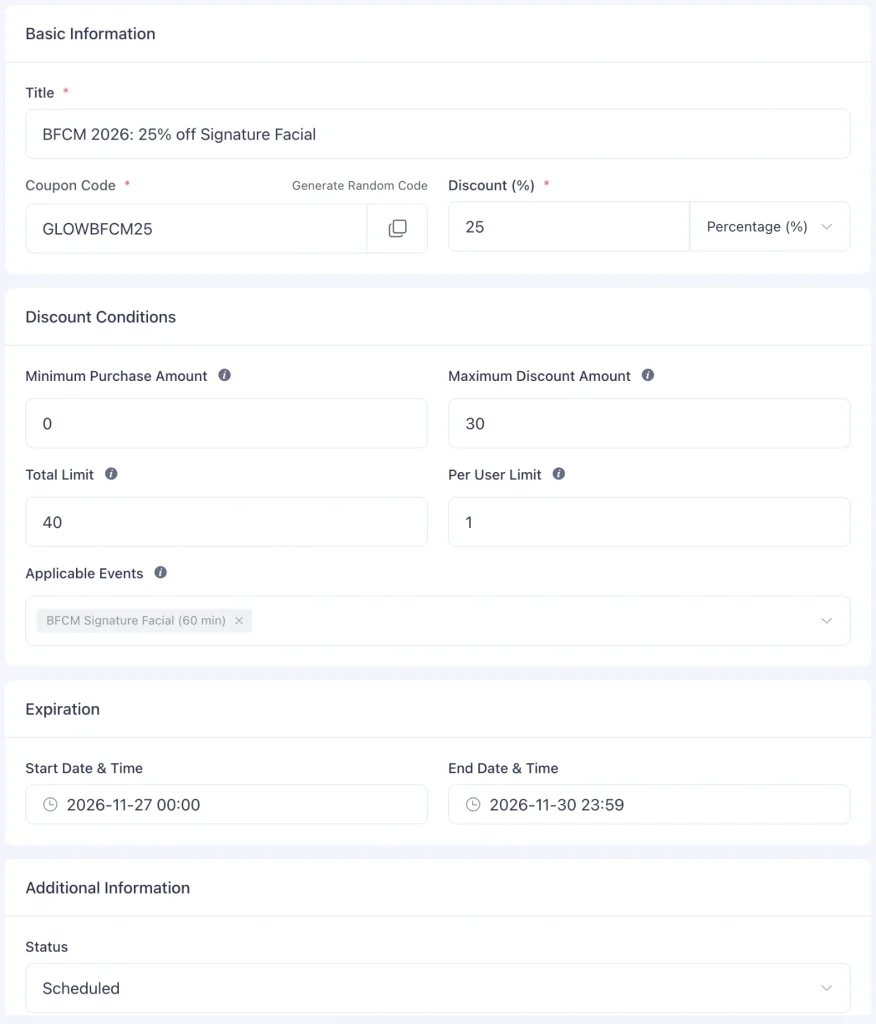
Set the status to Active and click Save Coupon. The coupon documentation covers editing it later.
If you’d rather not build the offer and the cap by hand, FluentBooking can hold both on a single event type. Here’s how reminders and notifications fit in.
The Week Before: Protect Your Calendar (Nov 20–26)
With the offer built, the next job is making sure it can’t break your week. Each step below takes a few minutes, and together they decide whether December feels busy or chaotic.
Cap How Many BFCM Bookings You Take Per Day
Booking limits let you set a maximum count Per day, per week, or per month on an event type. Use + Add Another Limit to combine rules. For example, a salon might allow 6 BFCM bookings a day and 25 a week, so promotional clients fill the gaps without pushing out regulars.
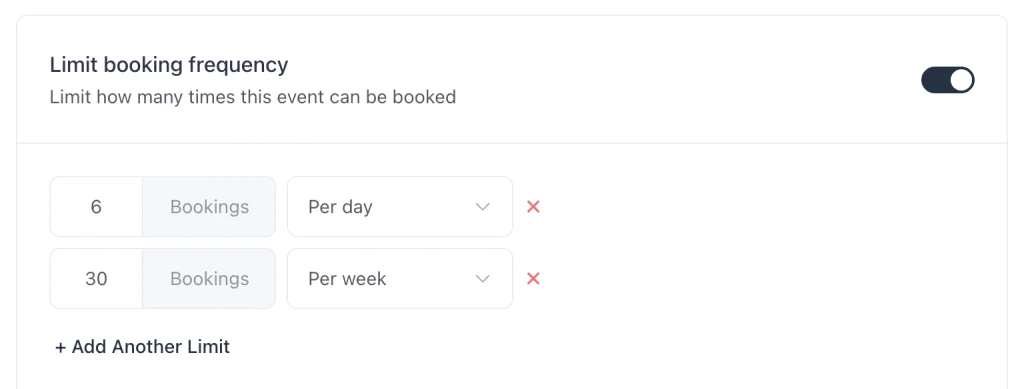
Limits on the event type control when the discounted appointments land. The coupon’s total limit controls how many exist. Use both.
Add Buffer Time Around Each Appointment
Busy weeks are when appointments run over. Set Before Event buffer for prep or travel and After Event buffer for clean-up, notes, or room turnover. Both range from 5 to 120 minutes, and nobody can book into buffer time.
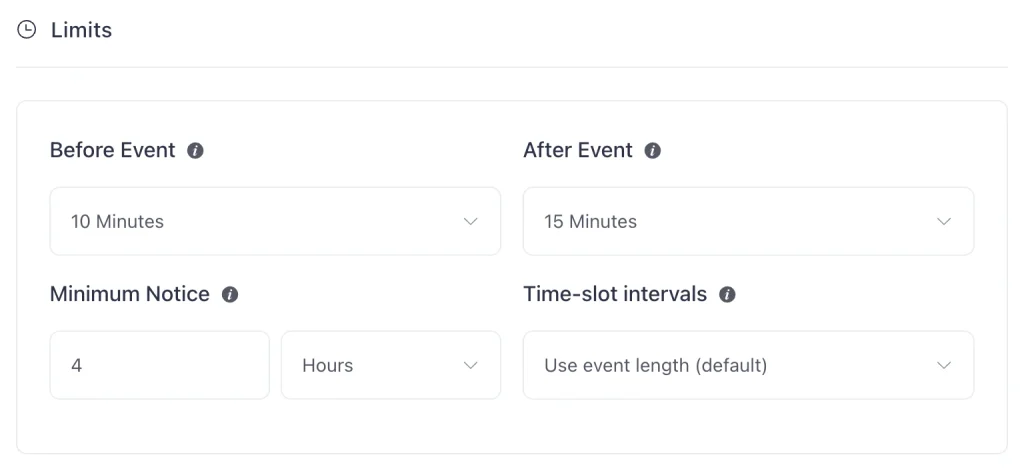
A spa running back-to-back massages might use 15 minutes after each one. A consultant might add 10 minutes before each call to read the client’s intake answers. More on how buffer time protects your schedule.
Set holiday hours with date overrides
Thanksgiving is Thursday, November 26. If you’re closed that day, or opening late on Black Friday or adding hours on the Saturday, set it on the event’s availability with Add date overrides. Overrides change single dates without touching your weekly hours, so everything returns to normal the following week. See configuring availability.
Connect your calendar so personal events block slots
If you keep appointments, family plans or other work in an external calendar, connect it so FluentBooking checks it before offering a slot. Remote calendar sync is a Pro feature.
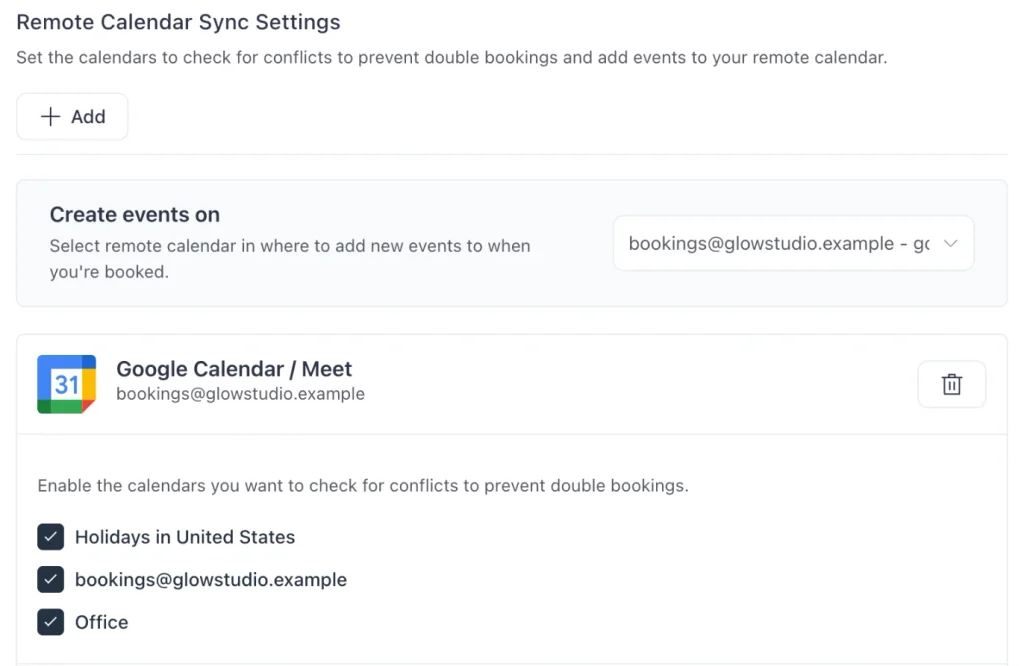
You choose which calendars to check for conflicts to prevent double bookings, and new bookings are added to your remote calendar. The Google Calendar integration guide covers the connection.
Set up Confirmations, Reminders, and Self-Serve Changes
BFCM clients book weeks ahead, which makes them more likely to forget. Set the communication flow once on the BFCM event type:
When a client books the BFCM offer, they get the booking confirmation email straight away. Before the appointment, the attendee reminder goes out at the time you choose under Timing. In FluentBooking, this is “Configure Meeting Reminder to Attendee”. A day before works for most services, plus a second reminder on the day for anything booked weeks out.
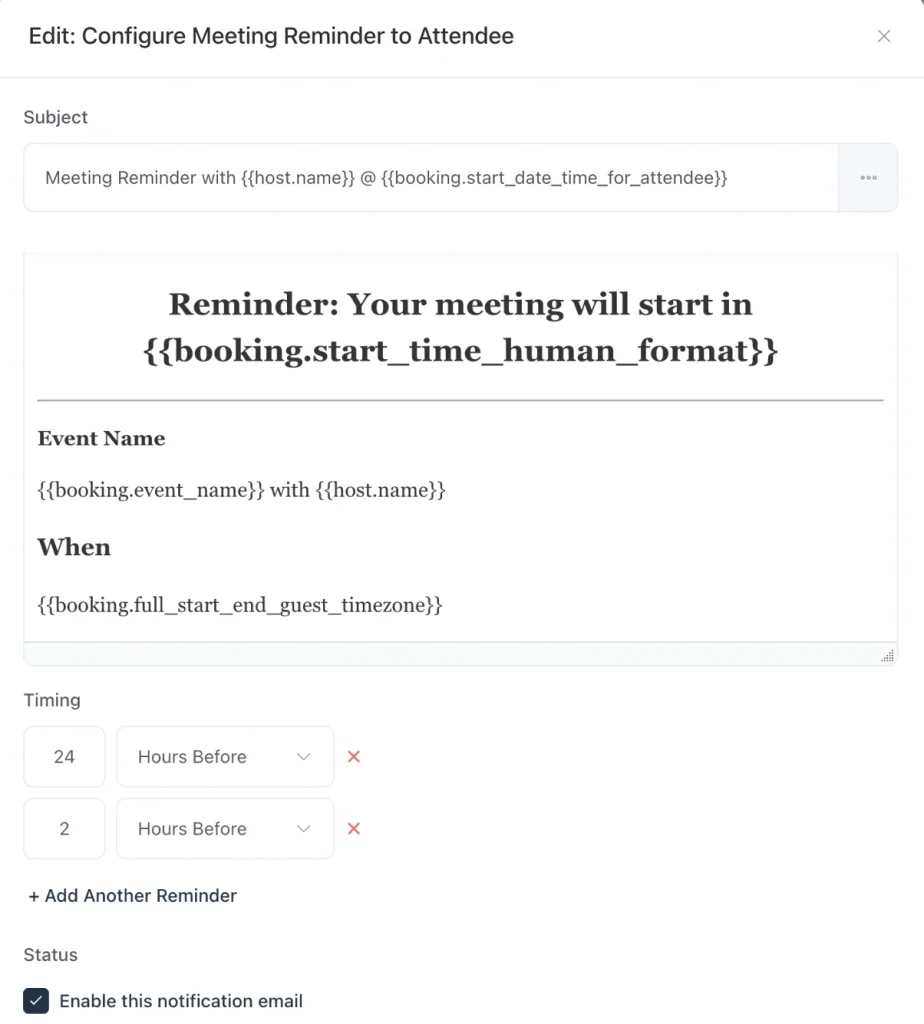
If plans change, the email’s reschedule and cancellation links let the client move or cancel the booking themselves. Add them with Add Shortcodes, using the ##booking.reschedule_url## and ##booking.cancelation_url## merge tags. You find out through the matching rescheduled or cancelled notification, and you don’t need to reply to anyone.
For clients who ignore email, SMS reminders through Twilio (Pro) use the same timing settings. The guides on setting up automatic reminder emails and text reminders for clients who ignore email go deeper. If you’re rewriting your cancellation message too, here’s what to send when someone cancels.
Test the whole booking on your phone
More than half of Cyber Monday spending happens on a phone, so test there. Book the BFCM event type on your own phone. Apply the coupon, pay, and check that the confirmation arrives. Then use the reschedule link to move the booking. If any step is confusing for you, it will be confusing for a client who has five minutes and a dozen tabs open.
BFCM Weekend: Run the Rush (Nov 27–30)
If the first two stages are done, the weekend is mostly watching and responding.
Watch new bookings from the dashboard
The FluentBooking dashboard shows Latest Booked Meetings for what has just come in and Next Meetings for what’s coming up. Check it twice a day over the weekend.
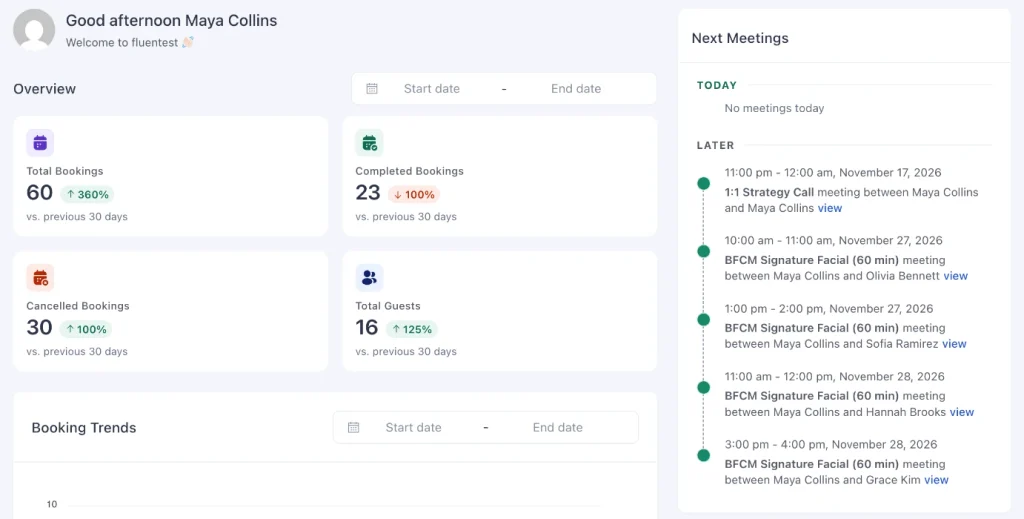
If one day hits its cap early, decide whether to open a little more availability with a date override or leave the cap in place.
Handle exceptions from the booking itself
Some clients will pay in person, ask you to move their slot, or cancel. Open the booking with View Details. From there, you can Mark As Paid for payments taken outside the system, Reschedule to move it, or Cancel it. Handling it in the booking keeps the calendar and the client’s emails consistent.
Close the offer on time
The coupon’s end date stops the discount at 11:59 pm on Monday. On Tuesday morning, switch the BFCM event type off so the offer page stops taking bookings. Remove any BFCM banners or deal lines from your site the same day.
After Cyber Monday: Review and Fill the Gaps (Dec 1 Onward)
The promotion is over, but most of its appointments haven’t happened yet. Spend 30 minutes on a review while the weekend is fresh.
Set the dashboard’s Start date and End date to cover the BFCM weekend and read Booking Trends. Compare it with a normal week. Note which days hit their cap, whether buffers held up, and how many reschedules and cancellations came in. As the December appointments happen, mark them completed or no-show. Your no-show rate for discounted bookings tells you whether to require full payment next year.
Then write down three things for next November: the cap you’d set, the price you’d charge, and the step you’d start earlier. If you’re also choosing tools for your booking site this season, here are this year’s WordPress deals for booking sites.
BFCM Checklist for Service Providers
Print this page or copy the list into your task app. Every item maps to a step above.
Two weeks before (Nov 13–20)
The week before (Nov 20–26)
BFCM weekend (Nov 27–30)
After Cyber Monday (Dec 1 onward)
Fill Your Calendar, Not Your Stress
Black Friday doesn’t give you more hours. It gives you more people trying to book the hours you already have. So the prep that matters most isn’t a bigger discount. It’s a calendar that can take the rush: an offer with a hard end date, a daily cap your team can actually handle, buffers between appointments, and reminders that keep no-shows down.
Start with the two-weeks-out steps today and work down the checklist. By November 27, your booking page will handle the rush while you focus on the clients in front of you.
Black Friday is here! Get up to 40% OFF FluentBooking Pro and get more bookings with less back-and-forth.
Frequently Asked Questions
Ratul Hasan Ripon
I enjoy making complex ideas simple and engaging through my writing and designs. With a strong knowledge on content writing and SEO, I create technical content that’s both easy to understand and interesting.
Table of Content
Subscribe To Get
WordPress Guides, Tips, and Tutorials

Add your first comment to this post