

Coach Booking Software on WordPress: How to Build a Booking System for Coaches and Consultants


Last Updated:
It’s Monday morning, and your calendar is already filling up. You have three discovery calls scheduled, but you’re unsure whether those prospects are genuinely interested in your services or just looking for free advice. One client booked the wrong time because of a time zone difference, while another still hasn’t paid for last week’s session.
Managing bookings, payments, and client information across different tools takes time away from what you do best: coaching.
That’s why you need more than a basic scheduling link. In this guide, you’ll learn what to look for in coach booking software and how to build a complete booking system for your coaching or consulting business using WordPress.
Quick answer: Coach booking software helps coaches and consultants manage appointments, accept payments, collect client information, and send automatic reminders. It simplifies scheduling and helps you manage the entire client booking process without endless email exchanges.
Why Scheduling is Hard for Coaches and Consultants
A salon books a haircut. A coach schedules the beginning of a professional relationship. That’s an important difference.
Coaching and consulting sessions often involve client screening, preparation, payments, and follow-ups. A simple calendar link can’t always handle everything. Here are six common scheduling challenges coaches and consultants face.
1. Discovery Calls Attract Unqualified Prospects
A discovery call helps you understand a potential client’s goals and decide whether your services are a good fit. But without a few screening questions, your calendar can quickly fill up with people who aren’t ready to invest in coaching.
You end up spending hours on free conversations instead of working with paying clients.
2. Clients Book from Different Time Zones
Online coaching allows you to work with clients worldwide, but scheduling across time zones can get confusing. A 10 AM slot for you might be an entirely different time for someone in New York, Lisbon, or Singapore.
If your booking page doesn’t display the correct local time, clients may miss sessions or join at the wrong time.
3. Back-to-back Sessions Leave No Room to Prepare
Coaching requires focus and preparation. You may need time to review a client’s progress before a session and write notes afterward.
When clients can book appointments back-to-back, you lose that valuable time. After a few consecutive sessions, it’s harder to give every client your full attention.
4. Late Payments and No-shows Cost You Time and Money
Some coaches still accept payments after delivering a session. This means sending invoices, following up with clients, and waiting for payments to arrive.
There’s also the risk of no-shows. When someone misses a paid session, you lose both the scheduled time and the opportunity to book another client.
5. Repeat Clients have to Start the Booking Process Again
Coaching relationships rarely end after one session. A client might book an initial consultation, return for a strategy session, and schedule regular progress reviews.
Without a connected booking process, managing these repeat appointments becomes unnecessarily complicated. You may also have to collect the same client information every time.
6. Client Information Gets Scattered Across Different Tools
Your booking details are in one platform, payments in another, email conversations in your inbox, and client notes in a spreadsheet.
When you need to review a client’s history or prepare for their next session, you have to switch between multiple tools. This makes client management harder as your practice grows.
These challenges show why coaches need more than a basic scheduling link. They need a booking system that supports the entire process, from the first inquiry to payments and ongoing client relationships.
What Coach Booking Software Needs to Do
Not every scheduling tool is designed for coaching and consulting businesses. A basic calendar might let clients choose an available time, but managing a coaching practice requires a little more.
You need a system that handles different session types, screens potential clients, collects payments, protects your working hours, and keeps everything organized.
Before choosing coach booking software, make sure it covers these essential features:
| What You Need | Why It Matters for Coaching | What to Look For |
| Separate session types | A free discovery call and a paid coaching session serve different purposes. | Multiple event types with individual durations, prices, and descriptions. |
| Screening questions | Helps you understand a potential client’s goals before accepting a discovery call. | Custom booking form questions with required fields and different input types. |
| Payment at booking | Reduces late payments and ensures clients pay before their sessions. | Payment options for individual events, with support for different session prices. |
| Time zone management | Makes it easier to schedule sessions with clients around the world. | Automatic time zone detection and an option to lock the displayed time zone. |
| Buffers and booking limits | Gives you time to prepare between sessions and prevents an overloaded calendar. | Custom buffers before and after appointments, plus daily, weekly, or monthly booking limits. |
| Minimum booking notice | Prevents clients from scheduling appointments at the last minute. | A setting that controls how far in advance clients must book. |
| Automatic meeting links | Saves you from manually creating and sharing video meeting links. | Integration with platforms like Zoom, Google Meet, and Microsoft Teams. |
| Automated reminders | Helps clients remember upcoming sessions and reduces missed appointments. | Customizable email and SMS reminders with flexible scheduling. |
| Rescheduling and cancellation management | Lets clients change appointments without lengthy email conversations. | Self-service rescheduling and cancellation with automatic notifications. |
| Client records and CRM integration | Helps you maintain client history and manage ongoing coaching relationships. | Booking records stored on your website and integration with a CRM. |
These features become increasingly important as your coaching practice grows. A few discovery calls might be easy to manage manually, but hundreds of bookings, recurring clients, payments, and follow-ups are a different story.
Your booking system should do more than fill calendar slots. It should help you manage the entire client journey while giving you more time to focus on your clients.
Why Run Your Coaching Bookings on Your Own WordPress Site?
If you already have a WordPress website, you don’t necessarily need a separate scheduling platform to manage your coaching appointments. A WordPress booking plugin lets you add scheduling directly to your existing site, keeping your booking process connected to the rest of your business.
Here are four reasons why this approach makes sense for coaches and consultants.
1. Manage the Entire Booking Process from One Place
Your discovery calls, paid sessions, booking questions, payments, and notifications can all run through your WordPress website.
Instead of switching between a scheduling tool, payment platform, and spreadsheet, you can manage your appointments from one dashboard. This makes it easier to keep track of upcoming sessions and manage your daily schedule.
2. Let Clients Book Directly from Your Website
Your website is often where potential clients learn about your coaching services. Adding a booking form to your service or contact page lets them schedule a session without leaving your website.
For example, someone reading your article about career transitions can click “Book a Discovery Call” and choose an available time right there. The booking experience stays consistent with your website’s branding and messaging.
3. Keep Control of Your Booking and Client Data
With a WordPress booking plugin, booking information is stored in your own WordPress database rather than being held entirely in a third-party scheduling account.
You can access booking details and client responses from your WordPress dashboard. You can also connect your booking system to a CRM or email marketing tool to organize client information and manage follow-ups.
This gives you more control over your business data and how you use it.
4. Avoid Per-user Scheduling Fees as Your Team Grows
Many hosted scheduling platforms charge based on the number of users or team members. That can become expensive when you bring additional coaches or consultants into your practice.
FluentBooking uses site-based licensing rather than per-user seat pricing, so adding team members doesn’t automatically mean paying for additional scheduling seats. Its free version also includes core features such as one-to-one events, booking questions, email notifications, and paid bookings through FluentCart.
If you’re currently using a hosted scheduling tool like Calendly, switching to WordPress may be worth considering as your booking requirements grow. We’ve covered what the switch to a Calendly alternative for WordPress looks like and explored free Calendly alternatives if you want to compare your options before making a decision.
The Session Types a Coaching Practice Usually Needs
Not every client needs the same type of session. Some want to explore whether coaching is right for them, while others are ready to pay for a focused consultation or ongoing support.
Instead of using one booking form for everything, create separate booking options for each type of session. Give each one its own duration, description, availability, and pricing.
Here are five common session types you can offer:
- Discovery call (15–20 minutes, free): An introductory conversation to understand a potential client’s goals, discuss their challenges, and see whether your coaching services are a good fit.
- One-to-one coaching session (45–60 minutes, paid): A focused session for clients who want personalized guidance, ongoing support, or help working through a specific challenge.
- Strategy session or power hour (60–90 minutes, paid): A longer consultation focused on solving a particular problem, developing a strategy, or creating an actionable plan.
- Consultation or audit session (60–120 minutes, paid): Suitable for consultants who review a client’s website, business strategy, marketing process, or operations and provide actionable recommendations.
- Group coaching session (paid): A shared session where multiple clients join the same meeting. This works well for workshops, group mentoring, and coaching programs. You can learn more about setting up group bookings and running successful group coaching sessions.
A simple approach is to keep your discovery call free and charge for sessions where you deliver personalized value. This gives potential clients a chance to understand your services before committing to paid coaching.
You can also connect coaching sessions to other offerings. For example, if you sell an online course, you can add coaching calls to your online course so students can schedule personalized support alongside their lessons.
If your business focuses on teaching rather than coaching, you may need a slightly different setup. Check out our guides on setting up lesson scheduling software and creating recurring class bookings in WordPress.
Setup Example: A Solo Coach’s Booking System in FluentBooking
Let’s put everything together with a practical example.
Meet Maya, a career coach based in New York. She works with clients across the US and UK and offers two services:
- Free discovery call (20 minutes): An introductory conversation for potential clients.
- Paid career strategy session (60 minutes): A personalized coaching session for clients who want focused guidance.
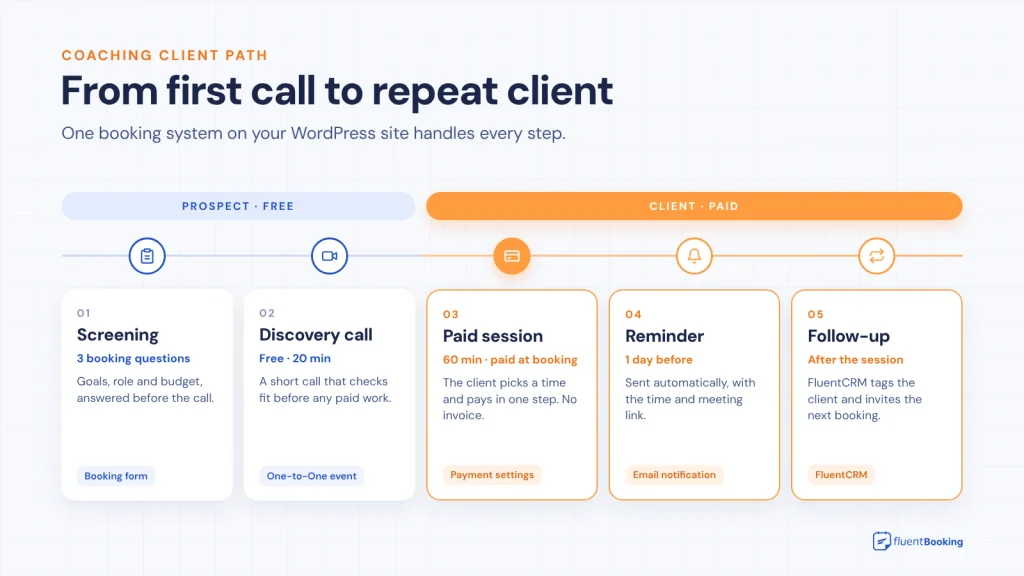
To manage both services from her WordPress website, Maya decides to use FluentBooking. Let’s walk through how she can set up her booking system, from creating her calendar to accepting payments and sending automatic reminders.
Step 1: Create Your Calendar
Your calendar holds your availability and every coaching event you offer.
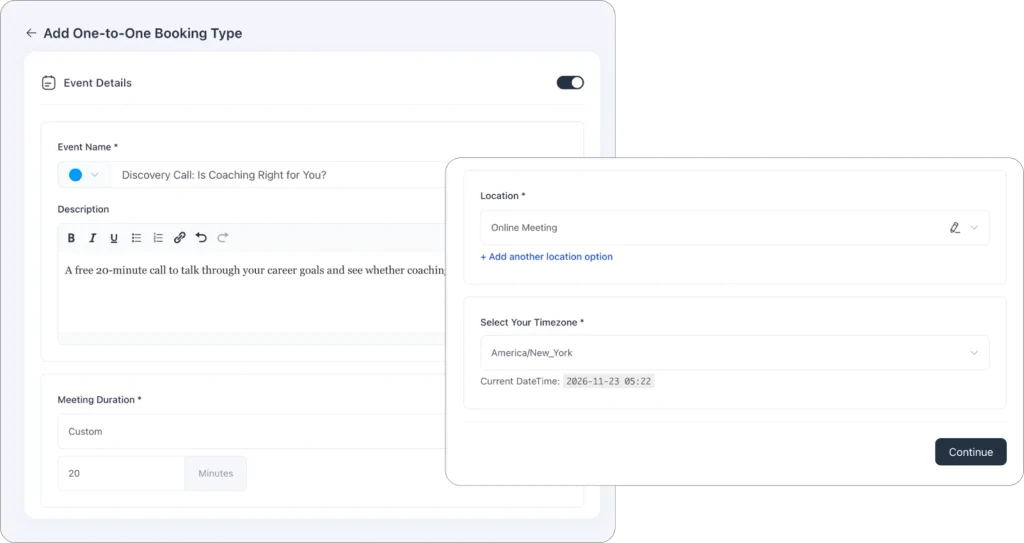
From your WordPress dashboard, open FluentBooking, click New, then Add Host. Under Search host and select, choose your WordPress user account. Then configure your calendar:
- Select Your Timezone: Choose your local time zone. Maya selects New York because that’s where she runs her practice.
- Weekly Hours: Set the days and hours when clients can book, and mark the days you don’t coach as Unavailable.
Click Continue. Your calendar is now ready for your coaching events.
Step 2: Create a Free Discovery Call
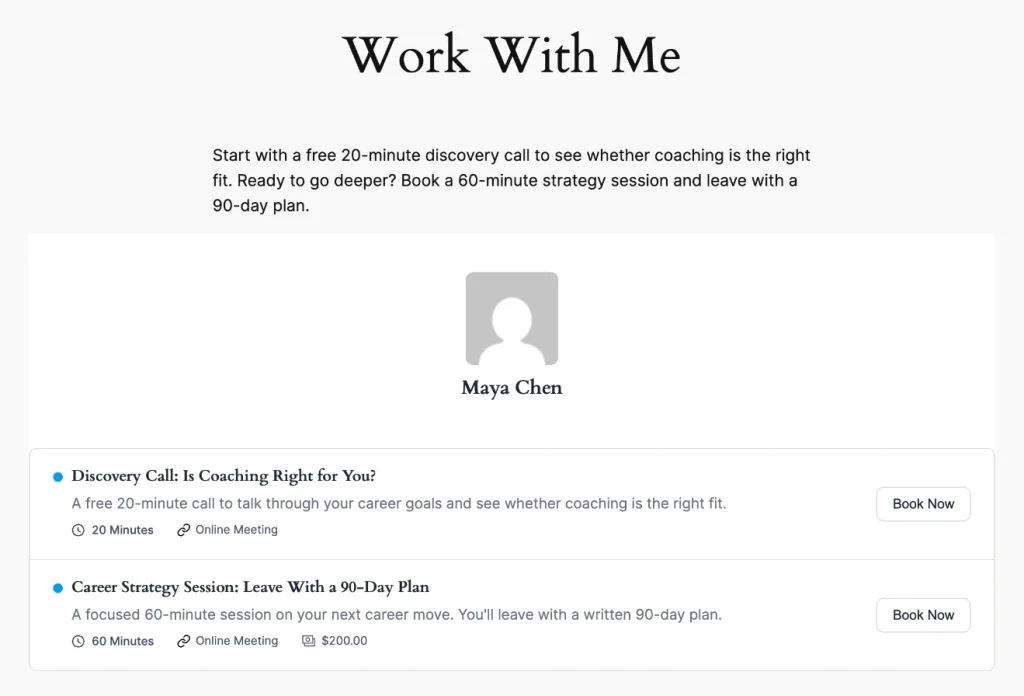
Maya’s first event is a free 20-minute discovery call, where potential clients can talk through their goals before committing to paid coaching.
Open your calendar and select One-to-One to create an event for a single host and one attendee. Then fill in the event details:
- Event Name: Use a name that says what the call is for, such as “Discovery Call: Is Coaching Right for You?”
- Meeting Duration: 20 minutes
- Location: Choose where the meeting takes place. Online Meeting works in the free version. If you want meeting links created automatically, FluentBooking Pro supports Zoom, Google Meet, and Microsoft Teams.
Click Save Changes.
Step 3: Add Screening Questions to Your Booking Form
A discovery call is more useful when you already know what the prospect wants, so Maya collects a few details from the custom booking questions on the booking form before the call.
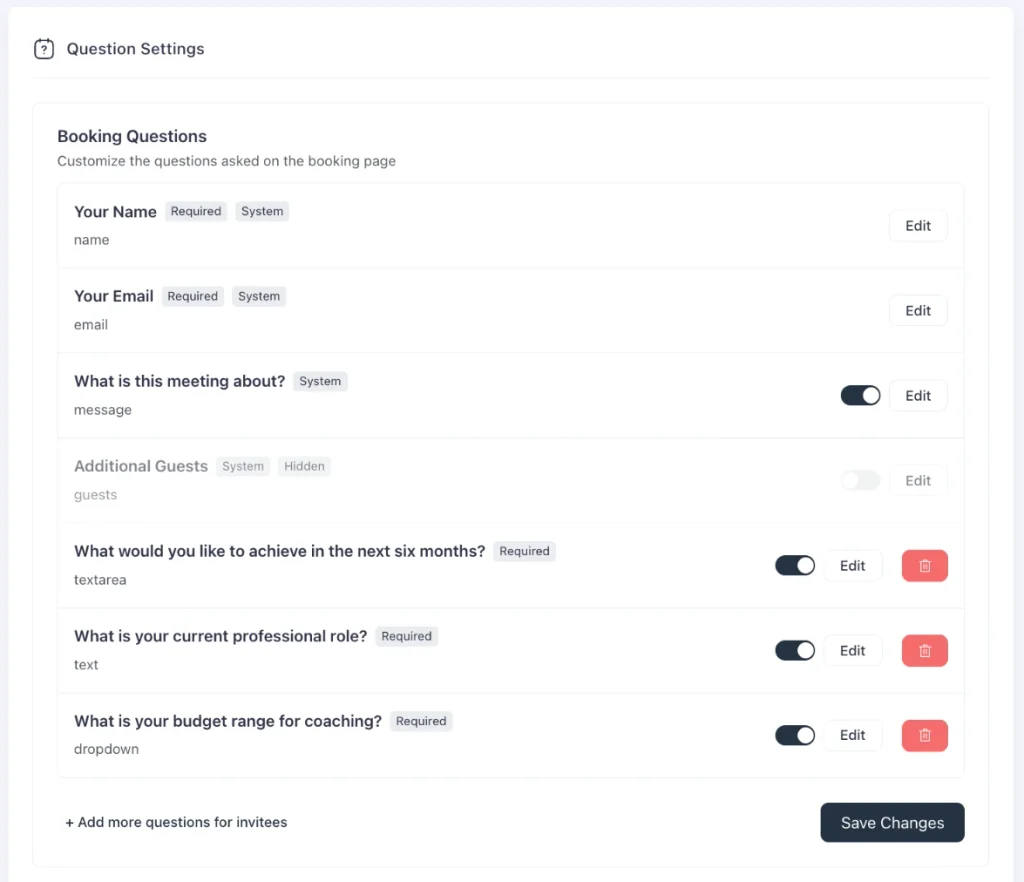
Open the event’s booking form settings and click + Add more questions for invitees. Then:
- Choose a Field Type.
- Enter the question under Label.
- Add Options if you’re using a dropdown or other choice field.
- Click Add Question, then Save Changes.
Maya adds three questions:
- What would you like to achieve in the next six months? (Paragraph)
- What is your current professional role? (Text)
- What is your budget range for coaching? (Dropdown)
With these answers, she knows each prospect’s goals and expectations before the call starts. For more guidance, see our articles on booking discovery calls on WordPress and what a discovery call should cover.
Black Friday is here! Get up to 40% OFF FluentBooking Pro and get more bookings with less back-and-forth.
Step 4: Protect Your Time with Booking Limits and Buffers
Coaching takes preparation and follow-up. If clients can book every free slot in your day, there’s no time left for either.
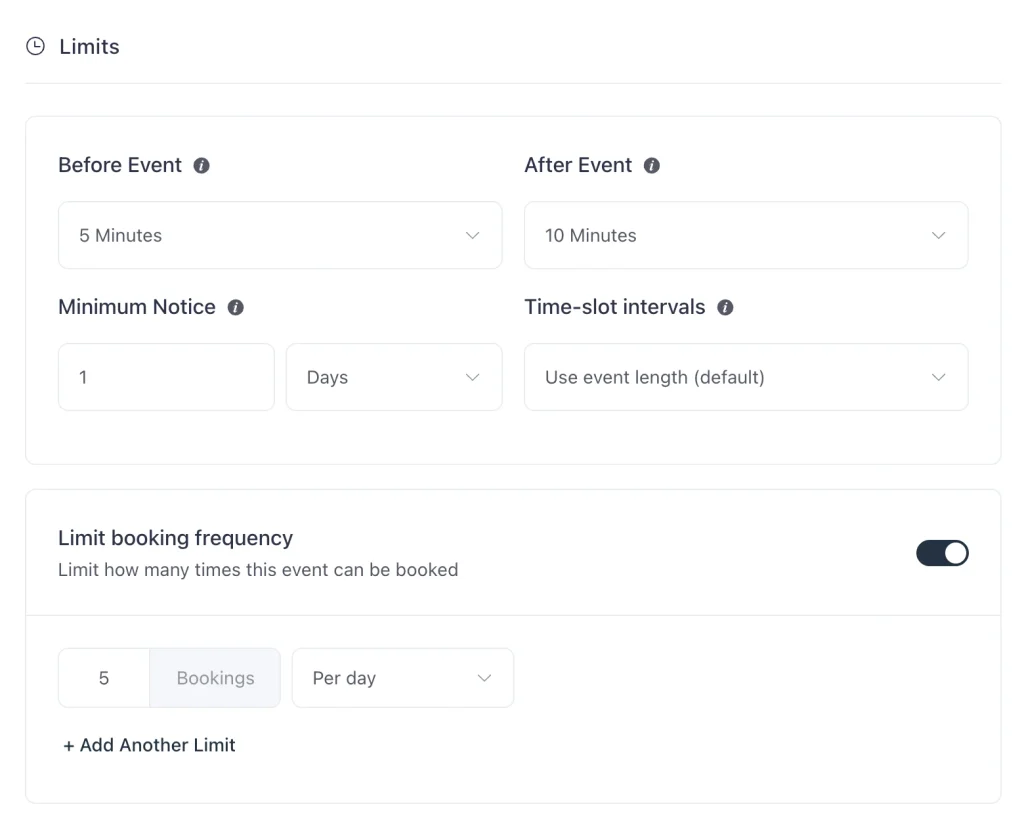
FluentBooking lets you cap how many bookings each event accepts and reserve time around each session. Under the event’s limits, set your booking limit and choose whether it applies Per day, Per week or Per month. Maya caps discovery calls at three per day, so they never crowd out her paid sessions. To add a weekly or monthly cap on top, click + Add Another Limit.
Next, set the buffers:
- Before Event: time to review the client’s answers and prepare
- After Event: time to write notes and handle follow-up
For her 20-minute discovery calls, Maya reserves 5 minutes before and 10 minutes after. She’ll give her longer paid session more room when she creates it in the next step.
You can also set a minimum notice period to block last-minute bookings. Setting it to one day means nothing can be booked within the next 24 hours.
If you’re not sure how much space to leave, here’s how much buffer time to leave between appointments.
Step 5: Create a Paid Coaching Session and Accept Payments
With the discovery call ready, Maya creates her paid event. Create another One-to-One event and fill in the details:
- Event Name: Career Strategy Session: Leave With a 90-Day Plan
- Meeting Duration: 60 minutes
- Location: Choose your preferred meeting location
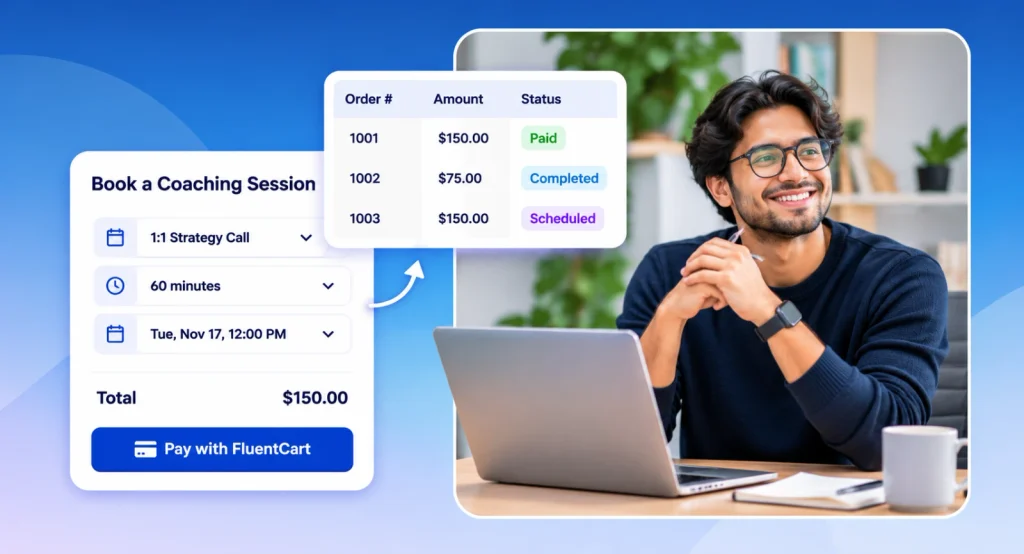
Next, open the event’s payment settings, turn on payment for the event, and choose your Checkout Method. FluentCart Checkout is available in the free version. Stripe and PayPal checkout and WooCommerce need FluentBooking Pro.
Under Booking Payment Items, select the product that represents this session. If you haven’t created one yet, click New, enter a Title and Price, and click Create. The client pays the product’s price at checkout, so if you change your rates later, update the product. Click Save Changes when you’re done.
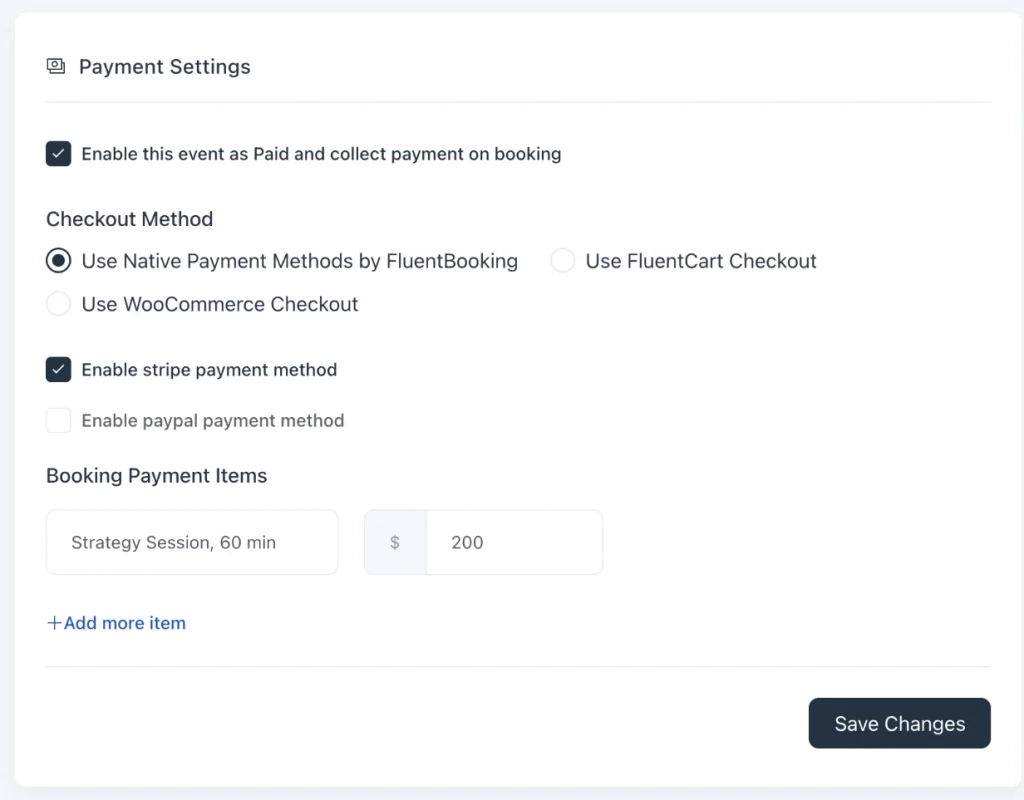
If you offer the same session in several lengths, FluentBooking Pro can charge a different price for each one through the Enable multiple payment options based on duration option.
Clients can now choose the session, pick a time, and pay in one step, so there’s nothing to invoice afterwards.
Step 6: Set up Automatic Booking Reminders
Clients sometimes forget their sessions, and sending reminders by hand adds up fast when you have several sessions a week. In FluentBooking, each event has its own email notifications.
To customize a reminder, click Edit on Configure Meeting Reminder to Attendee. Then:
- Write the Subject and Email Body.
- Use Add Shortcodes to insert details such as the client’s name, the session time, and the meeting link.
- Choose when the reminder goes out under Timing.
- Click Save Email.
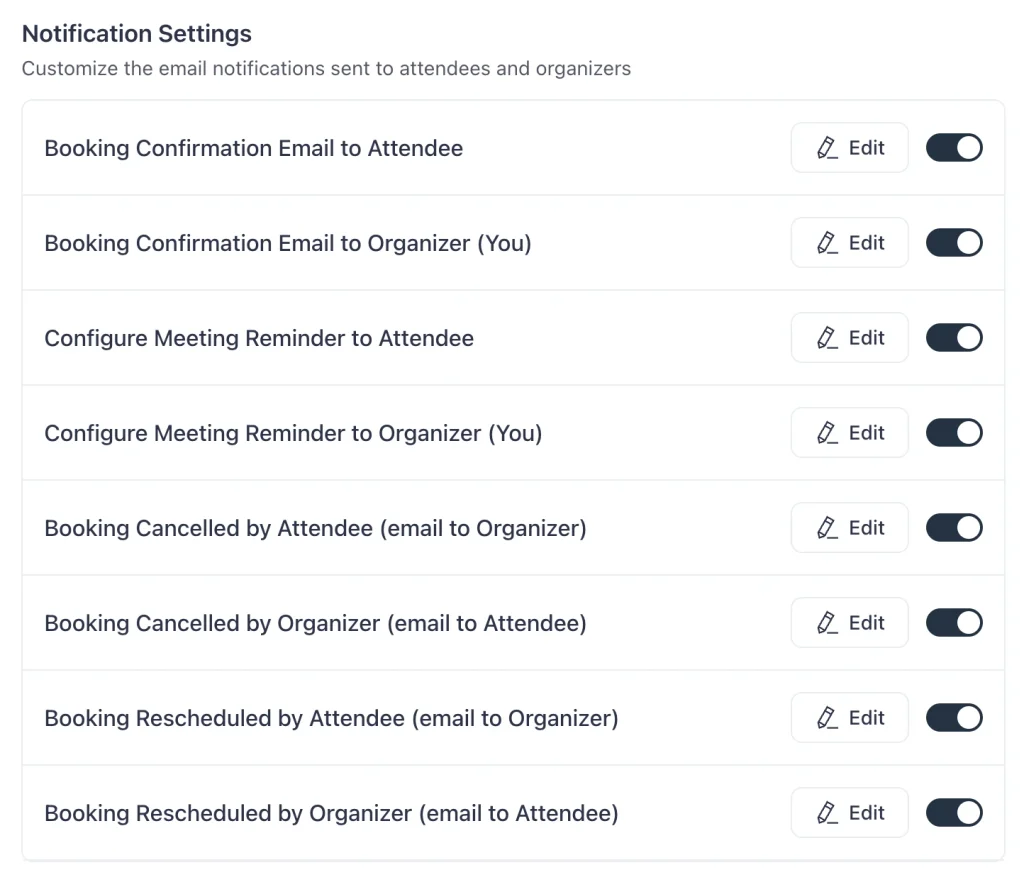
Maya sets her reminder to arrive one day before each session. That gives clients time to prepare, or to reschedule if something comes up. FluentBooking Pro can also send SMS reminders through Twilio.
For wording ideas, start with these meeting reminder email templates.
Step 7: Publish Your Booking Page and Connect Your Calendar
The last step is putting your coaching events in front of clients.
On the event, click Share, then Copy to get your booking link. To put the booking form on an existing WordPress page, choose Embed via HTML Code instead. Maya embeds both events on her “Work With Me” page and adds the discovery call link to her email signature, so prospects can book without emailing her first.
To avoid double-booking, Maya connects her Google Calendar through FluentBooking Pro’s remote calendar settings (Outlook works too). FluentBooking then checks that calendar for existing appointments, so a dentist appointment in her personal calendar blocks the slot on her booking page.
If you want a ready-made website design for a consulting business, take a look at our consultant template built with Blocksy.
That’s it. Maya now has a booking system with a free discovery call, a paid strategy session, screening questions, protected prep time, automatic reminders, and a booking page on her own website.
What Happens After Someone Books?
Getting a booking is only the beginning. You still need to confirm the appointment, send reminders, handle changes, and follow up after the session. Automating these tasks saves time and creates a better experience for your clients.
Automate confirmations and reminders
FluentBooking lets you configure email notifications for different booking activities, including confirmations, attendee and organizer reminders, cancellations, and rescheduling.
You can customize these emails with booking details and your cancellation policy. Sending timely reminders also helps reduce no-shows and gives clients a chance to reschedule when needed.
For more ideas, check out our meeting reminder email templates and cancellation email templates.
Connect bookings with FluentCRM
You can take client management further by connecting FluentBooking with FluentCRM. Through event-based integration feeds, you can automatically organize contacts using tags and trigger follow-up automations based on booking activities.
For example, Maya can assign a “Prospect” tag to discovery call bookings and a “Client” tag to paid strategy sessions. She can then use FluentCRM automations to send follow-up emails, share another booking link, or stay connected with clients after each session.
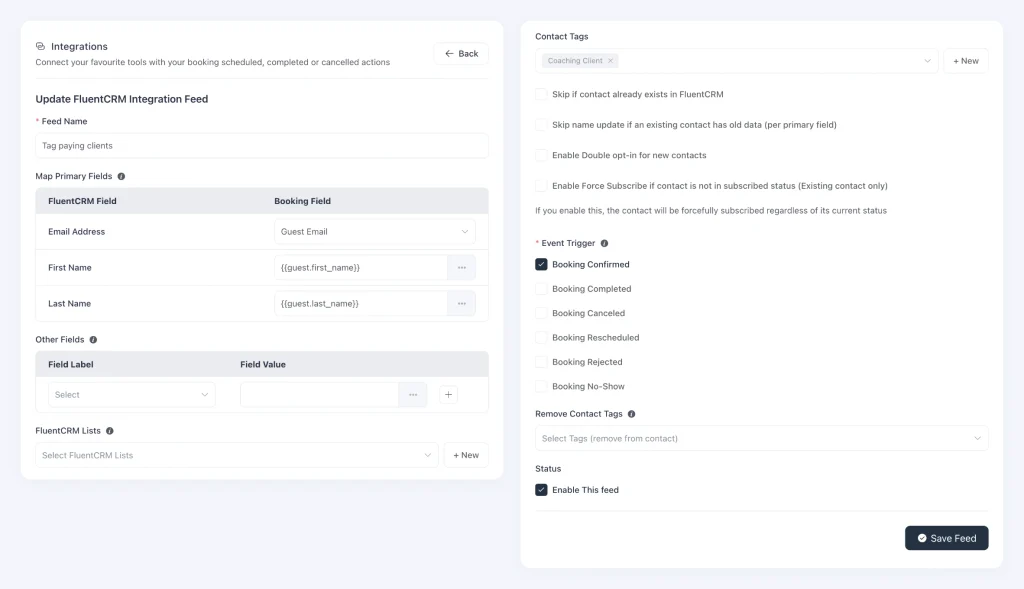
This way, every booking becomes part of an organized client management process. Learn more about tagging and segmenting clients in FluentCRM.
Spend Less Time Scheduling, More Time Coaching
Running a coaching or consulting business involves more than delivering great sessions. You also need to manage discovery calls, payments, client information, reminders, and follow-ups. Handling everything manually can quickly become overwhelming.
With the right coach booking software, you can bring these tasks together and create a smoother experience for both you and your clients.
If you already have a WordPress website, FluentBooking gives you the tools to build a booking system directly on your own site. You can offer free discovery calls, accept payments for coaching sessions, collect client information, manage availability, and automate appointment notifications.
You don’t need to set up everything at once. Start with a simple discovery call, add paid sessions as your practice grows, and connect FluentCRM when you’re ready to automate client follow-ups.
Explore FluentBooking and build a booking experience that gives you more time to focus on what matters most: your clients.
Frequently Asked Questions
Ratul Hasan Ripon
I enjoy making complex ideas simple and engaging through my writing and designs. With a strong knowledge on content writing and SEO, I create technical content that’s both easy to understand and interesting.
Table of Content
Subscribe To Get
WordPress Guides, Tips, and Tutorials

Add your first comment to this post