

FluentCart vs WooCommerce for Appointments: Which Checkout Should Your Bookings Use?


Last Updated:
You already sell through WooCommerce, and now you want to sell your time too: a 60-minute consultation, a fitting, a strategy call. FluentBooking handles the calendar side. The question left is which store takes the money when someone picks a slot.
FluentBooking can send a paid booking through either WooCommerce or FluentCart. Both work the same way at the booking level, so the choice depends on your store, not on the calendar.
This guide shows what changes between the two, which checkout suits which kind of store, and how to move your sessions to FluentCart if that’s the better fit.
The Short Answer
- You sell physical products and ship them, and sessions are a sideline
- You need a payment gateway that only WooCommerce supports in your country
- Your store depends on WooCommerce extensions you’d have to replace
- You already use FluentBooking Pro and the setup works
- Sessions, courses, or digital products make up most of what you sell
- Your WooCommerce store is small and holds little more than your session products
- You use the free version of FluentBooking and want to charge for sessions without upgrading
- You’re already planning to simplify or rebuild your store
What Stays the Same with Either Store
When you take payment through a store, FluentBooking still handles the booking: availability, the time slot, confirmations, reminders, and the booking record. The store handles the selling. You link each booking event to a product; the price the client pays comes from that product, and the client pays on the store’s checkout page.
That’s true with both stores. With either one:
- The price shown on your booking page comes from the linked product. To change the price, you change the product.
- The client pays on the store’s own checkout page, using that store’s payment methods.
- The booking appears under Bookings in FluentBooking, alongside your other bookings.
- Your confirmation and reminder emails still run from the event’s Email Notifications.
So you’re not choosing between two booking systems. You’re choosing which store handles payment when someone books a slot. If you’re new to taking payment at booking, here’s how coaches and consultants get paid before the call, which uses the same setup.
FluentCart vs WooCommerce for Paid Bookings
This table compares the two only as the checkout for your paid bookings. For a store-wide comparison covering subscriptions, tax, shipping, and large catalogs, see how FluentCart compares to WooCommerce as a store.
| WooCommerce Checkout | FluentCart Checkout | |
| FluentBooking requirement | Pro | Free or Pro |
| Additional booking integration cost | Requires FluentBooking Pro | Available with free FluentBooking |
| Where the price comes from | The linked WooCommerce product | The linked FluentCart product |
| Where the client pays | Your WooCommerce checkout page | Your FluentCart checkout page |
| Payment gateways | Broad choice through WooCommerce gateway plugins | Stripe, PayPal and cash on delivery built in; more through official add-ons, some requiring FluentCart Pro |
| Price per session length | Not covered in the WooCommerce integration docs | One product per event on free FluentBooking; a separate product per duration with Pro |
| Where the booking is recorded | WooCommerce order + FluentBooking Bookings | FluentCart order + FluentBooking Bookings |
| Refunds | In WooCommerce | In FluentCart: open the order and click Refund |
Two rows matter most to an existing WooCommerce store owner. WooCommerce Checkout requires FluentBooking Pro, while FluentCart Checkout works on the free version. And WooCommerce offers a wider choice of payment gateways, which may settle the decision for some stores.
When WooCommerce is the Better Checkout for Your Bookings
WooCommerce has a large extension ecosystem, which makes it a good fit for stores with complex checkout requirements. If your store already relies on those extensions, there’s little reason to move your booking checkout just to sell sessions.
You Sell Physical Products Alongside Bookings
Take a yoga studio that sells mats, blocks, and branded clothing alongside private sessions. Shipping zones, stock, carrier rates, and returns already run in WooCommerce. Moving the whole store to sell sessions differently would be a big project with little gain. Link each session event to a WooCommerce product, and a client who buys a mat and books a session can pay through the same checkout.
You Rely on a Specific Payment Gateway
If you take payments through a regional provider that has a WooCommerce plugin but isn’t in FluentCart’s gateway list, that may settle it. Check FluentCart’s current gateway list before deciding.
Your Store Depends on WooCommerce Extensions
Memberships, custom checkout fields, dynamic pricing rules or a subscription plugin you’ve used for years can take time to replace. If your sessions are one part of a store that depends on these extensions, keeping one checkout may be more practical than switching.
You Already Use FluentBooking Pro
Then the WooCommerce route doesn’t require an additional booking integration licence. WooCommerce coupons also apply to bookings sold this way (FluentBooking support has confirmed it), so any discount codes you already run can carry over to sessions.
When FluentCart is the Better Fit
FluentCart is designed to sell digital products, services, and other products online. If your store mainly sells appointments, courses, or downloads rather than physical products, it may be a simpler option for handling payments alongside FluentBooking.
You Mainly Sell Sessions and Services
Picture a career coach whose WooCommerce store holds four products: a 60-minute session, a 90-minute session, a CV review, and a PDF workbook. Nothing ships. The store runs a dozen plugins to sell four things. That store may fit FluentCart better: sessions and digital products sit in one catalog, with one checkout and no shipping setup.
You Want to Collect Payments with Free FluentBooking
FluentCart Checkout works with free FluentBooking, so you can charge for a session without purchasing a paid licence. The free version links one product to each event. If you sell the same session at several lengths, either create a separate event for each length or upgrade to Pro to price each duration on one event.
You also Sell Digital Products or Subscriptions
Courses, downloads, and recurring products are part of the free FluentCart plugin. If your sessions sit next to a membership or a course, one store can handle all of them. Depending on your subscription requirements, you may need to consider the differences in available features between the two stores.
Payments Automatically Confirm Bookings
With FluentCart, the booking is confirmed once the payment goes through. If someone picks a slot and leaves the checkout without paying, the booking isn’t confirmed, and FluentBooking cancels it automatically. Each paid booking is recorded as a FluentCart order and appears under Bookings in FluentBooking, so your sales and your schedule match.
Connect FluentCart with FluentBooking and start accepting payments for your sessions
Do You Need Both WooCommerce and FluentCart?
You could keep WooCommerce for physical products and use FluentCart for your bookings. But running two stores on the same WordPress site means managing separate checkouts, customer records, order emails, and reports.
That may be manageable if your products and services operate separately. But if you’re selling products and booking sessions to the same customers, maintaining two stores can make things unnecessarily complicated.
If your goal is to simplify your store, consider using one checkout for both your products and bookings rather than splitting them across two systems.
How to Move Your Sessions from WooCommerce to FluentCart
If you decide to move from WooCommerce to FluentCart, you’ll need to migrate your store data first and then update your paid booking events in FluentBooking. Here’s how to handle both parts.
Part 1: Move the store with the FluentCart Migrator
FluentCart has an official WooCommerce Migrator add-on, which you install from FluentCart → Settings → Features & Add-ons. It copies your products, customers, orders, coupons, tax rates, and subscriptions into FluentCart, and it doesn’t delete anything from WooCommerce. Payment gateway credentials, emails, and store pages don’t migrate, so plan to set those up again in FluentCart.
Before migrating, back up your site and test the process on a staging copy. Keep WooCommerce active while the Migrator runs, because it reads your data through WooCommerce. If you sell subscriptions, keep WooCommerce Subscriptions active too, or those records won’t transfer. WPManageNinja’s step-by-step WooCommerce to FluentCart migration guide covers the full process.
Part 2: Point each booking event at FluentCart
Once your store runs on FluentCart, switch each paid event over. If you want the full picture of how the two plugins work together first, see how to sell sessions through FluentCart with FluentBooking.
Step 1: Confirm the FluentCart module is available. Go to FluentBooking → Settings → Advanced Features & Addons. FluentCart turns on automatically once it’s installed and active, and shows as System Enabled under Recommended Plugins and Addons.
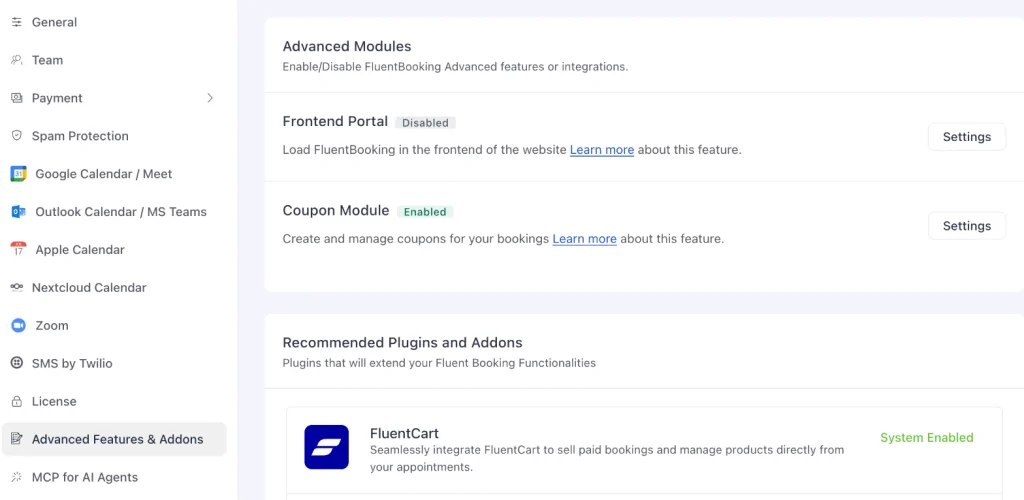
FluentBooking Advanced Features & Addons screen showing FluentCart as System Enabled
Step 2: Open the event’s Payment Settings. Go to Calendars, click the ⋯ menu on your paid event, and choose Edit, then open Payment Settings in the sidebar. Check that Enable this event as Paid and Collect payment on booking are ticked.
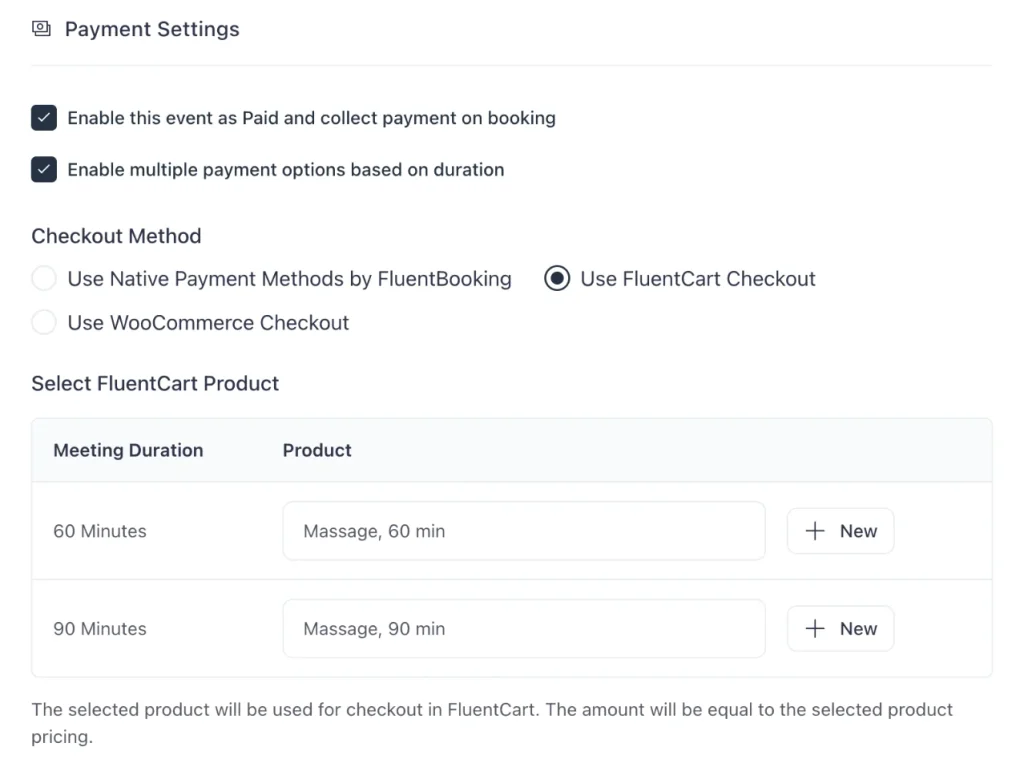
Step 3: Change the Checkout Method. Switch Checkout Method from WooCommerce to Use FluentCart Checkout. A Select FluentCart Product section appears below it.
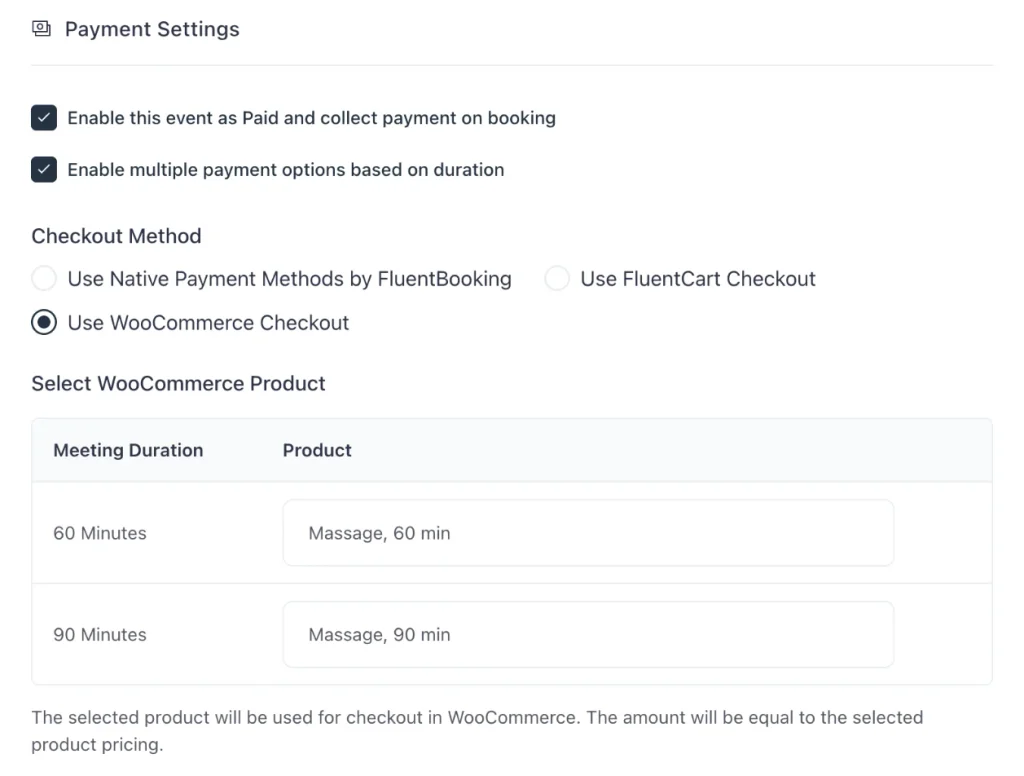
FluentBooking Payment Settings with Use FluentCart Checkout selected and a product row for each meeting duration
Step 4: Choose the session product. In the Search & Select Product field, pick the FluentCart product for this session. If you migrated your store, your session products are already in FluentCart. If not, click + New, enter a Title and a Price, and click Create.
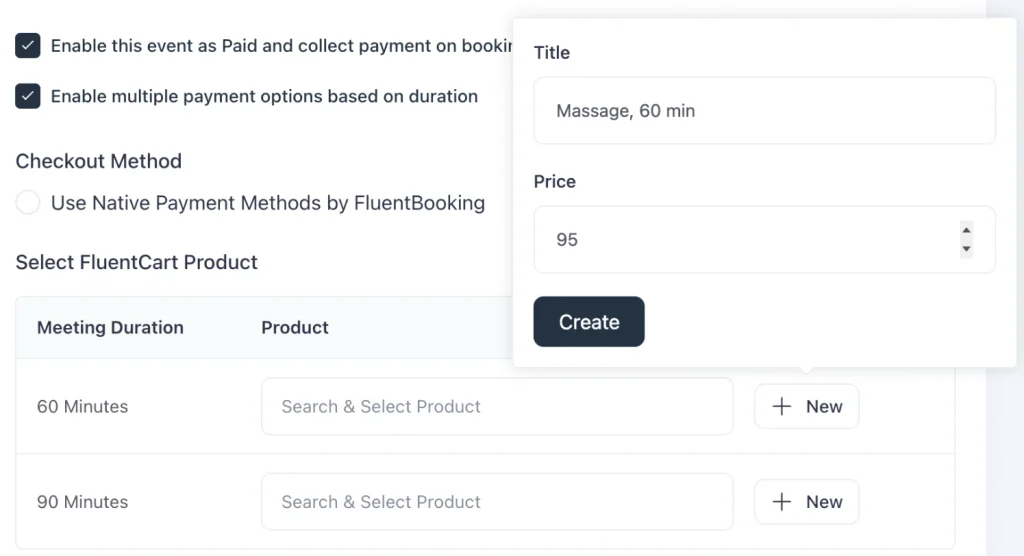
The New product popover in FluentBooking with a Title and Price for a 60-minute session
Step 5: Price each length (optional, Pro). If the event offers several durations and you use FluentBooking Pro, tick Enable multiple payment options based on duration. The product table then shows one row per meeting duration, so you can pick or create a product for each length.
Step 6: Save and test. Click Save Changes, then book the session yourself and pay. The booking should appear under Bookings in FluentBooking, and the order should appear in FluentCart.
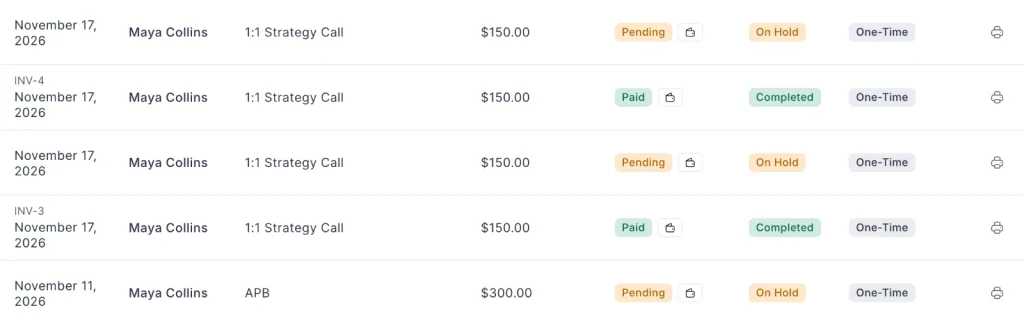
Then start a second booking and leave the checkout without paying, to check that the booking isn’t confirmed.
Repeat for each paid event. Keep WooCommerce active until every session booked through it has taken place, so those bookings and their orders stay where you can find them.
After the Switch
A few things work differently once FluentCart is your booking checkout.
- Refunds happen in FluentCart: Open the order and click Refund. If the session is still on your calendar, cancel the booking in FluentBooking too, so the slot opens up for someone else.
- Update your links: If your site linked to WooCommerce product pages for sessions, point those links at your booking page instead. Clients should start from the calendar, not from a product page.
- Check your follow-ups: Confirmations and reminders keep running from each event’s Email Notifications, so nothing changes there. If you send follow-ups through FluentCRM, check that any automation you built around WooCommerce purchases also covers bookings. Here’s more on what should happen once someone books and how to tag each paying client in FluentCRM.
Pick the Store That Matches What You Sell
FluentBooking doesn’t change between the two. The calendar, the confirmations, and the booking record stay the same. What changes is the store in the middle of the booking.
If your store ships products and depends on extensions, keep WooCommerce as the checkout. If it mostly sells sessions and digital products, FluentCart is the simpler home for them, and it works with free FluentBooking.
Black Friday is here! Get up to 40% OFF FluentBooking Pro and get more bookings with less back-and-forth.
Frequently Asked Questions
Ratul Hasan Ripon
I enjoy making complex ideas simple and engaging through my writing and designs. With a strong knowledge on content writing and SEO, I create technical content that’s both easy to understand and interesting.
Table of Content
Subscribe To Get
WordPress Guides, Tips, and Tutorials
Add your first comment to this post