

How to Sync Appointments to Google Calendar in WordPress (Step-by-Step Guide)


Managing appointments manually across different calendars can quickly become overwhelming. One missed update can lead to scheduling conflicts, double bookings, or even missed meetings.
If you run an appointment-based business on WordPress, keeping your booking system and calendar in sync is essential.
Fortunately, you don’t need to update appointments manually anymore.
With FluentBooking, you can seamlessly sync your appointments with Google Calendar and manage your entire schedule from one place.
In this guide, you’ll learn how to connect FluentBooking with Google Calendar, how the sync works, and why this integration can save you hours every week.
Why Sync Appointments with Google Calendar?
Whether you’re a consultant, coach, agency owner, healthcare professional, or freelancer, syncing your appointments with Google Calendar offers several benefits.
Avoid Double Bookings
Double bookings happen when your availability isn’t updated across platforms. When your booking system is synced with Google Calendar, existing events automatically block unavailable time slots, preventing overlapping appointments.
Keep Your Availability Updated Automatically
Without calendar sync, you need to manually add appointments and block time on your calendar. Google Calendar integration keeps your schedule updated automatically, ensuring your availability always reflects your real schedule.
Manage Everything from One Place
Instead of checking multiple tools throughout the day, you can manage meetings, appointments, and personal commitments directly from Google Calendar. This creates a centralized scheduling workflow that saves time and reduces errors.
What You Need Before Getting Started
Before connecting FluentBooking to Google Calendar, make sure you have the following:
- A WordPress website
- FluentBooking installed and activated
- An active Google account
- Permission to access Google Calendar
Once these requirements are ready, you’re good to start.
How to Sync Your Appointments with Google Calendar Using FluentBooking
FluentBooking comes with native Google Calendar integration, allowing you to connect your calendar in just a few minutes.
Follow the steps below.
Install and Activate FluentBooking
First, install and activate FluentBooking on your WordPress website.
If you haven’t installed it yet:
- Navigate to WordPress Dashboard → Plugins → Add Plugin
- Search for FluentBooking
- Click Install Now
- Activate the plugin
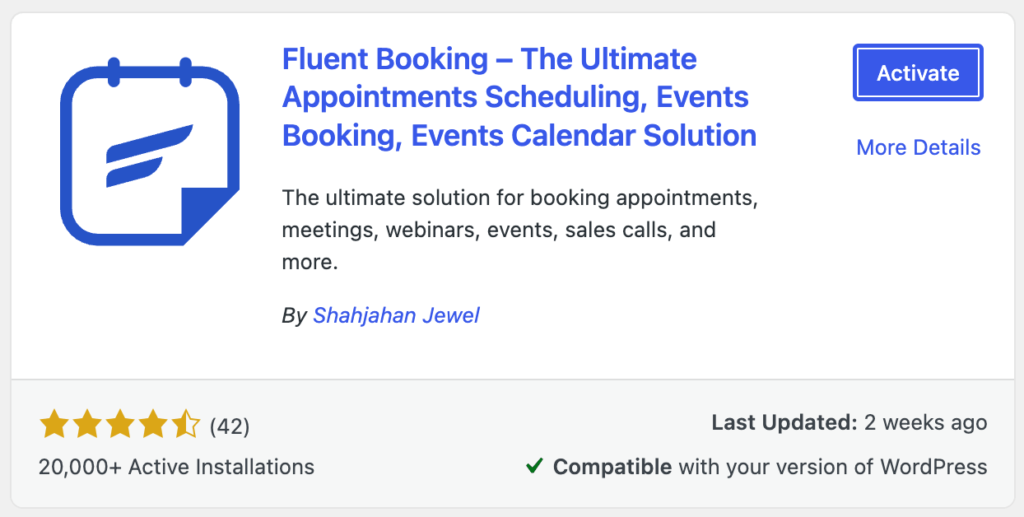
Once activated, complete the initial setup wizard and create your first booking calendar.
Connect Your Google Account
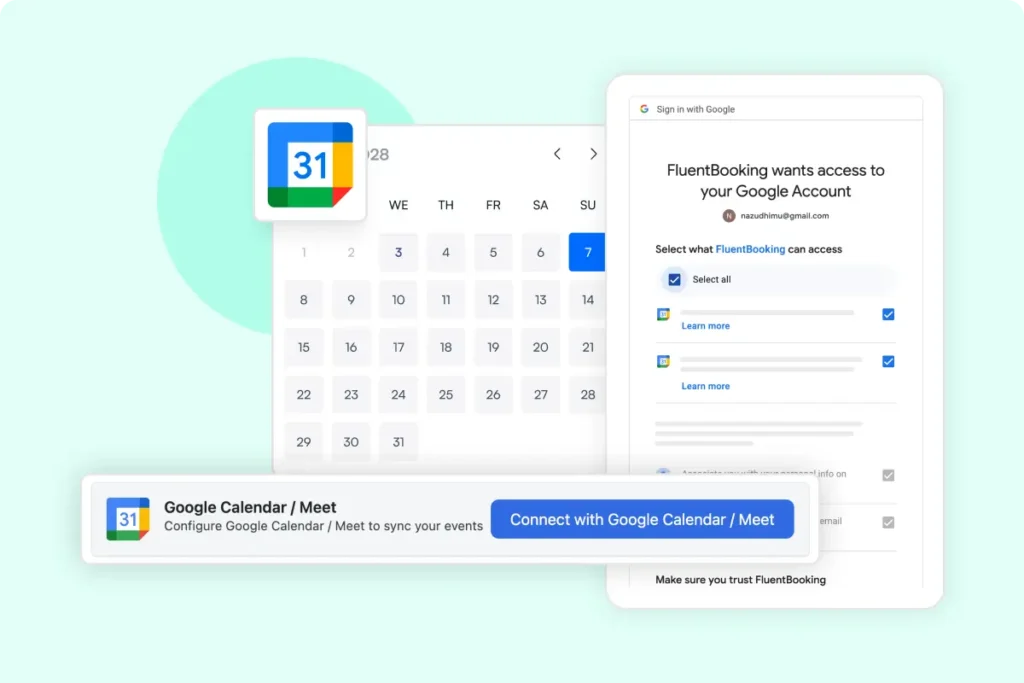
Now it’s time to connect Google Calendar.
Inside your WordPress dashboard:
- FluentBooking → Settings
- Locate Google Calendar / Meet and click Connect
You will be redirected to Google’s authorization screen.
Choose the Google account you want to use and grant the required permissions.
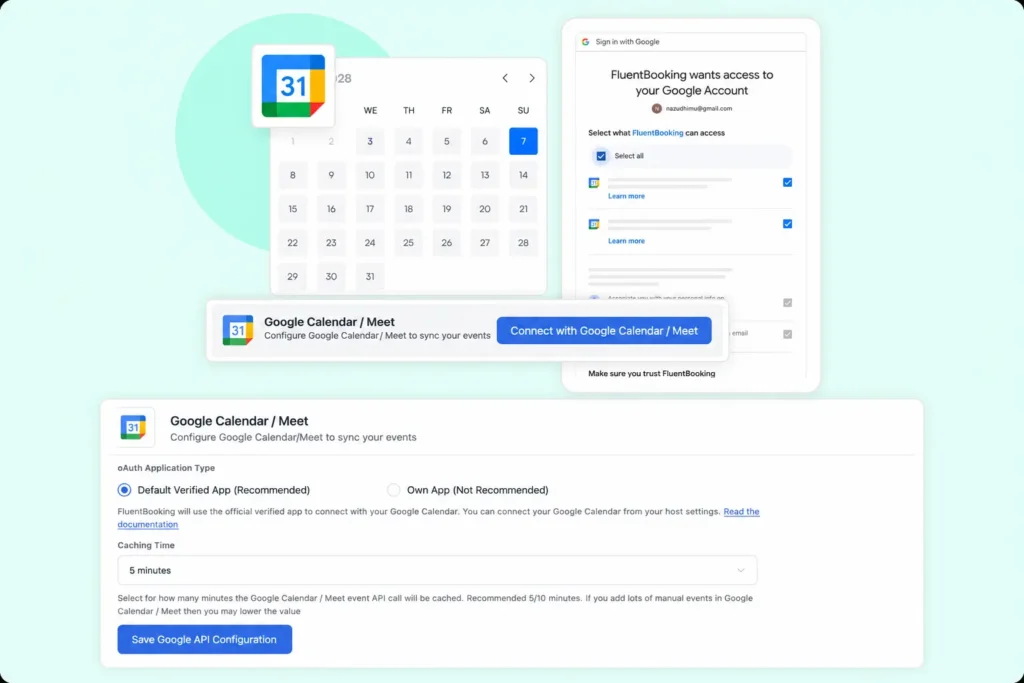
After successful authentication, FluentBooking will securely connect with your Google Calendar.
Select the Calendar for Sync
After connecting your account, choose which Google Calendar FluentBooking should sync with.
This is especially useful if you manage multiple calendars for business, personal appointments, or different team members.
Simply select the preferred calendar from the available list.
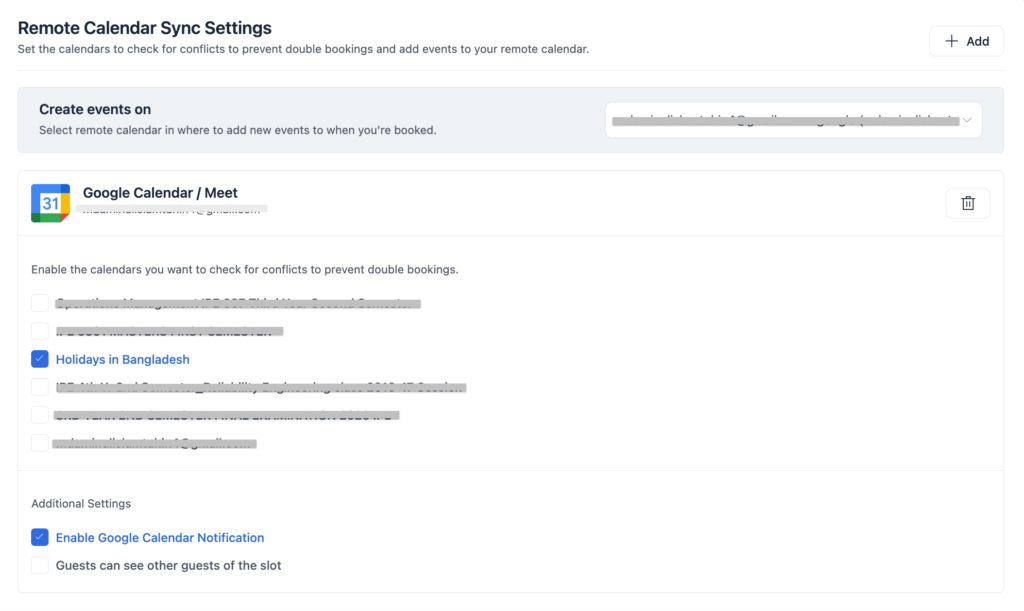
FluentBooking will use this calendar for appointment synchronization and availability checks.
Configure Availability and Sync Settings
Next, configure how you want the synchronization to work.
FluentBooking supports two-way synchronization, which means:
- New bookings created in FluentBooking appear automatically in Google Calendar.
- Existing Google Calendar events block availability inside FluentBooking.
- Rescheduled or canceled appointments remain updated across both systems.
Review your availability settings and save the configuration.
Test the Integration
Before going live, it’s a good idea to test everything.
Create a test appointment through your booking page.
After booking, verify that:
- The appointment appears in Google Calendar.
- The selected time slot becomes unavailable in FluentBooking.
- Confirmation emails are sent correctly.
- Rescheduling or canceling the appointment updates Google Calendar.
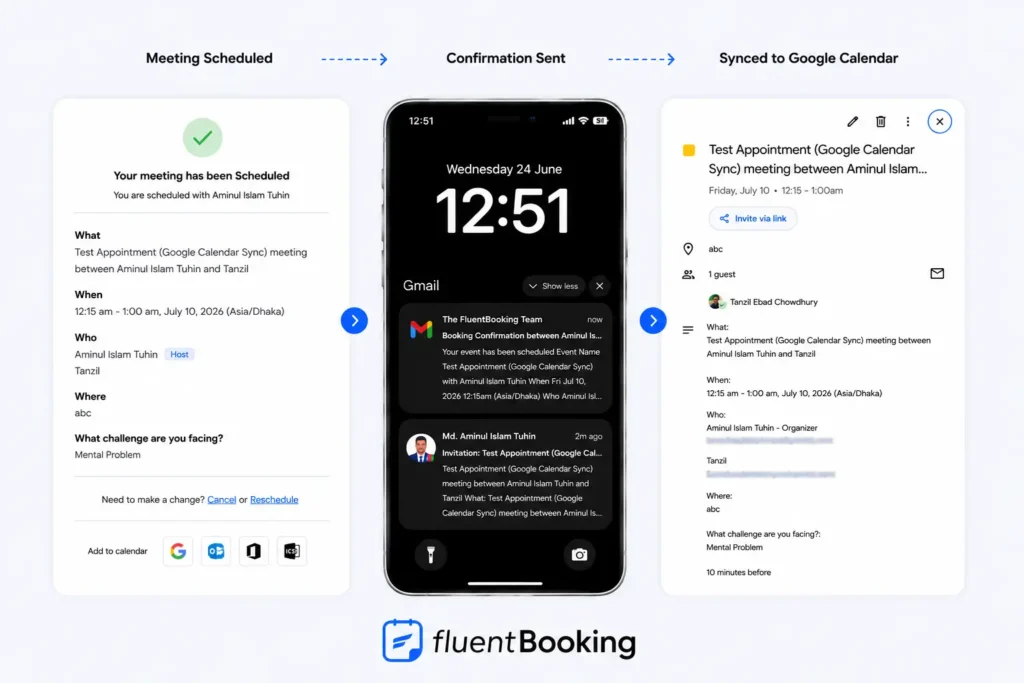
If everything works as expected, your integration is ready.
How Google Calendar Sync Works in FluentBooking
Understanding how synchronization works helps you avoid scheduling conflicts and confidently manage appointments.
Bookings Automatically Appear in Google Calendar
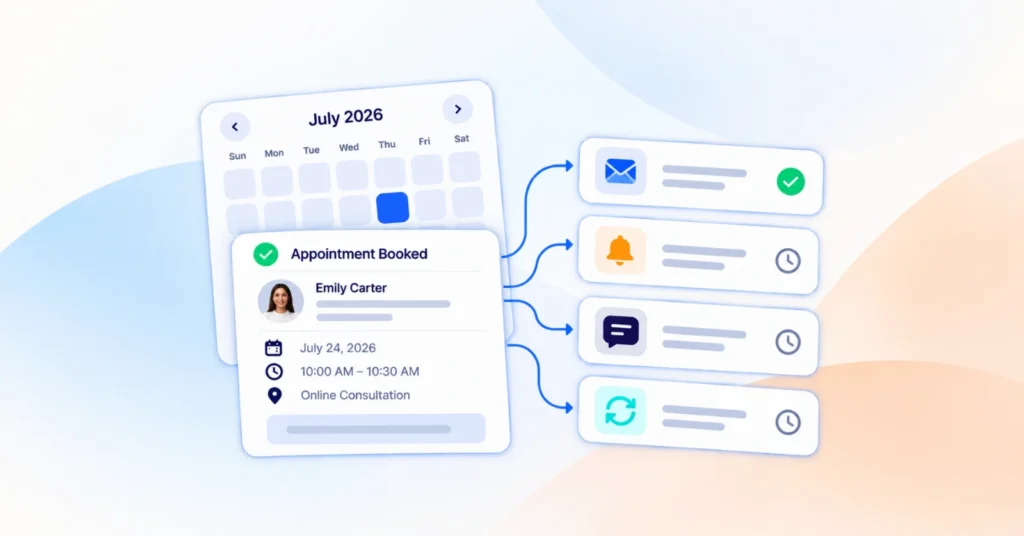
Whenever someone books an appointment through FluentBooking, the meeting is instantly added to your Google Calendar.
You’ll see important details such as:
- Meeting title
- Date and time
- Attendee information
- Meeting location or conferencing link
- Additional booking notes
No manual entry required.
Existing Calendar Events Block Availability
FluentBooking continuously checks your connected Google Calendar.
If you already have a meeting, personal commitment, or any busy event scheduled, FluentBooking automatically marks that time as unavailable.
This prevents clients from booking time slots that are already occupied.
Reschedules and Cancellations Stay Synced
Schedules change frequently.
When an appointment is rescheduled or canceled, FluentBooking updates the corresponding Google Calendar event automatically.
This ensures both calendars always remain accurate.
Why Use FluentBooking for Google Calendar Sync?
Many scheduling tools offer calendar integrations. However, FluentBooking provides a deeply integrated scheduling experience directly inside WordPress.
Here are some reasons users choose FluentBooking:
- Native Google Calendar integration
- Real-time two-way synchronization
- Support for multiple calendars
- Team scheduling capabilities
- Automatic availability management
- No need for third-party automation tools
- Complete control from your WordPress dashboard
Instead of switching between multiple platforms, you can manage your entire appointment workflow from a single place.

Goodbye Double Bookings and No-shows!
Sync your FluentBooking events with Google Calendar and forget about scheduling conflicts or no-show appointments.
Final Thoughts
Managing appointments manually is time-consuming and increases the risk of scheduling conflicts.
By syncing your appointments with Google Calendar, you can automate your scheduling workflow, prevent double bookings, and keep your availability accurate at all times.
With FluentBooking, connecting Google Calendar takes only a few minutes, yet the productivity benefits can save you countless hours in the long run.
If you’re looking for an easy way to manage appointments directly from WordPress, FluentBooking makes Google Calendar synchronization simple, reliable, and hassle-free.
Aminul Islam Tuhin
Hi! Nice to meet you. I’m a guy who loves to explore, learn, and share knowledge. I spend most of my time catching up with marketing tips & tricks. When I’m not busy with any of these, you’ll find me with a book, exploring the city, or playing my favorite games.
Table of Content
Subscribe To Get
WordPress Guides, Tips, and Tutorials
Add your first comment to this post