


How to Offer Escape Room Booking for Halloween on WordPress


Last Updated:
A Halloween escape room lives or dies on its schedule. Each game needs a fixed start time, one group at a time, and enough time to reset every lock and clue before the next team walks in.
When bookings come through DMs and a shared spreadsheet, you risk double-booked slots, unpaid no-shows, and a reset crew working against the clock.
This guide shows you how to set up escape room booking on your WordPress site with FluentBooking. You’ll learn how to schedule timed games with reset buffers, collect payment per game, ask the right questions on your booking form, and send reminders that help players arrive on time.
Decide How Your Escape Room Runs Before You Build the Booking Page
Three decisions shape your booking setup: who books a game, how long each booking occupies the room, and what you charge. Settle these first, and the rest of the setup becomes much easier.
Escape rooms are one of the kinds of events you can take bookings for, but they work differently from most appointments. One booking usually reserves the entire room for a fixed period.
It’s written for anyone running a pop-up Halloween escape room for the season, whether that’s a venue, studio, library, school, or community group. If you’re still choosing what to run, our list of Halloween party and event ideas has more options that need bookings.
Private Games or Shared Games
Most Halloween escape rooms work best as private games. One person books a slot for their group, and nobody else can book that time. Friends, families, and office teams can play together without strangers joining their session.
Shared games sell individual spots in a slot to different people. This works for larger haunted attractions where strangers join the same team. It’s a different setup, which our guide to setting up group bookings walks through.
This article focuses on private games, where one booking reserves the room for the entire group.
Work Out Your Real Slot Length
The time a group spends in your room is longer than the game clock. Build your schedule around four parts:
| Part | Typical length | What happens |
| Briefing | 5–10 minutes | Explain the rules, safety instructions, and story |
| Game | 40–50 minutes | The timed escape room experience |
| Debrief | 5 minutes | Reveal the solution and take a team photo |
| Reset | 10–20 minutes | Re-lock padlocks, re-hide clues, and reset props |
In this example, the first three parts take 60 minutes, while the reset requires another 15 minutes. That gives you a total of 75 minutes between start times.
Keep the booked event and reset period separate in your scheduling settings. The event duration covers the briefing, game, and debrief. The reset buffer reserves time before the next booking.
Time your reset during a dry run rather than relying on estimates. Props such as fog machines, fake blood, and UV ink can take longer to prepare than you expect.
Set One Price Per Game, Not Per Player
Charge a flat price for the entire room rather than charging each player individually. For example, you could charge $120 per game for up to six players.
A flat price makes checkout simpler and keeps revenue per booking predictable, regardless of group size. It also lets customers know the total cost before they book.
Set your price based on your operating costs and maximum group size, then limit the number of players through your booking form. If you want to encourage larger groups, you can also consider group-size-based pricing or a per-person option.
Set Up Halloween Escape Room Booking in FluentBooking
The steps below use one room. If you run two rooms at once, you can configure a separate event and schedule for each one. We’ll cover that later.
Step 1: Create a One-to-One Event for the Room
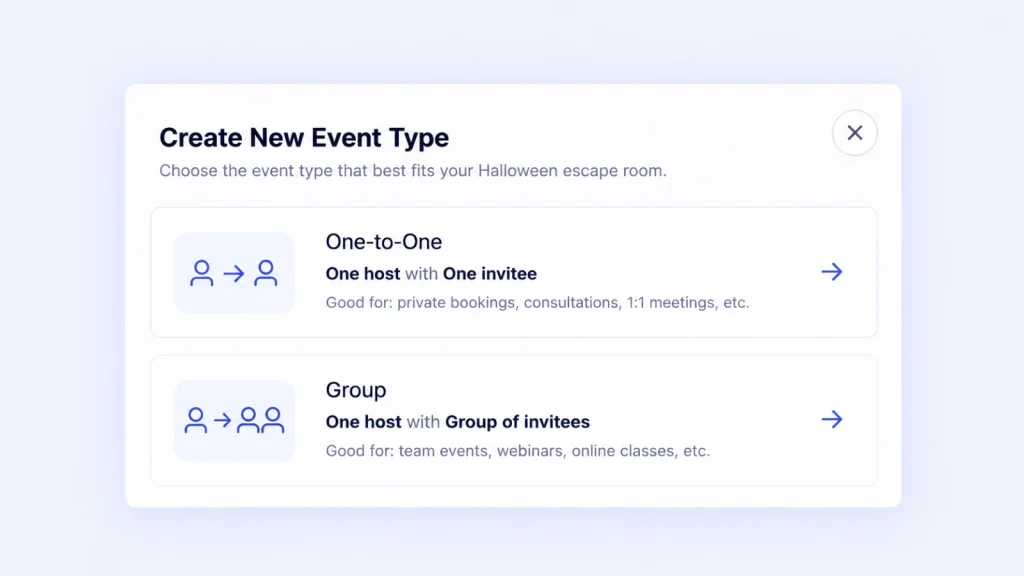
Under Calendars, create a new event type and choose One-to-One. In FluentBooking, one invitee books the slot. For your escape room, that invitee is the group leader, and the booking reserves the session for their whole team.
Give the event a name players will recognize, such as “The Cursed Crypt: Halloween Escape Room.”
Set Meeting Duration to the total booked event length. In our example, that’s 60 minutes, including the briefing, gameplay, and debrief.
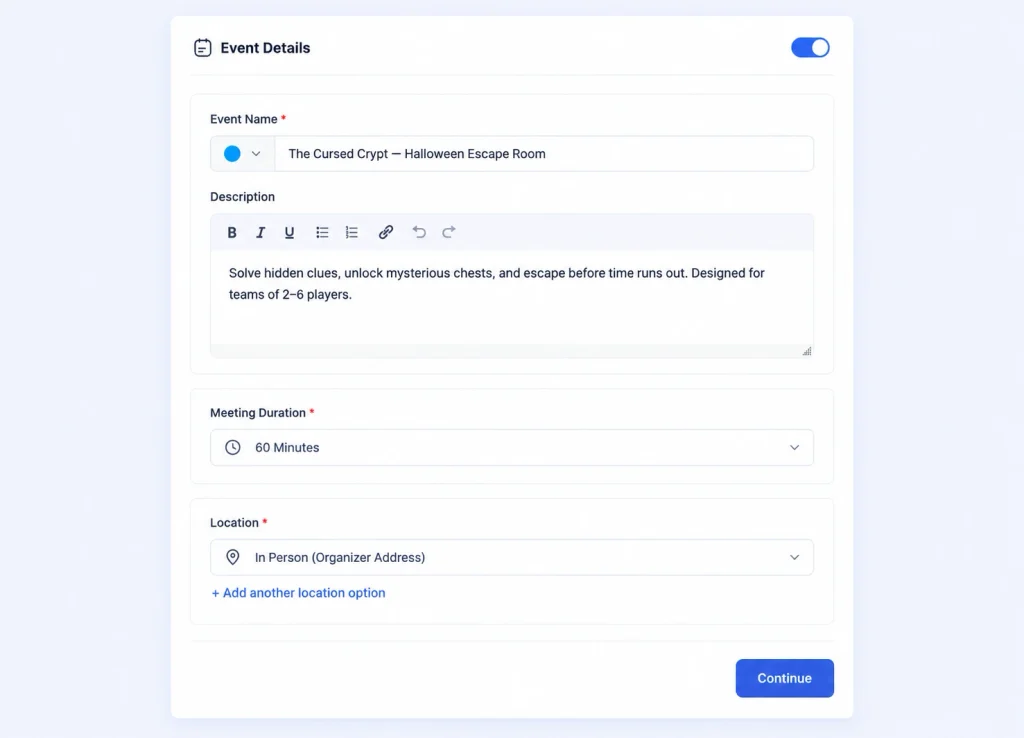
For Location, choose In Person (Organizer Address) so your venue address appears in the confirmation and reminder emails.
Step 2: Add Reset Time and Space Out Your Start Times
Open the event’s limit settings and configure After Event to match your reset time. For example, set it to 15 minutes.
This buffer reserves additional time after a booked event. It gives your team time to reset the room before the next group arrives.
Next, configure Time-slot intervals to match your planned schedule. For a 60-minute event followed by a 15-minute reset, use a 75-minute interval.
With a 5:00 PM to 10:00 PM schedule, this gives you four planned start times:
- 5:00 PM
- 6:15 PM
- 7:30 PM
- 8:45 PM
Each session lasts 60 minutes, leaving 15 minutes for the reset. The last session finishes at 9:45 PM, giving your crew time to prepare the room before closing.
If your briefing takes place in a lobby before players enter the room, consider adding a Before Event buffer. Make sure the combined settings reflect how your staff actually move groups through the venue.
After saving your settings, check the public booking page to confirm that the available start times match your intended schedule.
From setting event durations to managing availability and buffer times, FluentBooking gives you the tools to keep your escape room bookings organized and your schedule running smoothly.
Step 3: Open Only Your Halloween Dates
A seasonal escape room shouldn’t show bookable slots throughout the year. In the event’s availability settings, choose Set Custom Hours and configure your weekly availability so that regular dates remain unavailable.
Then use Add date overrides to add the specific dates and hours when your escape room will operate.
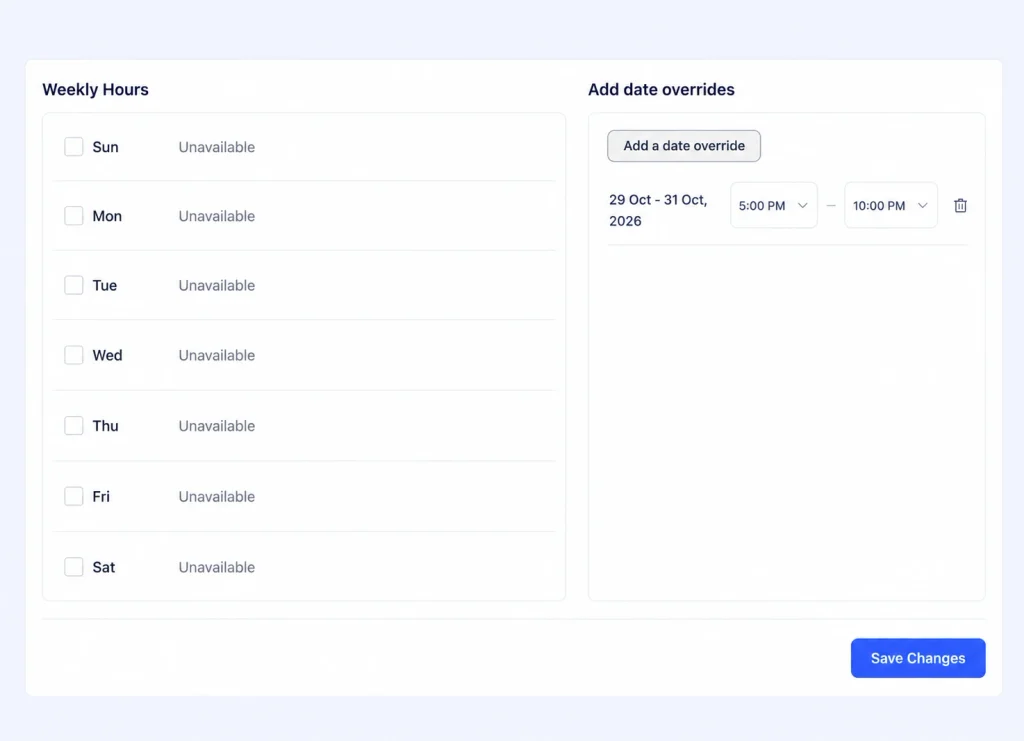
This also lets you run longer hours on selected dates. For example, you might open from 5:00 PM to 10:00 PM on weeknights but start at 3:00 PM on Halloween night and the preceding weekend.
Add the appropriate hours to each date override, then check the public booking page to make sure only your intended dates appear.
Step 4: Take Payment for the Game at Booking
Unpaid bookings can cost you money, especially on busy Halloween weekends. A group might reserve your 7:30 PM slot and fail to show up, leaving you with an empty room and little time to fill it.
Taking payment at booking helps reduce this risk.
In the event’s payment settings, choose a Checkout Method. Under Booking Payment Items, click New, enter a title such as “Private game: Up to 6 players,” add the price, and click Create.
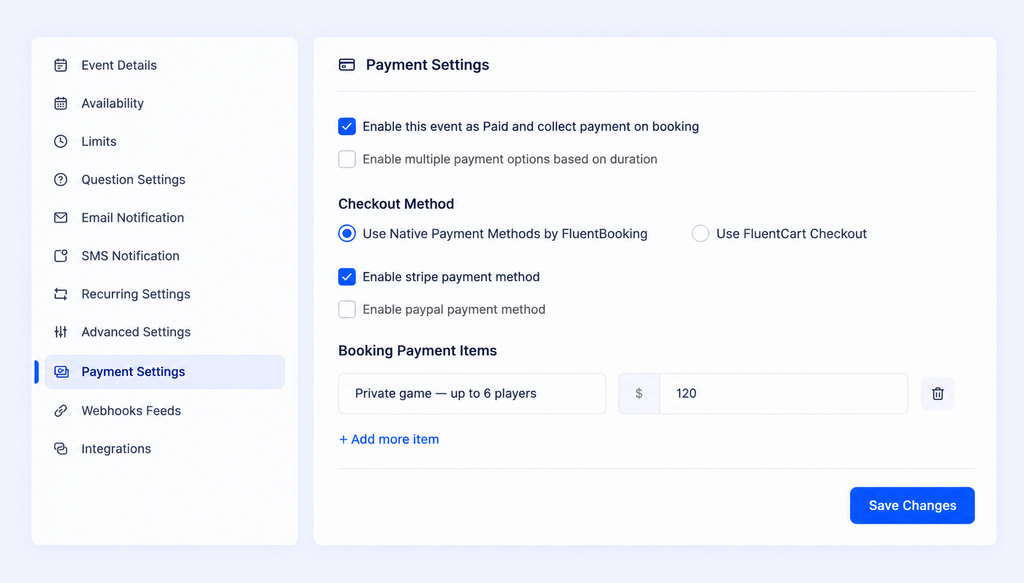
After connecting your payment account, you can accept payments through Stripe or PayPal with FluentBooking Pro.
If you’d rather collect a deposit, configure the payment item for the amount due at booking and clearly explain that the remaining balance is payable on arrival. When the group pays the balance at the venue, use Mark As Paid on the booking, where applicable, to keep your payment records up to date.
Before opening bookings, test the checkout process to confirm that the correct price appears and payments are recorded as expected.
Step 5: Ask the Questions Your Game Master Needs
Your booking form helps you prepare for each group before they arrive.
Under the event’s question settings, click + Add more questions for invitees and add the fields you need.
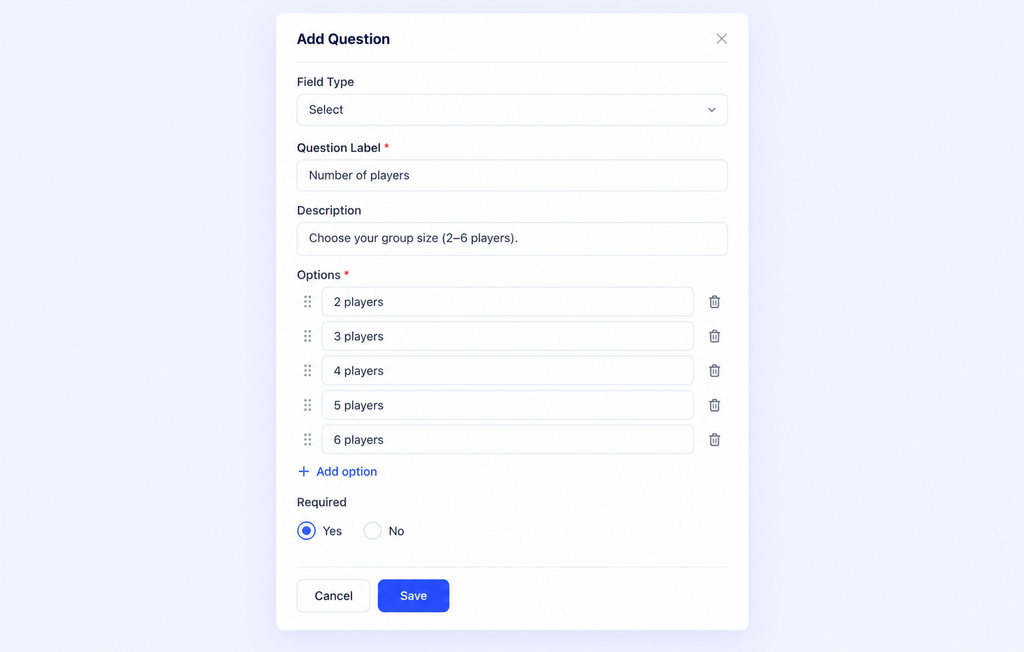
- Select: Number of players. Add options from 2 through 6 if that matches your room’s capacity. This helps you collect the group size and communicate the limit. Make sure the form or your booking process actually enforces the maximum if you need a strict capacity restriction.
- Radio: Scare level. Offer options such as “Family-friendly” and “Full scare” so your actors can prepare the right experience.
- Textarea: Anything we should know? Give guests space to share information about birthdays, accessibility needs, or concerns about confined spaces.
- Terms & Conditions: Booking rules and safety requirements. Ask guests to agree to your rules, including safety instructions, age restrictions, late-arrival policies, and cancellation terms.
If your activity requires a liability waiver, don’t assume a checkbox alone makes it legally sufficient. Use wording appropriate for your location and circumstances, and review any applicable requirements.
Keep the form short. Name, email, player count, scare level, and the relevant terms should cover most of what your team needs.
Step 6: Send a Confirmation and a Pre-Game Reminder
Late arrivals can disrupt an entire evening of escape room sessions. A team that arrives ten minutes late might lose part of its game time or delay the next group.
Use your automated email notification to set expectations before the session.
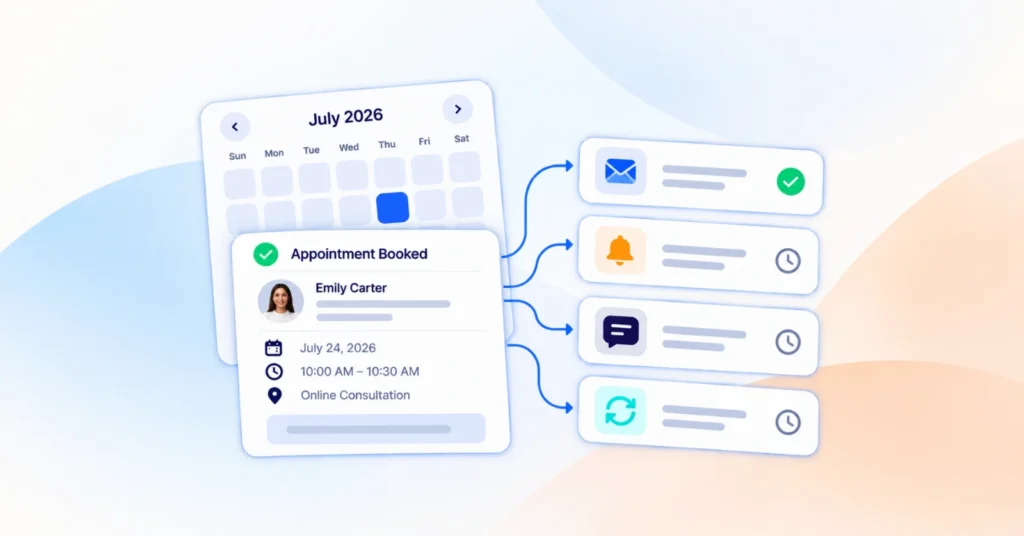
FluentBooking sends a Booking Confirmation Email to the Attendee when someone books. Edit the email to include the information the group leader needs to share with the rest of the team:
- Arrive 15 minutes before the scheduled start.
- Wear closed-toe shoes if required by your venue.
- Follow the directions to the venue.
- Check the parking instructions before leaving.
- Review any age restrictions or safety rules.
Next, edit Configure Meeting Reminder to Attendee and set its Timing to send the day before the booking.
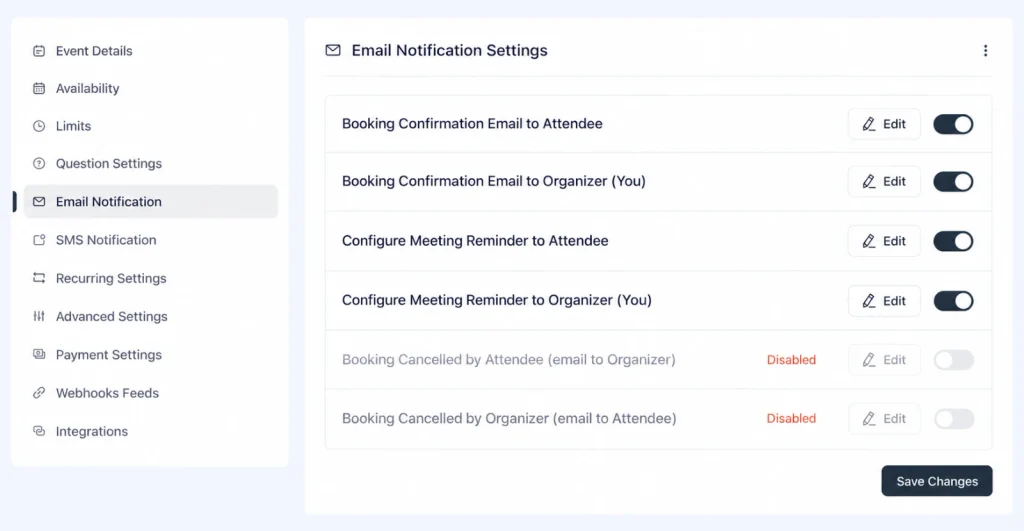
Include the relevant rescheduling and cancellation links using FluentBooking’s available booking URL merge tags. This gives guests a way to manage their booking if their plans change, helping you avoid preventable no-shows.
With FluentBooking Pro and Twilio connected, you can also send reminders by SMS. This gives guests another way to see important booking information, particularly on the day of the game.
For more ideas, see our event reminder email examples.
Help guests stay on track with timely booking updates and pre-game reminders. Connect FluentBooking with Twilio to send SMS notifications straight to their phones, so they know when to arrive and what to expect.
Step 7: Put the Booking Page Where Players Will Find It
Once your event is ready, make it easy for customers to book.
Open the event, click Share, then Copy to get the booking link. Add it to your social media posts, promotional emails, and printed flyers.
To place the booking calendar on your Halloween landing page, use Embed via HTML Code or add the calendar’s shortcode to a WordPress page or post.
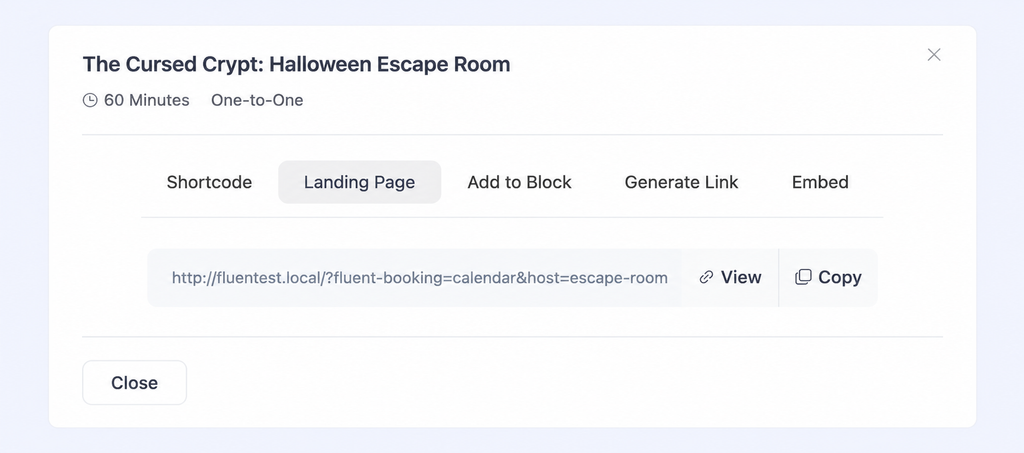
Put the booking calendar near the top of the landing page so visitors can find available times without searching through the entire page.
Your page should also explain what the experience includes, how many people can play, how long the session lasts, what it costs, and where the venue is located.
Before promoting the page, make a test booking and check the confirmation email, payment flow, and displayed availability.
Handle the Busy Nights: Walk-Ins, Second Rooms, and Early Birds
Once your booking page is live, a few additional steps can help you manage demand during the Halloween rush.

Walk-Ins and Phone Bookings
Halloween night often brings people who decide to play at the last minute. You may also receive bookings over the phone.
When someone books in person or by phone, use Create Booking Manually from the bookings screen. Select the appropriate event, date, time, and attendee details, then save the booking.
After saving, check the public booking page to confirm that the slot is no longer available. This helps prevent another group from booking the same time online.
Running a Second Room
If you operate two escape rooms simultaneously, configure a separate event and schedule for each room, with the appropriate host assigned to each one.
Give each room its own availability, reset buffers, and booking list so you can manage sessions independently.
You can also stagger the start times. For example:
| Room A | Room B |
| 5:00 PM | 5:30 PM |
| 6:15 PM | 6:45 PM |
| 7:30 PM | 8:00 PM |
This arrangement gives your front desk more time to brief each group without handling two arrivals simultaneously.
Check the availability of both events before publishing them to make sure your staff, shared areas, and other resources can support the schedule.
Early-Bird Pricing
Want to fill earlier dates before the busiest Halloween nights arrive? An early-bird discount can give customers a reason to book ahead.
Enable the coupon module and create a coupon with a Percentage (%) or Fixed discount. Configure the coupon’s validity and usage limits according to your promotion.
For example, you could offer 15% off qualifying bookings made before a specified deadline.
Be clear about the offer’s terms on your landing page. If the discount should apply only to sessions scheduled on particular dates, verify that your coupon configuration supports that condition. Otherwise, explain the eligible dates and booking requirements so customers understand what qualifies.
On the Night
Once bookings start coming in, use FluentBooking to keep track of your sessions.
Open View Details on each booking to review the player count, scare level, and any notes before the group arrives.
After the session, use Mark As Completed where available to maintain an accurate record of completed bookings.
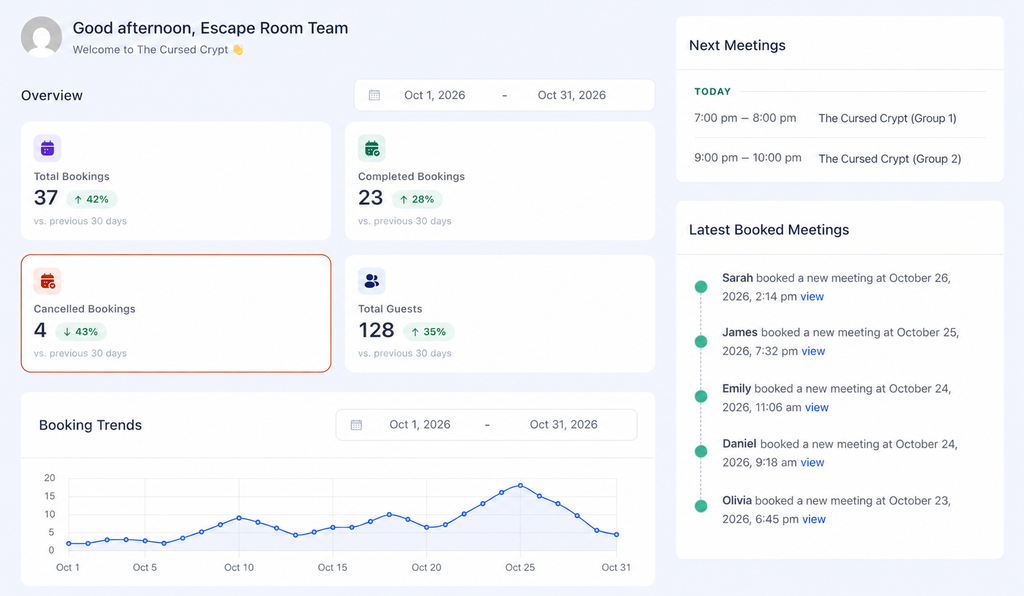
These records can help you understand which dates filled up, how many sessions you ran, and when you might need additional staff next Halloween.
A Sample Halloween Escape Room Setup
Here’s a quick summary of the settings used in our example.
| Setting | Example value | Why it matters |
| Event type | One-to-One | One group leader books the entire room |
| Meeting Duration | 60 minutes | Covers briefing, gameplay, and debrief |
| After Event | 15 minutes | Reserves time for the room reset |
| Time-slot intervals | 75 minutes | Aligns planned starts with the session and reset time |
| Availability | Custom Hours + date overrides | Makes only selected Halloween dates available |
| Booking Payment Item | One price per game | Keeps pricing simple for the group |
| Booking questions | Select, Radio, Textarea, Terms & Conditions | Collects player count, scare level, notes, and agreement to booking terms |
| Reminder Timing | Day before | Gives guests time to prepare and plan their arrival |
These values are examples, not universal settings. Adjust them to match your room, staff, session length, and opening hours.
Open Your Halloween Escape Room Bookings
Build the room, test the puzzles, and time the reset before you open bookings. Then configure your schedule, payment settings, and reminders so every group knows when to arrive and what to expect.
The puzzles are what players remember. The schedule is what determines whether you can run four games a night or end up with unnecessary gaps between sessions.
Set up timed, paid escape room bookings on WordPress. With FluentBooking Pro, you can configure booking buffers, collect payments, and send SMS reminders when connected to Twilio.
Every Booking 🎃
Manage bookings, collect payments, and send reminders with FluentBooking Pro. Get ready for Halloween with our limited-time deal.
FAQs
Ratul Hasan Ripon
I enjoy making complex ideas simple and engaging through my writing and designs. With a strong knowledge on content writing and SEO, I create technical content that’s both easy to understand and interesting.
Table of Content
Subscribe To Get
WordPress Guides, Tips, and Tutorials

Add your first comment to this post