

How to Reduce Meeting No-Shows with Automated Email and SMS Reminders: A Step-by-Step Guide


Last Updated:
Meeting no-shows can disrupt your schedule, waste valuable time, and even cost your business potential revenue. Whether you’re hosting sales calls, client consultations, or team meetings, every missed appointment means lost productivity and unnecessary follow-ups.
Fortunately, most no-shows are preventable. With automated email and SMS reminders, you can keep attendees informed, reduce last-minute absences, and give them an easy way to reschedule if needed.
In this guide, we’ll show you how to set up automated reminders to create a smooth communication workflow that helps reduce meeting no-shows and keeps your calendar running smoothly.
Why Meeting No-Shows Happen?
Before setting up appointment notifications, it’s helpful to understand why attendees miss meetings. In most cases, the reasons are simple and preventable.
- People forget: Meetings booked days or weeks in advance can easily slip someone’s mind without timely reminders.
- Schedule conflicts: Unexpected work or personal commitments may prevent attendees from joining if they aren’t reminded early enough to reschedule.
- Time zone confusion: Remote meetings often involve different time zones, making it easy to miscalculate the meeting time.
- Lack of follow-up: A single confirmation email isn’t always enough to keep the meeting top of mind until the scheduled time.
- Missing meeting details: If attendees have to search through old emails to find the meeting link, location, or joining instructions, they’re more likely to miss the meeting or join late.
Why a Single Reminder Isn’t Enough
Sending one reminder email is better than sending none, but it’s often not enough to prevent meeting no-shows. That’s because people miss meetings for different reasons, and a single reminder can’t address them all.
For example, an attendee may realize a day before the meeting that they have a scheduling conflict. An early automated reminder gives them enough time to reschedule instead of missing the meeting altogether.
On the other hand, someone may simply forget about the meeting, especially if it was booked weeks in advance. A reminder sent shortly before the meeting serves as a timely nudge, making it less likely they’ll miss it.
The most effective approach is to use multiple reminders at different stages of the booking journey. A reminder 24 hours before the meeting allows attendees to prepare or reschedule, while another reminder 30 to 60 minutes before the meeting keeps the appointment fresh in their mind. Together, these reminders help reduce no-shows and create a smoother experience for both you and your attendees.
Setting Up the Automated Reminder Sequence in FluentBooking
Now it’s time to build your automated reminder workflow. FluentBooking lets you send booking confirmations, multiple reminder emails, SMS notifications, and cancellation emails automatically, ensuring attendees receive the right message at the right time.
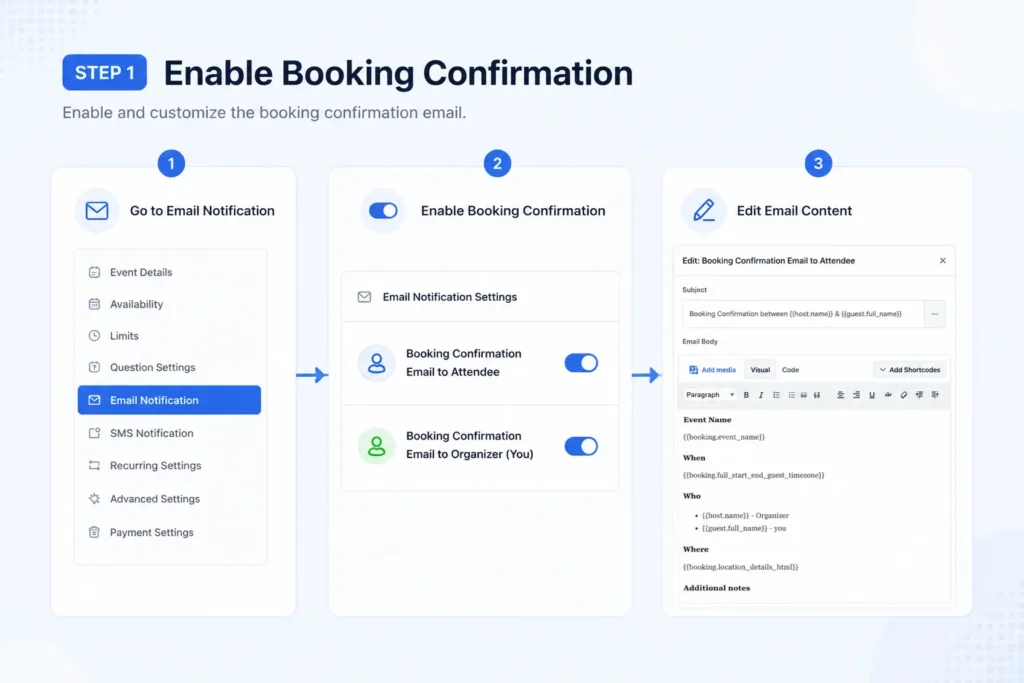
Step 1: Enable Booking Confirmation
Open the booking event you want to configure and navigate to the Email Notification tab. Enable the Booking Confirmation email for both the attendee and the organizer.
This email is sent immediately after a meeting is booked and serves as the first touchpoint with your attendee. Make sure it includes:
- Meeting date and time
- Time zone
- Meeting location or video conferencing link
- Calendar invitation
- Reschedule and cancellation links
Step 2: Configure Multiple Reminder Emails
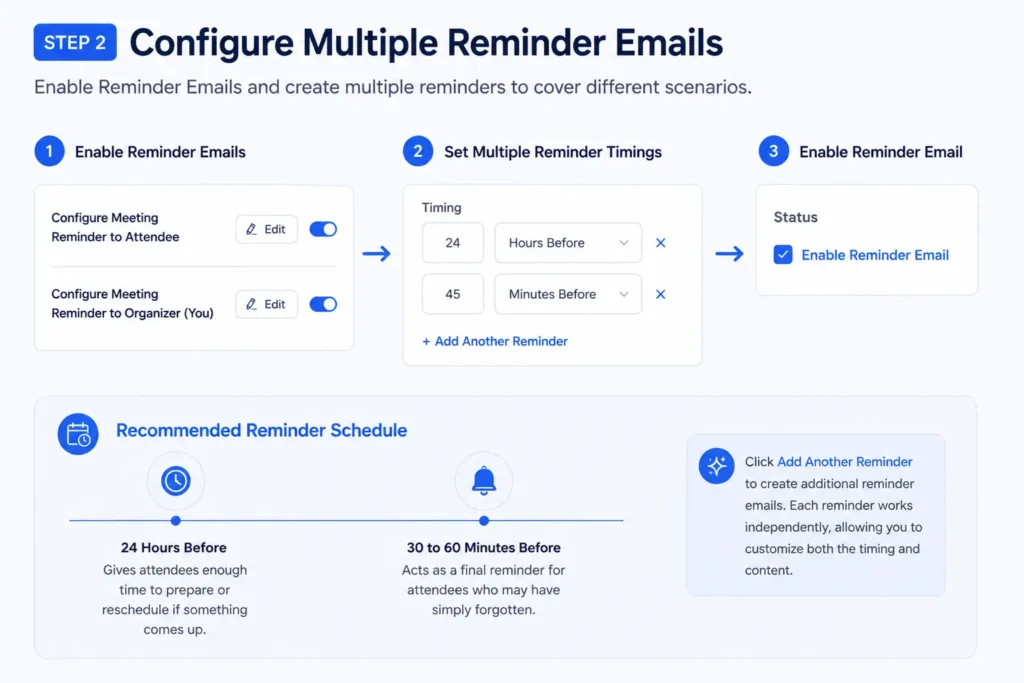
Next, enable Reminder Emails. Instead of relying on a single reminder, create multiple reminders to cover different scenarios.
A recommended reminder schedule is:
- 24 hours before the meeting: Gives attendees enough time to prepare or reschedule if something comes up.
- 30 to 60 minutes before the meeting: Acts as a final reminder for attendees who may have simply forgotten.
Click Add Another Reminder to create additional reminder emails. Each reminder works independently, allowing you to customize both the timing and content.
Step 3: Personalize Your Reminder Messages
Click the Edit icon to customize each reminder email. Use FluentBooking’s dynamic shortcodes to automatically insert meeting details into every message.
Include information such as:
- Attendee name
- Organizer name
- Meeting title
- Date and time
- Time zone
- Meeting link
- Reschedule link
- Cancellation link
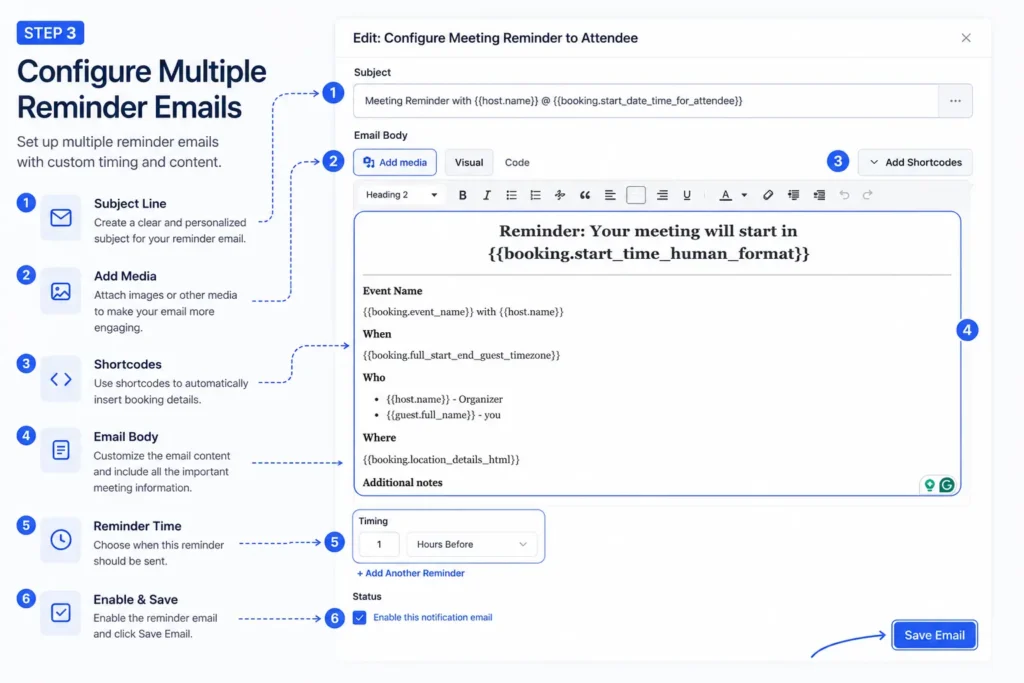
Personalized reminders provide all the necessary information in one place, so attendees don’t have to search through previous emails before joining the meeting.
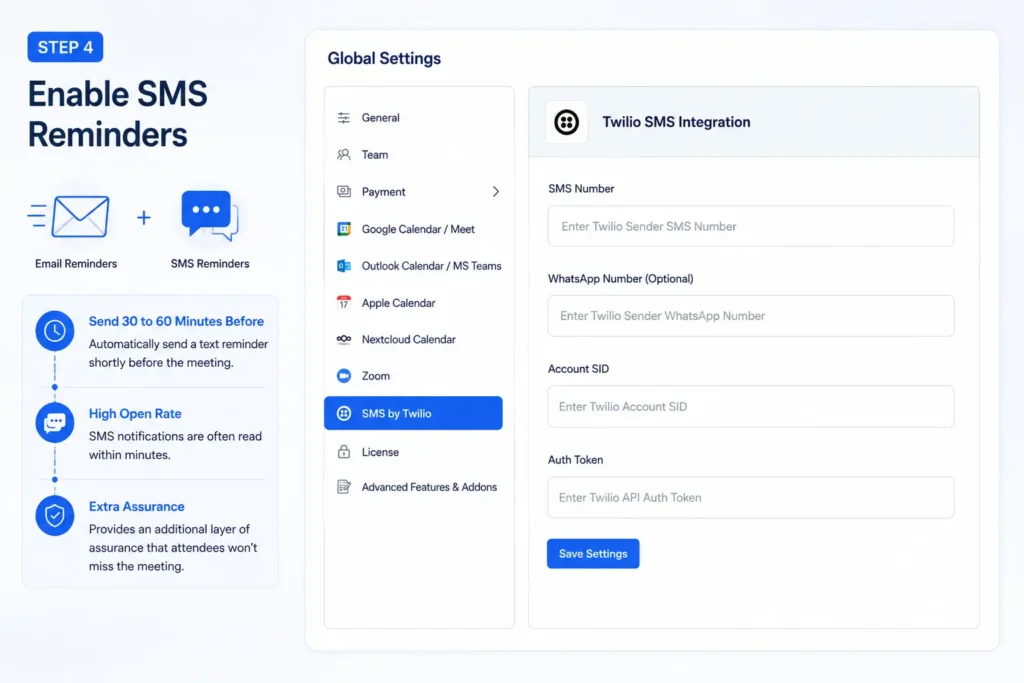
Step 4: Enable SMS Reminders
For important meetings such as sales calls, client consultations, or interviews, consider adding an SMS reminder alongside your email reminders.
With FluentBooking’s Twilio integration, you can automatically send a text message 30 to 60 minutes before the meeting. Since SMS notifications are often read within minutes, they provide an extra layer of assurance that attendees won’t miss the meeting.
Step 5: Turn On Cancellation Notifications
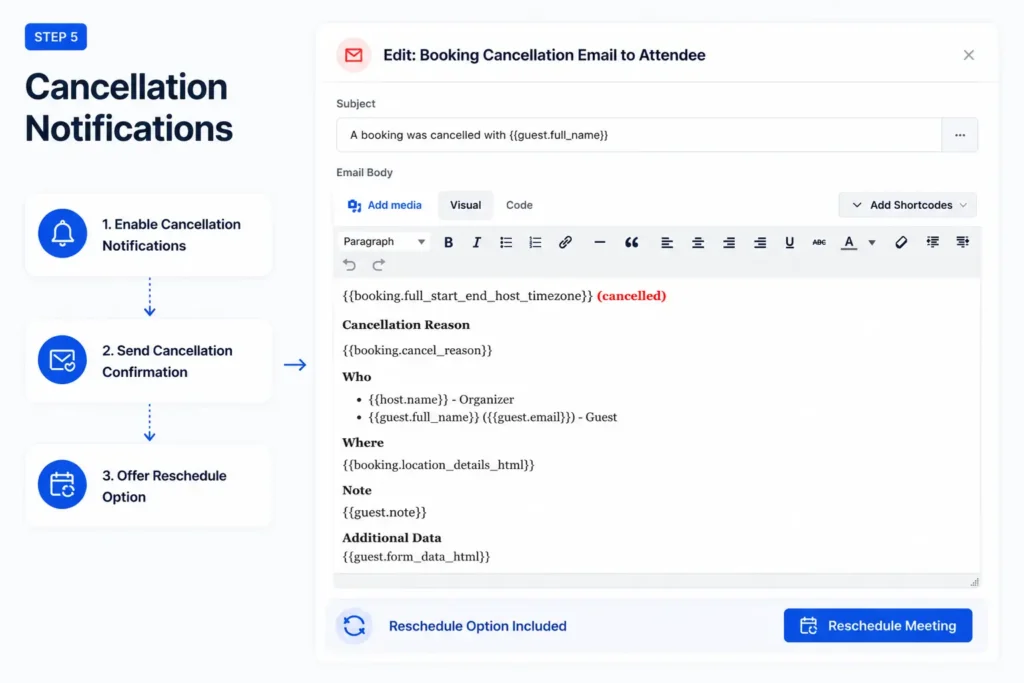
Finally, enable cancellation email notifications for both the attendee and the organizer.
While this isn’t a reminder, it’s an important part of the communication workflow. If an attendee needs to cancel, they’ll receive a confirmation along with an option to reschedule instead of disappearing entirely. This helps turn potential no-shows into successfully rebooked meetings.
Step 6: Test Your Reminder Workflow
Before sharing your booking page, test the entire reminder sequence to make sure every notification is working as expected.
Create a test booking using your own email address and verify that:
- The booking confirmation is sent immediately.
- Reminder emails are delivered at the scheduled times.
- SMS reminders are received correctly (if enabled).
- Meeting details, time zone, and joining link are displayed correctly.
- Reschedule and cancellation links work as expected.
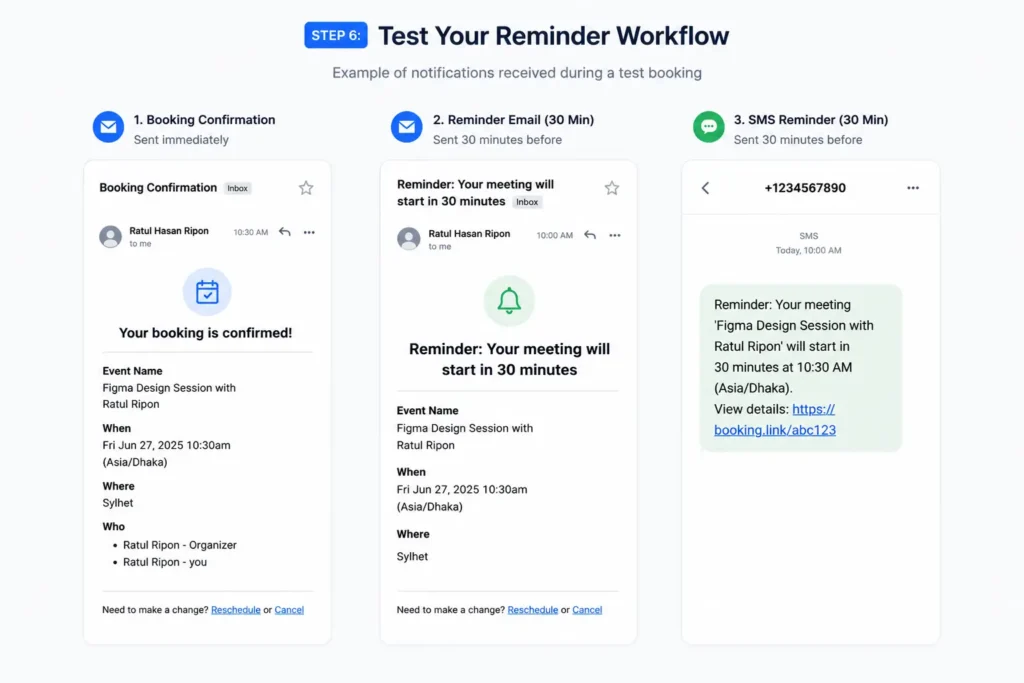
Running a quick test helps you catch any configuration issues before attendees start booking meetings, ensuring a smooth and reliable experience from the very first appointment.
Applying This to a Specific Meeting Type
The two-stage structure holds regardless of what kind of meeting it’s protecting, but the offsets and the channel mix are worth adjusting for the stakes involved. A missed internal standup costs a few minutes of mild annoyance; a missed sales call is a lead going quiet. The reminder sequence should reflect that difference rather than treating every meeting type the same.
| Meeting type | What a no-show actually costs | Reminder offsets | Channel mix |
| Internal standup/status check | Minor — rescheduled within the team | 24 hours, 30 minutes | Email both stages |
| One-on-one | Awkward — the other person notices | 24 hours, 30 minutes | Email both stages |
| Sales call/discovery call | High — a warm lead going cold | 24 hours, 1 hour | Email at 24 hours, SMS at 1 hour |
| Client check-in | Moderate to high — depends on the relationship stage | 48 hours, 1 hour | Email at 48 hours, SMS at 1 hour |
| Candidate interview | High — costs the candidate’s time and the hiring timeline | 24 hours, 1 hour | Email at 24 hours, SMS at 1 hour |
Don’t Stop at Reminders: Automate Your Follow-Up Emails
Getting attendees to join the meeting is only half the journey. What happens after the meeting can be just as important, especially for sales calls, client consultations, demos, or onboarding sessions.
Instead of manually sending thank-you emails or follow-up messages, you can automate the entire post-meeting communication process.
For example, you can automatically:
- Send a thank-you email after the meeting ends.
- Share meeting notes, presentations, or other resources.
- Ask attendees for feedback with a short survey.
- Send the next steps or action items discussed during the meeting.
- Nurture leads with a follow-up email sequence.
- Trigger onboarding emails for new customers.
By connecting FluentBooking with FluentCRM, you can build automated email workflows based on booking events. Once a meeting is completed, attendees can be added to a specific email sequence, tagged based on the meeting type, or enrolled in targeted campaigns without any manual work.
This creates a seamless communication journey, from booking confirmation and reminders before the meeting to personalized follow-up emails afterward, helping you improve engagement, strengthen customer relationships, and save valuable time.
Related guide: Learn how to automate meeting follow-up emails with FluentCRM to nurture leads and keep conversations moving after every booking.
Still Sending Follow-up Emails Manually?
Sync FluentBooking with FluentCRM and save your time from the manual follow-up and winback your customers!

Turn Every Booking Into a Show-Up
Meeting no-shows don’t have to be an unavoidable part of your scheduling process. With the right reminder strategy, you can keep attendees informed, reduce missed appointments, and create a smoother experience for everyone involved.
By combining an instant booking confirmation, multiple email reminders, optional SMS notifications, and automated follow-up emails, you’ll have a complete communication workflow that keeps meetings on track from start to finish.
FluentBooking makes it easy to automate every step of this process, so you can spend less time chasing attendees and more time having productive conversations. Set up your reminder workflow today, test it before going live, and start turning more bookings into successful meetings.
Ratul Hasan Ripon
I enjoy making complex ideas simple and engaging through my writing and designs. With a strong knowledge on content writing and SEO, I create technical content that’s both easy to understand and interesting.
Table of Content
Subscribe To Get
WordPress Guides, Tips, and Tutorials


Add your first comment to this post