

Skip to content

Don’t miss out! New Year Sale

Get Discount
fluentbooking logo
  • How It Works
  • Features
  • Use CasesExpand
    • Personal Services

      Streamline your personal service appointments

      eLearning

      Take lead in your e-learning venture

      Sales

      Transform your sales communications

      Customer Service

      Scale your marketing with simplified appointments

      Marketing

      Take your customer service to new heights

      Recruitment

      Recruit top talents more efficiently

  • Integrations
  • ResourcesExpand
    • best wordpress bfcm deals
      10+ Best Black Friday & Cyber Monday Deals 2025 (Exclusively for FluentBooking Users)
      Read All Articles
      Resources

      • Articles
      • Documentation
      • Roadmap
      • Comparisons
      • Demo
      • Support
  • Pricing
  • AboutExpand
    • Contact
  • Login

Don’t miss out! New Year Sale

Get Discount
fluentbooking logo

Getting Started

  • Install, Activate, and Update FluentBooking 
  • Install & Activate FluentBooking Pro
  • Dashboard Overview
  • Add your Booking Form to the WordPress site’s Front-end
  • Enabling Team Page in WordPress Front-end

Host & Events

  • Create a New Host
  • Create New Events
  • Set Round Robin Bookings
  • Single One-off Event
  • Group One-off Event
  • Collective Booking Event
  • Set Booking Advanced Settings
  • Create a Booking Availability
  • Set Email Notifications for a Booking
  • Set Booking Questions
  • Set Booking Summary Email
  • Set Booking Limits
  • Modify Event Details
  • Host/User Access Management 
  • How to Enable Landing Page for Your Host

Bookings

  • Booking Details
  • Cancel a Booking
  • Create Booking Manually

Integrations

  • Google Calendar/Meet integration with FluentBooking
  • Zoom Integration with FluentBooking
  • Outlook Calendar Integration with FluentBooking
  • Nextcloud Calendar Integration With FluentBooking
  • FluentCRM integration with FluentBooking
  • Apple Calendar Integration with FluentBooking
  • FluentBoards Integration with FluentBooking
  • Fluent Forms Integration with FluentBooking
  • WooCommerce Integration with FluentBooking
  • Twilio/SMS/WhatsApp Integration with FluentBooking
  • Webhook Integration with FluentBooking
  • FluentCart Integration With FluentBooking

Payments

  • Take Payment in Bookings
  • Take Multi-Payments 
  • Offline Payment for Booking
  • Paypal Integration with FluentBooking
  • Stripe Integration with FluentBooking
  • How to Create and Manage Payment Coupons
  • Customize the Coupon Field on your Booking Form
  • How to Generate a Coupon Link

Global Settings

  • Global Settings
  • Host Settings
  • Frontend Panel

Availability

  • Availability Management
  • Configure Availability

Miscellaneous

  • FluentBooking Shortcodes
  • Gutenberg Blocks
  • Prettify Landing Page URL
  • Import, Export and Clone Events
  • Pass Default Booking Information to the URL
  • UTM Tracking for Bookings
  • How to Embed Booking Calendar using HTML
  • Changelog
View Categories
  • Home
  • Docs
  • Integrations
  • FluentCart Integration With FluentBooking

FluentCart Integration With FluentBooking

FluentCart is built for speed, scalability, and flexibility, helping you run your eCommerce business smoothly and efficiently. With this integration, you can sell consultations, classes, services, or products directly through your booking forms without requiring third-party plugins.

This keeps your sales and appointments within a single, seamless ecosystem without needing extra plugins. Follow these steps to connect FluentCart with your booking events:

Activate the FluentCart Module #

First, ensure FluentCart is installed and active on your WordPress site.

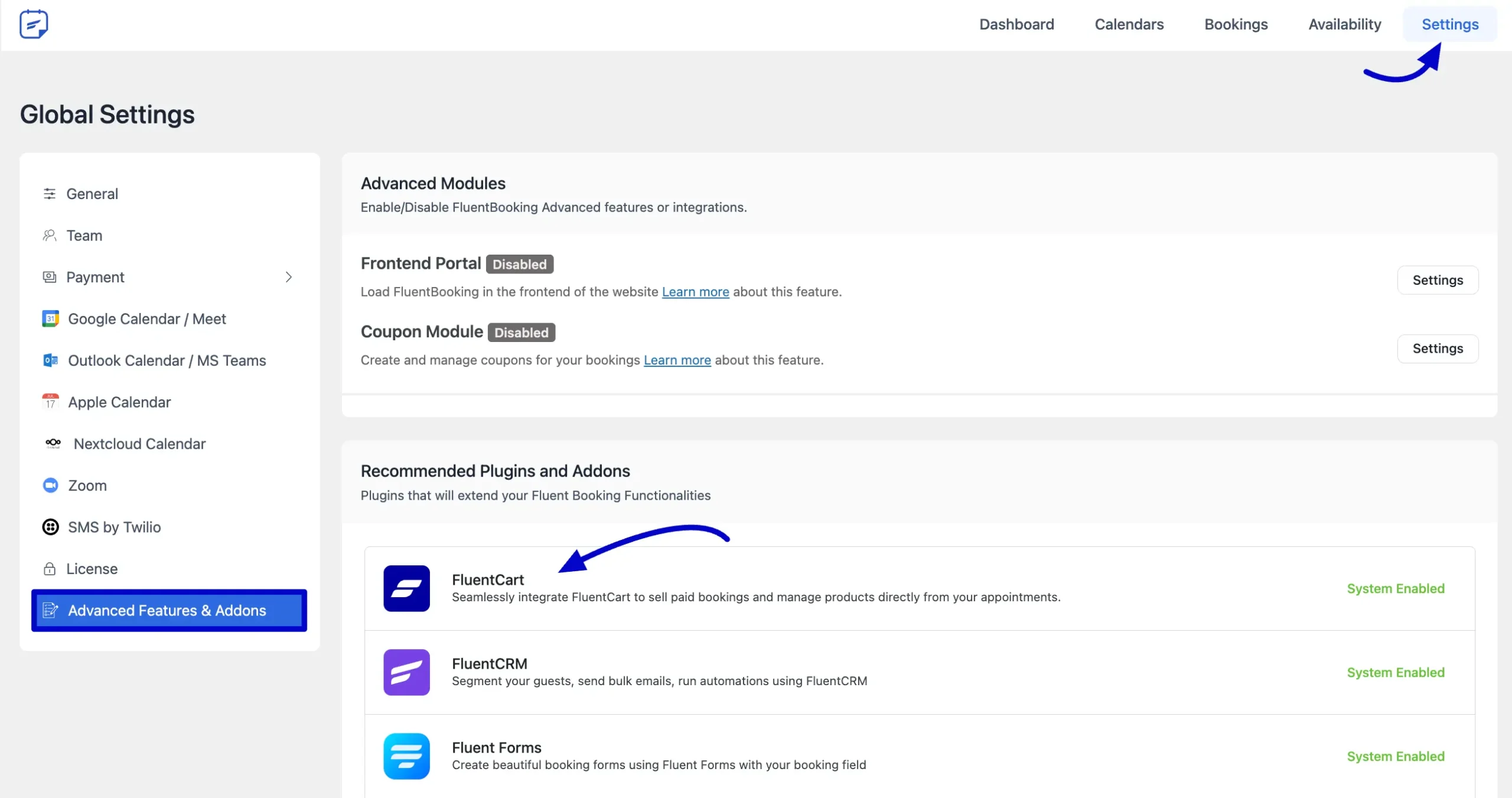
Log in to your WordPress dashboard. Navigate to FluentBooking and select Settings from the top menu bar.

Next, click on “Advanced Features & Addons.” Here, you will see the system automatically enabled once you install and activate the FluentCart plugin.
Configure FluentCart Inside Your Booking Event #

Once the module is active, you need to connect it to a specific calendar event.

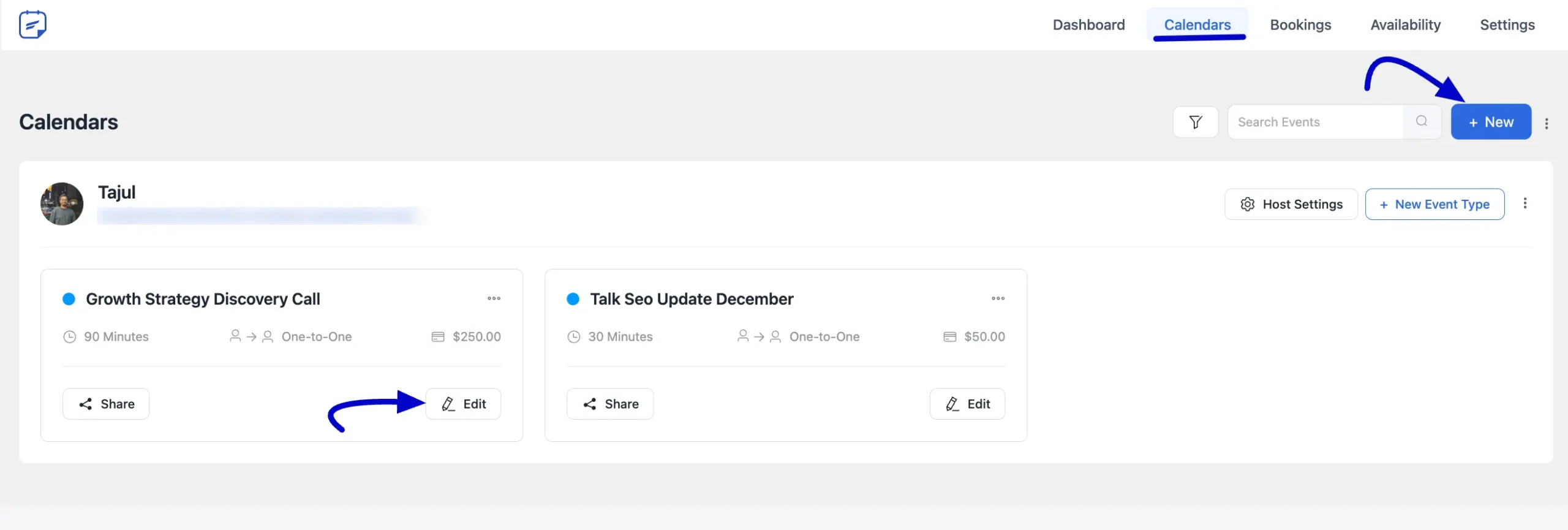
Go to Booking Calendars from your FluentBooking dashboard. Click the Edit button on the specific event you want to monetize. If you haven’t created a booking event yet, click on the + New button.
Set Up the Product and Checkout #

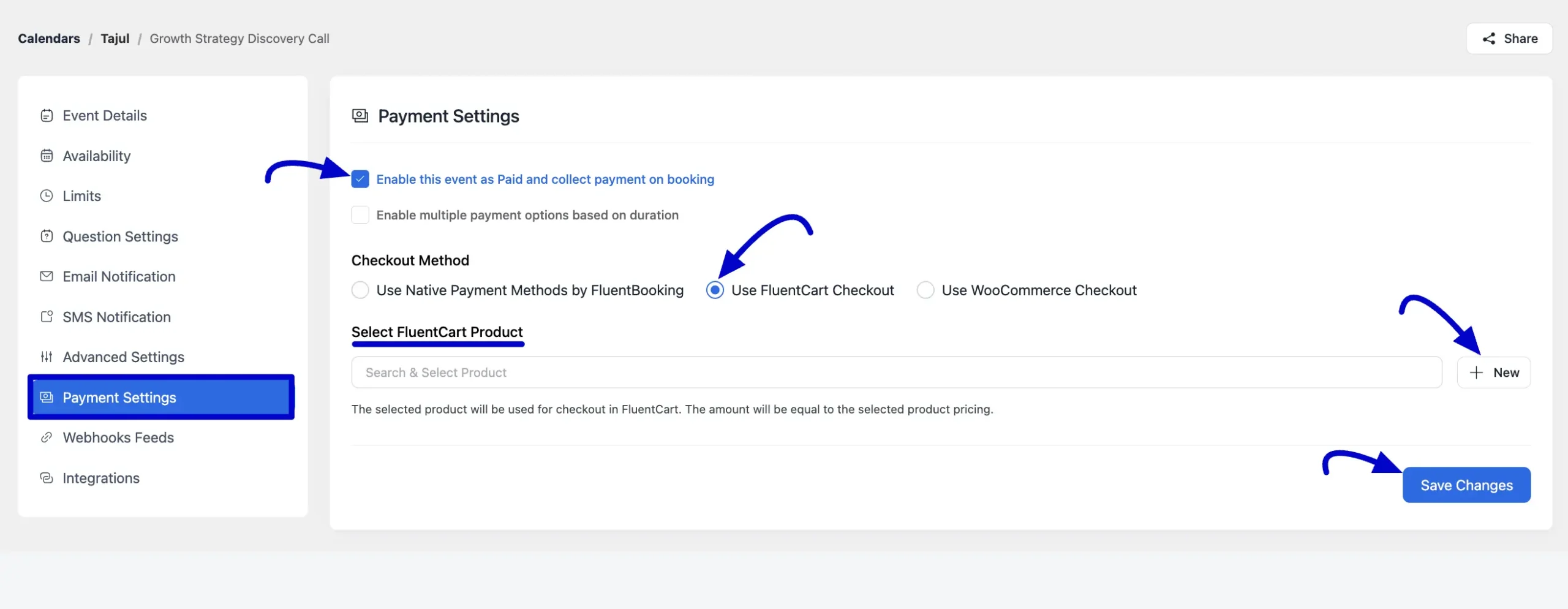
From the left sidebar menu, select Payment Settings. Then, check the box to enable “Enable this payment as Paid and collect payment on booking”.

Under Payment Method, select FluentCart Checkout from the dropdown menu.

Select a Product: You will see a dropdown list of your existing FluentCart products. Select the appropriate product for this service.

Note: If you don’t have a product yet, click + New to create one directly from this screen.

Free Version Note: Users on the free version can connect to only one product.

Multiple Durations (Optional): If you have set up multiple meeting durations for your event, you can assign different products and prices to specific durations. Click the Save Changes button to finalize the setup.
Booking Order and Payment Confirmation #

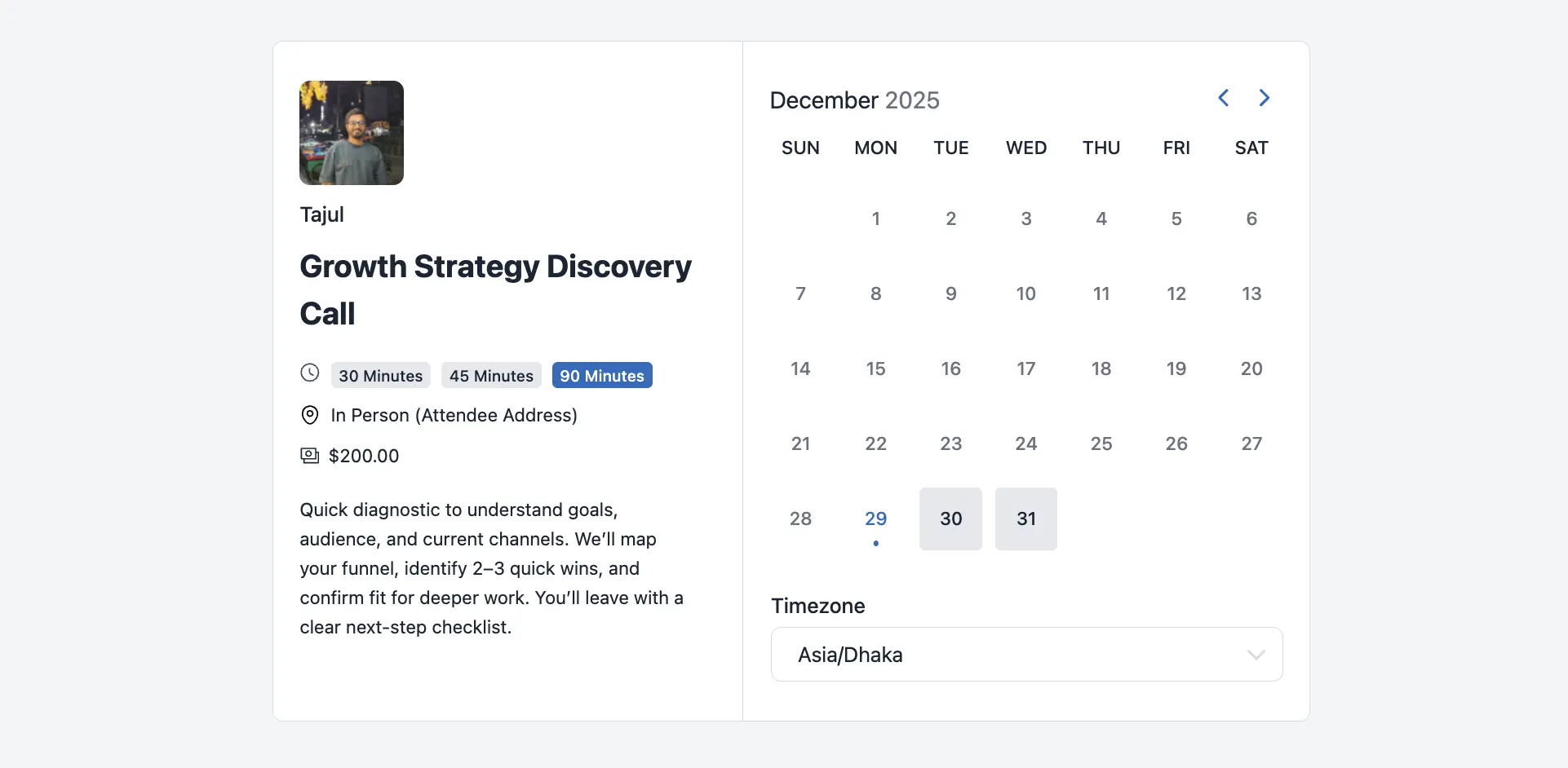
Once configured, your invitees will see a price displayed on your booking form that matches the connected FluentCart product.
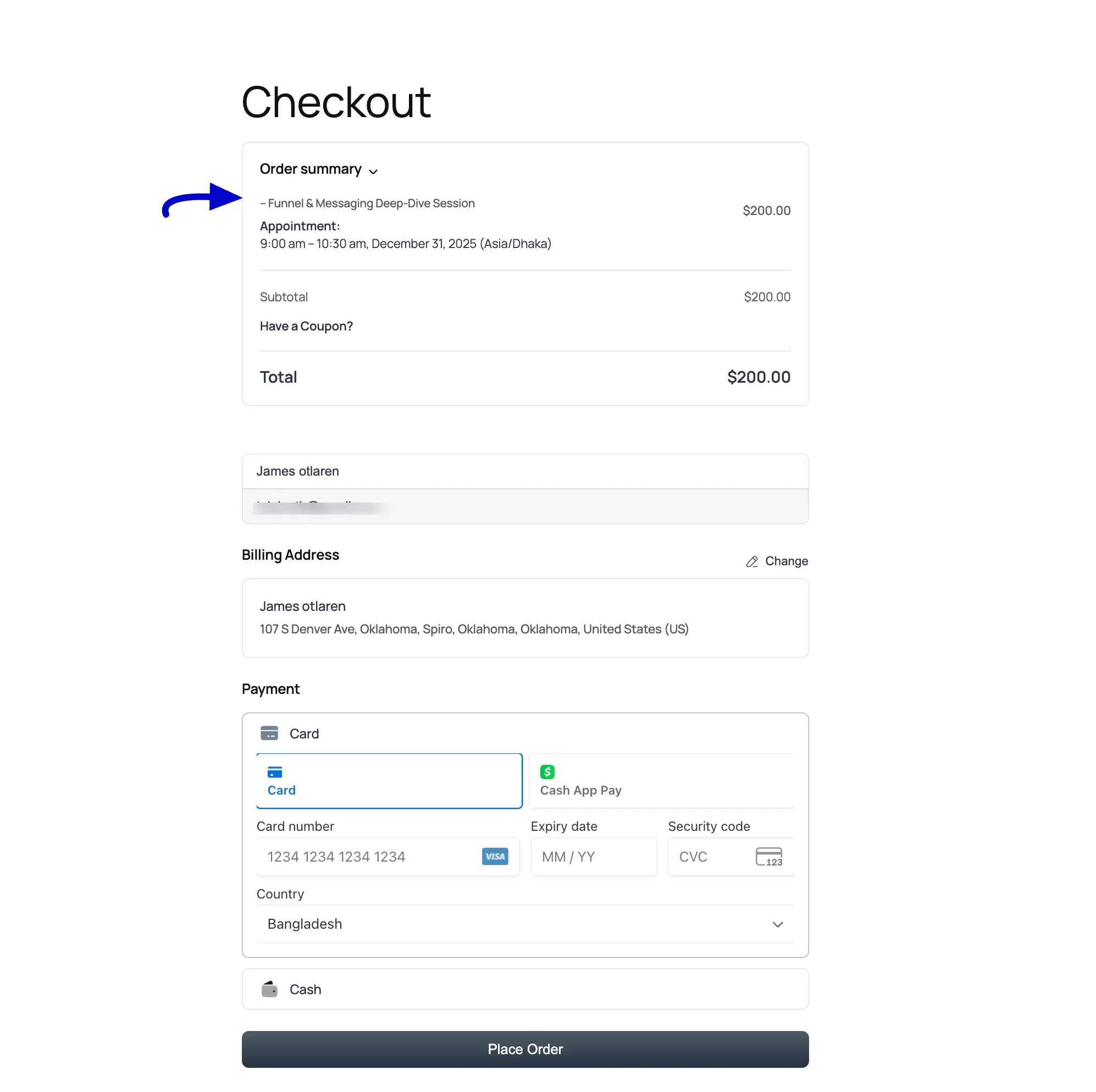
The User Experience: When an invitee selects a time and proceeds, the entire payment flow is handled via the FluentCart checkout page. This ensures a secure and familiar payment experience for your clients.
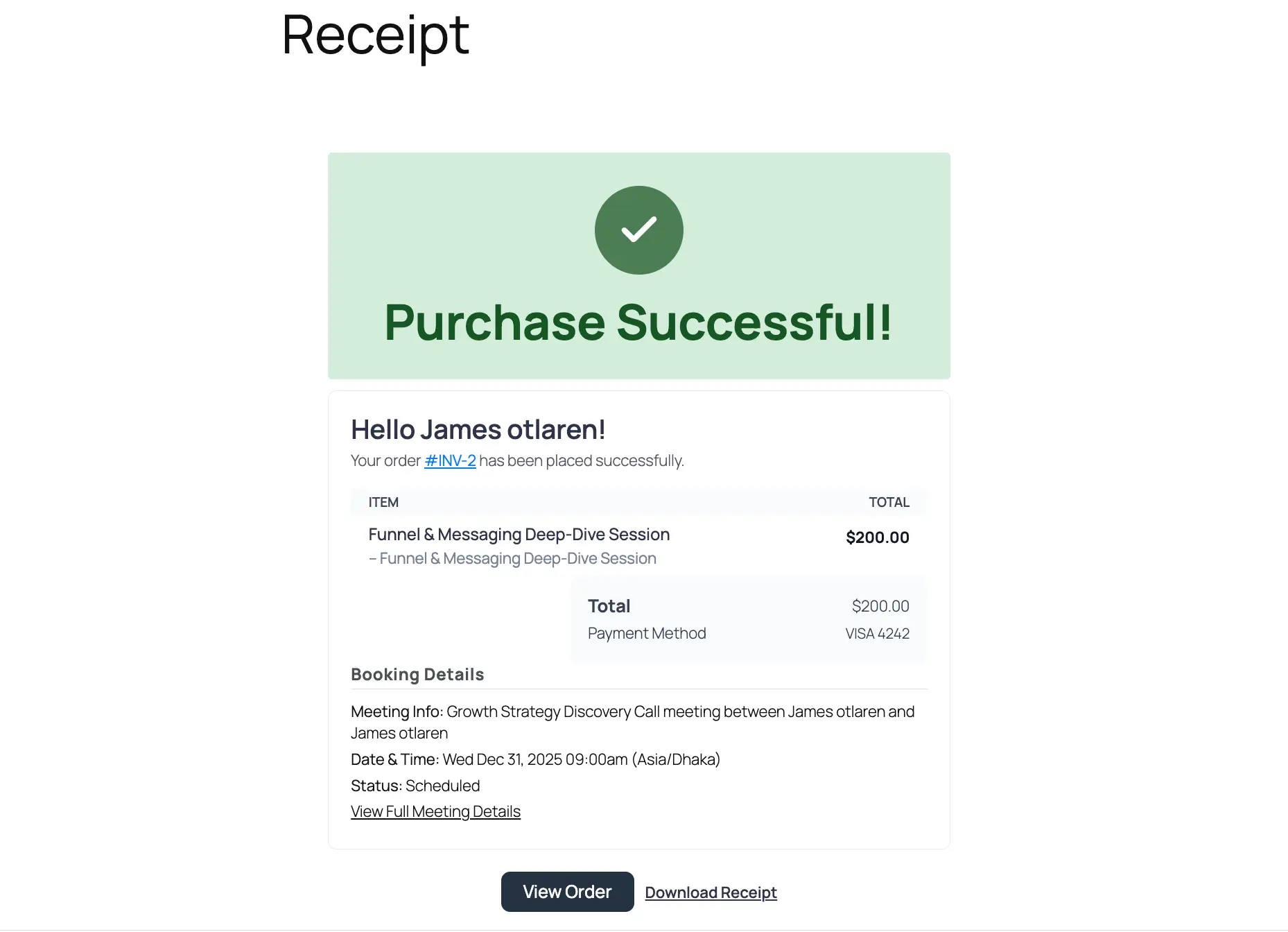
Order Completion: After the order is completed, the booking is fully processed. The payment is recorded via the FluentCart method you configured.
Managing Bookings and Orders #

All bookings made through this integration are automatically synced between the two plugins.

In FluentBooking, you can view the appointment details in the Bookings section.
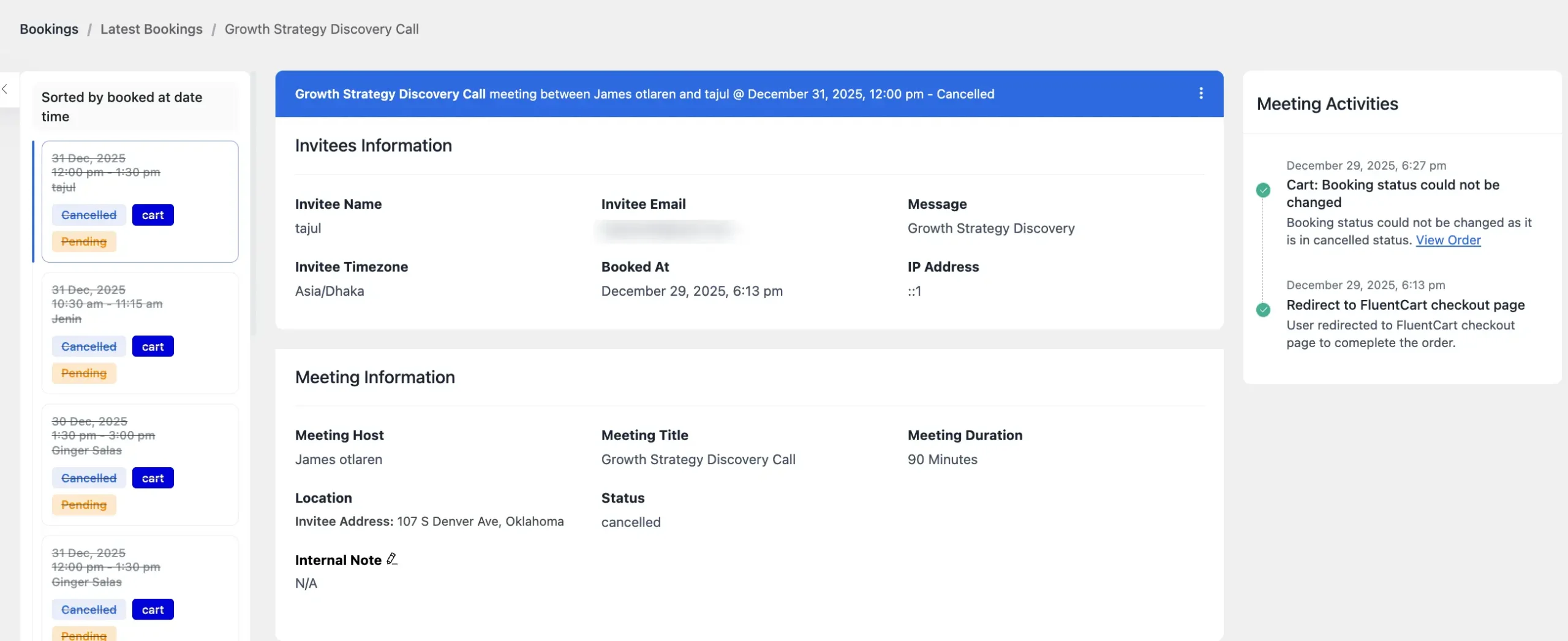
In FluentCart: Each booking is recorded as an official Order, ensuring your sales data and customer records remain centralized in one ecosystem.

Congratulations! You have successfully integrated FluentCart with FluentBooking, turning your appointments into a fully connected WooCommerce-powered sales channel.

If you have any further questions, concerns, or suggestions, please do not hesitate to contact our support team. Thank you. 

What are your Feelings

Share This Article :

  • Facebook
  • X
  • LinkedIn
  • Pinterest
Still stuck? How can we help?

How can we help?

Updated on December 29, 2025
FluentBoards Integration with FluentBooking

Leave a Reply Cancel reply

Your email address will not be published. Required fields are marked *

Table of Contents
  • Activate the FluentCart Module
  • Configure FluentCart Inside Your Booking Event
    • Set Up the Product and Checkout
    • Booking Order and Payment Confirmation
    • Managing Bookings and Orders

FluentBooking is the ultimate solution for booking appointments, meetings, webinars, events, and sales calls, etc.

Weekly Email Newslatter

Subscribe Form Weekly (Single Blog Page)

RESOURCES

  • Articles
  • Docs
  • Objectives & Vision
  • Brand Assets
  • Roadmap
  • Support
  • About us
  • Contact Us
  • Account Login
  • Affiliate Program
  • Report a Security Issue

USE CASES

  • Personal Service
  • Sales
  • Customer Service
  • e-Learning
  • Marketing
  • Recuitement

OUR PRODUCTS

  • FluentCommunity
  • FluentCRM
  • Fluent Forms
  • FluentBoards
  • FluentSupport
  • Ninja Tables
  • WP Social Ninja
  • Paymattic
  • FluentSMTP
  • AzonPress
  • FluentSnippets

POPULAR

  • Why We Built FluentBooking?
  • FluentBooking vs Cal.com
  • FluentBooking vs Calendly

Social

Facebook X Linkedin YouTube Instagram

Copyright © 2026 FluentBooking. A Brand of WPManageNinja™ Affiliate | Terms & Privacy

Sign Up for Our Newsletter

Subscribe Form Weekly (Single Blog Page)
Let's Simplify Your Appointments with FluentBooking!
Free downloads
  • How It Works
  • Features
  • Pricing
  • For Teams
    • Personal Service
    • Sales
    • Marketing
    • eLearning
    • Customer Service
    • Recruitment
  • About
    • Contact
  • Resources
    • Docs
    • Roadmap
    • Articles
    • Comparison
    • Support
    • Demo