Do you offer coaching packages, multi-week courses, or ongoing therapy sessions? Instead of asking your clients to book each appointment one by one, you can use Recurring Events.
This feature allows your clients to book a series of appointments like a 6-week bootcamp or a monthly check-in in a single transaction. It saves time for your customers and guarantees future bookings for you.
This guide will explain every setting in detail so you can configure it perfectly for your needs.
Step 1: Open Your Event Settings #
First, you need to select which event you want to turn into a recurring series.
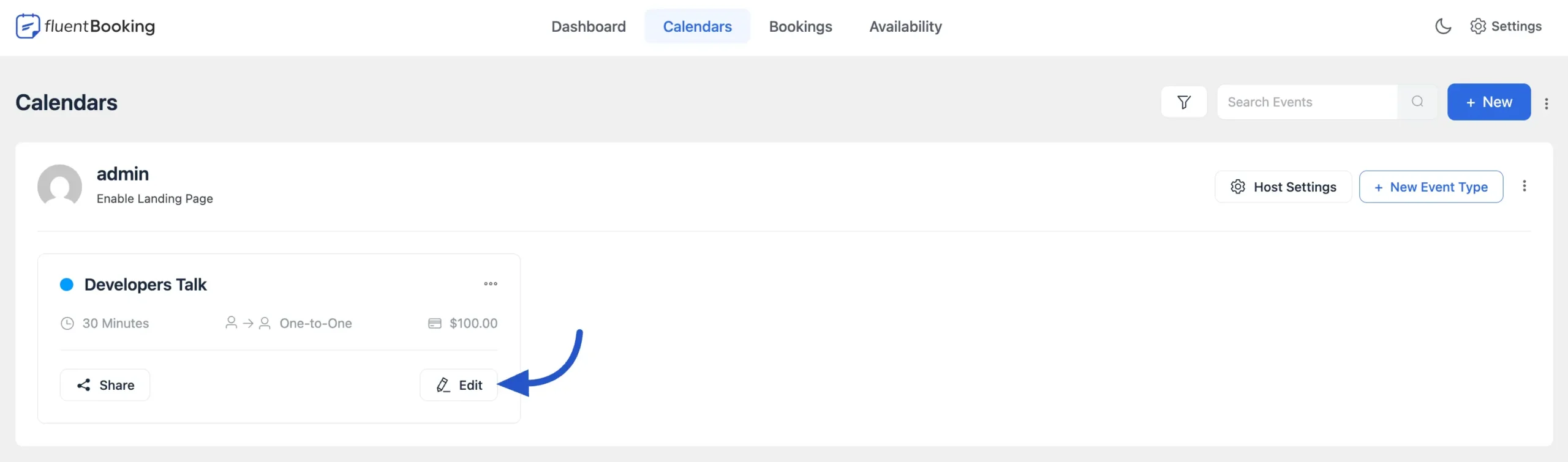
- Navigate to Calendars in your FluentBooking dashboard.
- Locate the specific event (e.g., “Developers Talk”).
- Click the Edit button on that event card.
Step 2: Enable Recurring Mode #
By default, all events are set to “single booking.” Here is how to change that:
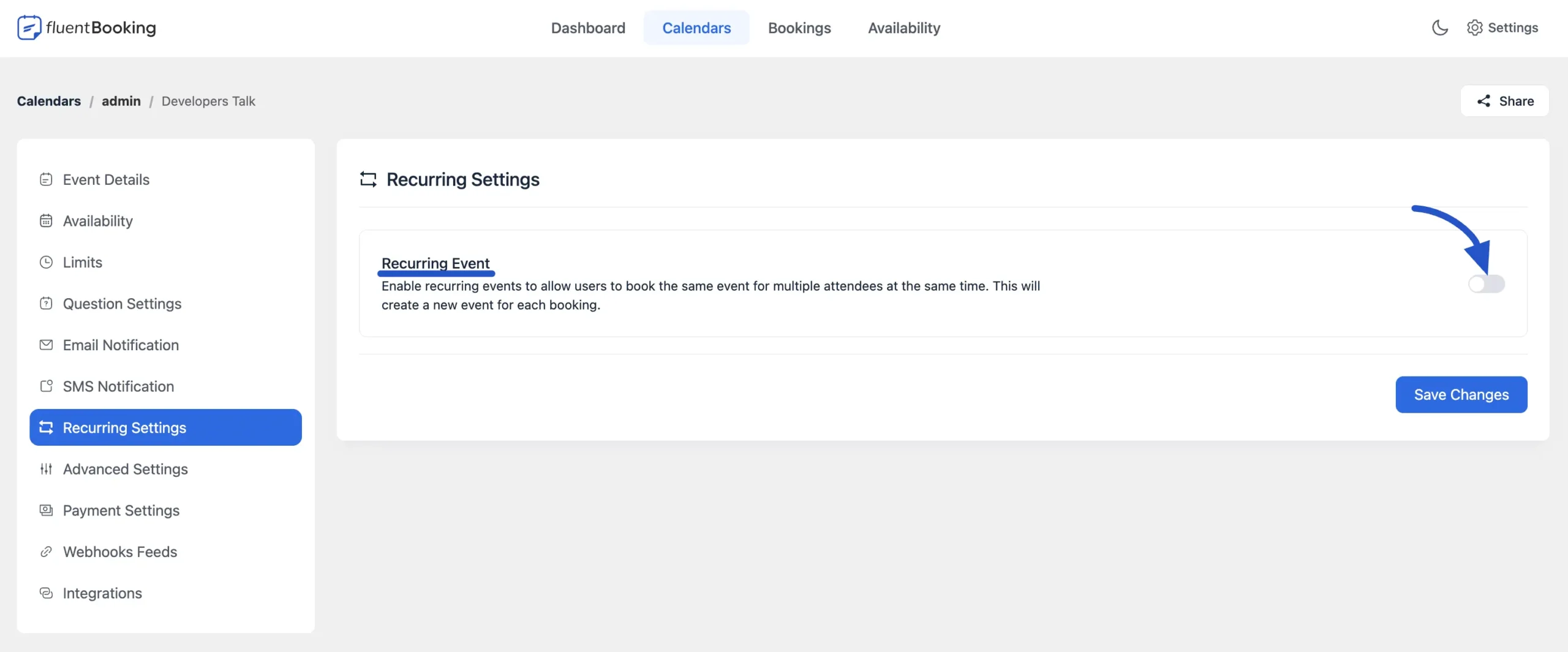
- In the left-hand menu of the event editor, click on Recurring Settings.
- Find the toggle switch labeled Recurring Event.
- Turn it ON (it will turn blue).
Step 3: Configure Your Schedule (Important) #
This is where you define the rules for your series. Let’s break down what each option means for your business.
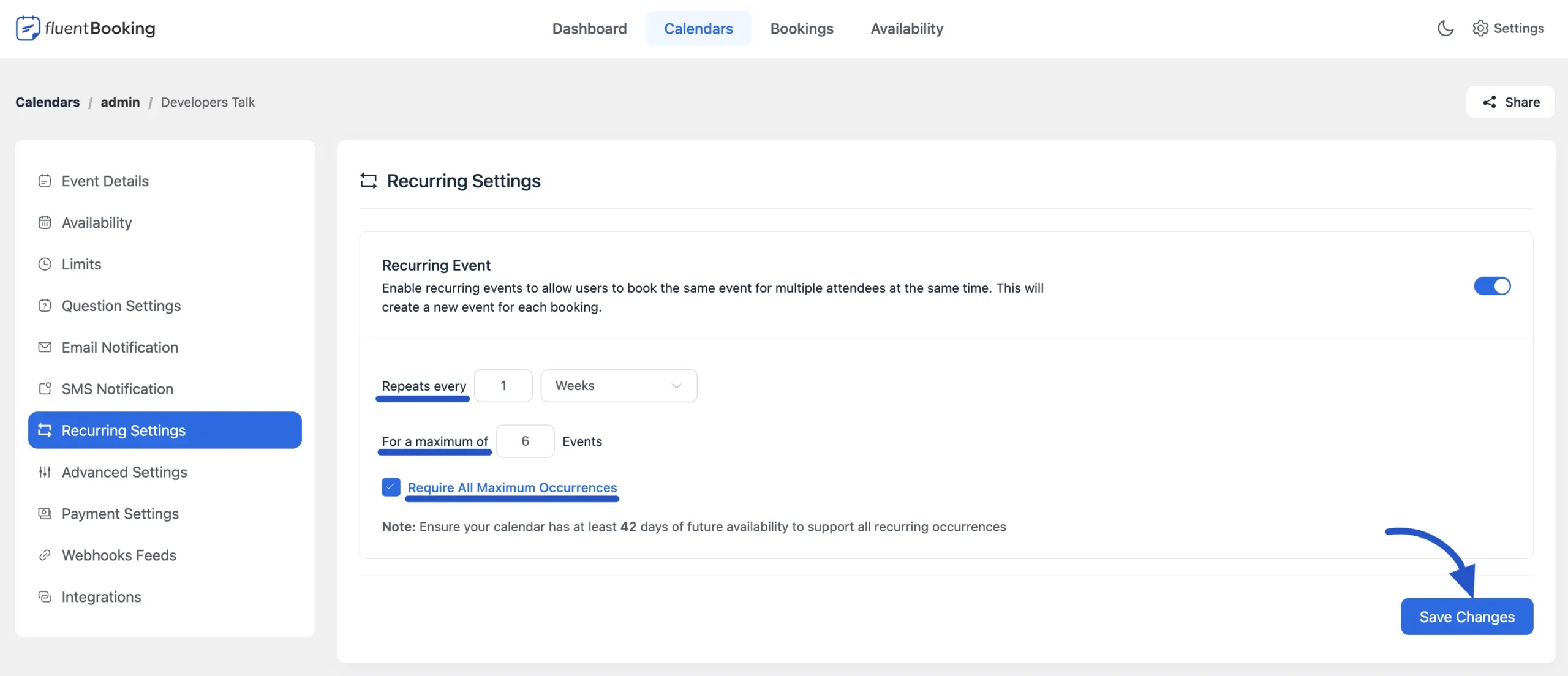
1. Frequency (Repeats every…) #
This determines the gap between sessions.
- Example: If you select 1 Weeks, the system will look for the same time slot exactly 7 days later.
- Use case: Perfect for “Every Tuesday at 10 AM” meetings.
2. Count (For a maximum of…) #
This is the total number of sessions in the series.
- Example: If you enter 6 Events, the customer will be booking 6 appointments total.
3. Strict vs. Flexible (Require All Maximum Occurrences) #
This checkbox changes how the booking works significantly:
- Checked (Strict): The customer must book all sessions in the series. They cannot remove individual dates.
- Best for: Fixed courses, paid packages, or structured programs where attendance at every session is required.
- Unchecked (Flexible): The customer can choose to book fewer sessions than the maximum. They might book only 4 out of the 6 available slots if they are busy on certain weeks.
Important Availability Note:
The system needs enough “future availability” to book the whole series.
- Example: If you create a 6-week series, your calendar’s “Availability” settings must allow bookings at least 42 days (6 weeks) into the future. If your calendar only allows bookings for the “Next 30 days,” the system cannot book the final sessions of the series.
- Once you have configured these rules, click Save Changes.
Step 4: What Your Customer Sees #
It is helpful to understand the experience from your client’s perspective.
On the Booking Page:
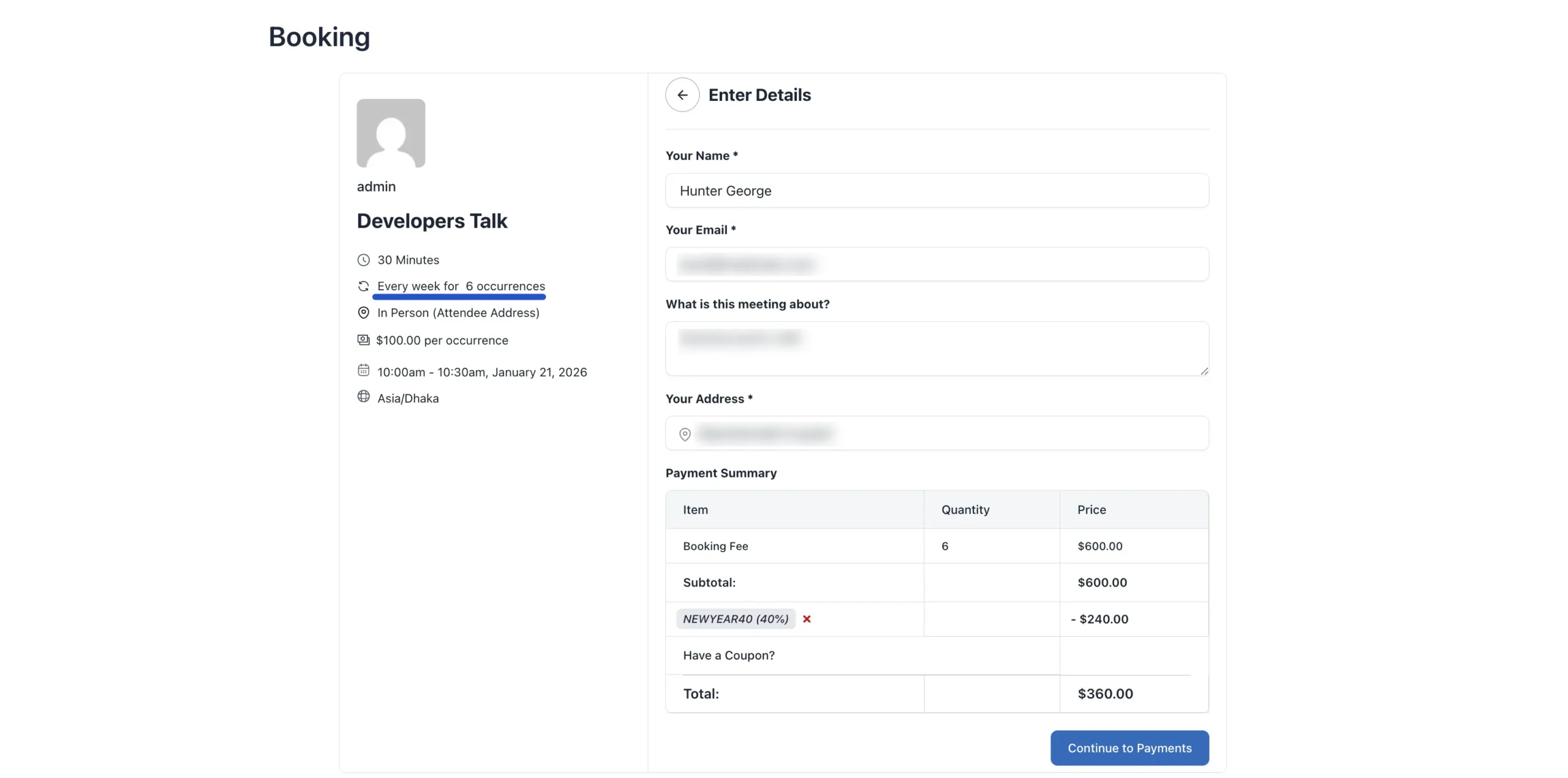
When they select a start date, they will see a summary of the commitment (e.g., “Every week for 6 occurrences”).
- Pricing: If you charge $100 per session, the system automatically calculates the total. A 6-session package will show as $600.00 at checkout.
On the Confirmation Page:
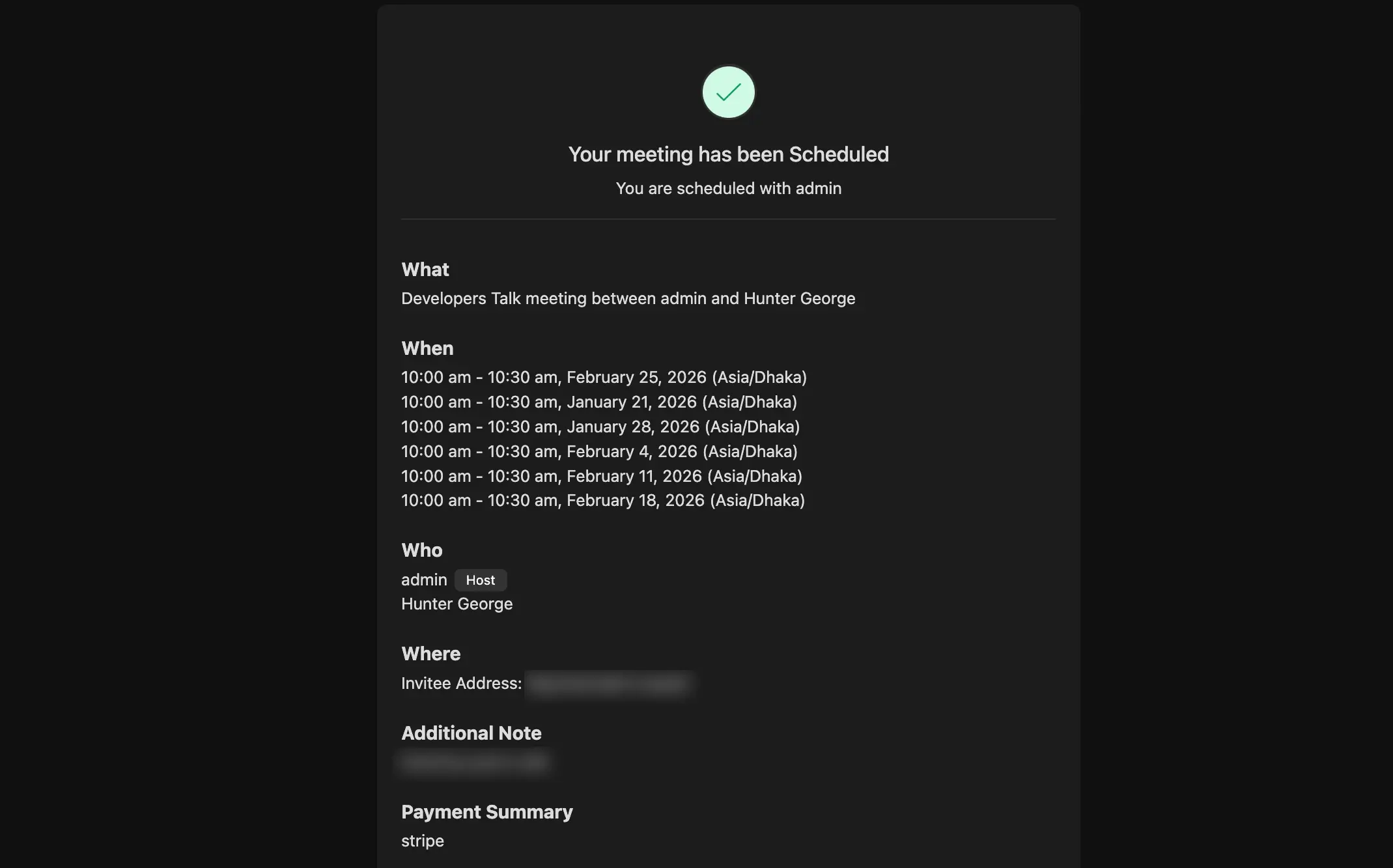
After they pay or confirm, they won’t just see one date. They will see a list of every single appointment date and time scheduled in the series, so they can add them to their personal calendar.